How to Connect a Printer to a Mac
Most modern printers connect to a Mac with little fuss, yet a printer that never appears in the list can waste an afternoon. Start with the connection itself, then add the printer properly, and check drivers only if macOS cannot find it.
TL;DR / Quick Fix
Quick fix: Connect the printer to power and your network. Check the printer is awake and has paper and ink. Add the printer in System Settings. Print a test page. If the printer is missing, check AirPrint and drivers. Try USB to isolate a Wi-Fi problem.
Follow these steps
- Connect the printer to power and your network. Turn the printer on, connect it to the same Wi-Fi network as your Mac, or plug it in with a USB cable. Printers on a different network, or a guest network, often will not appear.
- Check the printer is awake and has paper and ink. A printer in deep sleep, out of paper, or out of ink may not advertise itself. Wake it, load paper, and clear any error lights before adding it to the Mac.
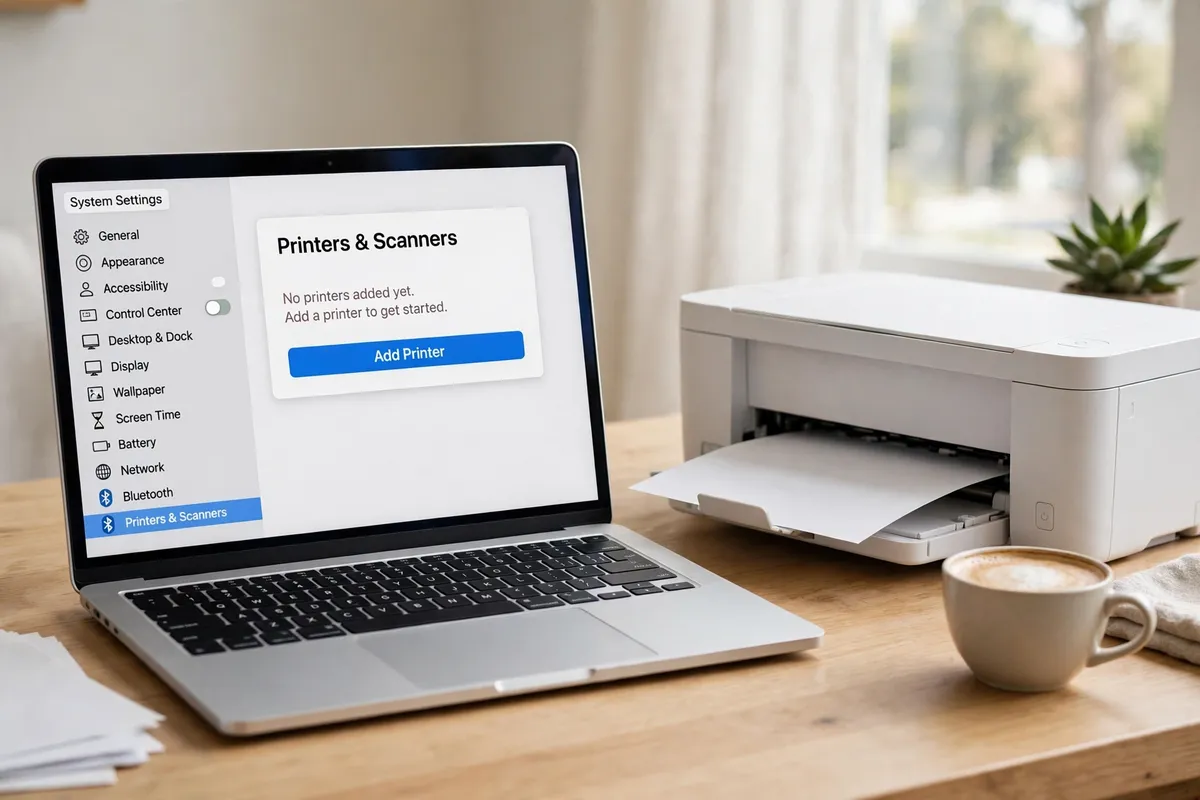
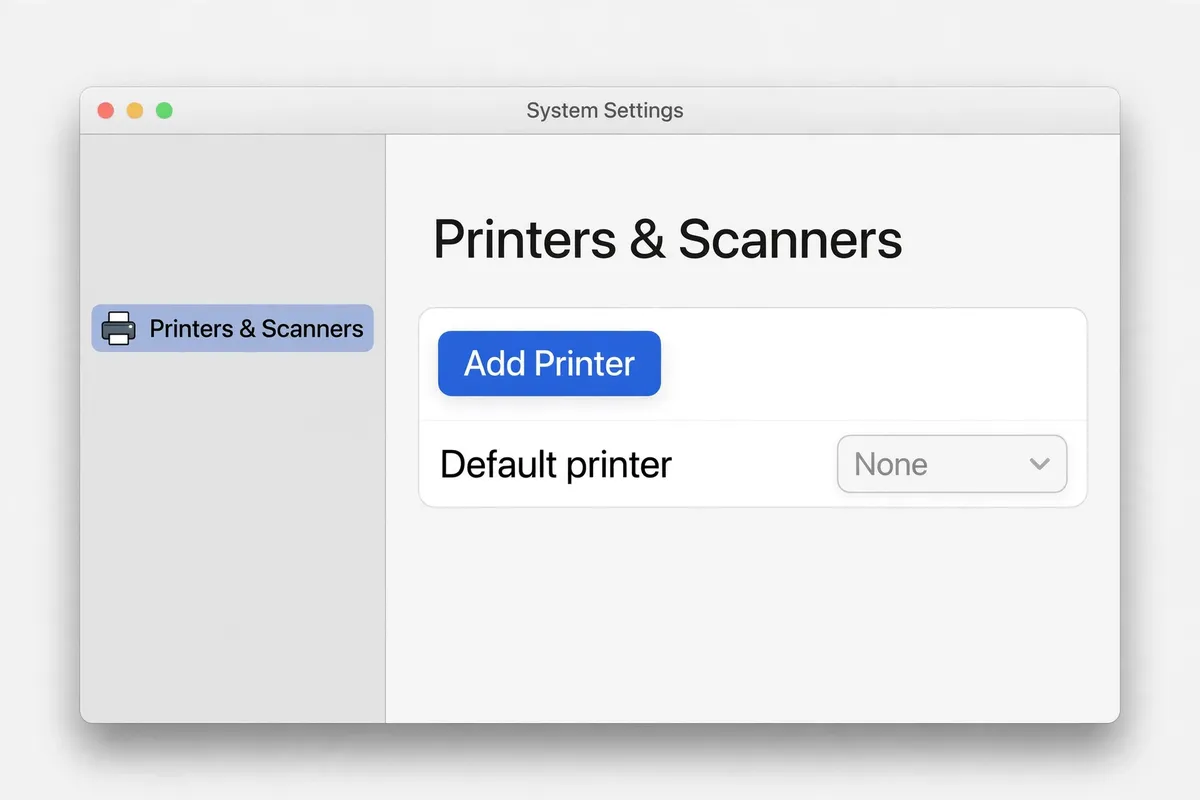
- Add the printer in System Settings. Open System Settings, then Printers and Scanners, click Add Printer, and select your printer from the list. macOS usually sets it up automatically, including AirPrint printers, which need no extra driver.
- Print a test page. Open any document and print a single test page. If it prints, you are done. If it queues but never prints, check that the printer is not paused in Printers and Scanners and that it is set as the default if you want it to be.
- If the printer is missing, check AirPrint and drivers. Many modern printers support AirPrint and need no driver at all. If yours does not appear, check the manufacturer's official website for a macOS driver for your exact model, and install only that official driver.
- Try USB to isolate a Wi-Fi problem. Connect the printer by USB and try printing. If USB works but Wi-Fi does not, the network is the problem: check that both devices share the same network and that the printer's Wi-Fi signal is strong.
- Remove and re-add a printer that misbehaves. In Printers and Scanners, select the printer, click Remove, then add it again. Re-adding clears a stale queue and a wrong driver choice, which are common causes of printers that appear but never print.
What NOT to do
- Do not download a printer driver from a search result or a driver site. Use the manufacturer's official website, or let macOS handle an AirPrint printer.
- Do not install a printer utility bundle you did not ask for. Many installers add extra software you do not need.
- Do not ignore a printer error light and keep retrying. Clear the paper, ink, or jam error first, or every job will queue behind it.
If your test page prints, the printer is connected. If it still does not appear after a USB test and an official driver check, the printer's network settings, not the Mac, are the most likely cause.
Frequently asked questions
What is the quickest fix in this guide?
Connect the printer to power and your network.
What should I avoid doing?
Do not download a printer driver from a search result or a driver site.
What do I check after I finish?
Remove and re-add a printer that misbehaves.