How to Free Up Space on Your Phone Without Deleting Photos
When your phone says storage is full, the instinct is to delete photos. That is rarely the best first move. Apps, cached files, and downloads usually take up far more room, and this guide clears those first.
TL;DR / Quick Fix
Quick fix: See what is actually using the space. Offload or uninstall apps you do not use. Clear cached files, starting with the browser and social apps. Delete downloads and old files you no longer need. Review large videos and duplicates last, not first. Check storage again.

Follow these steps
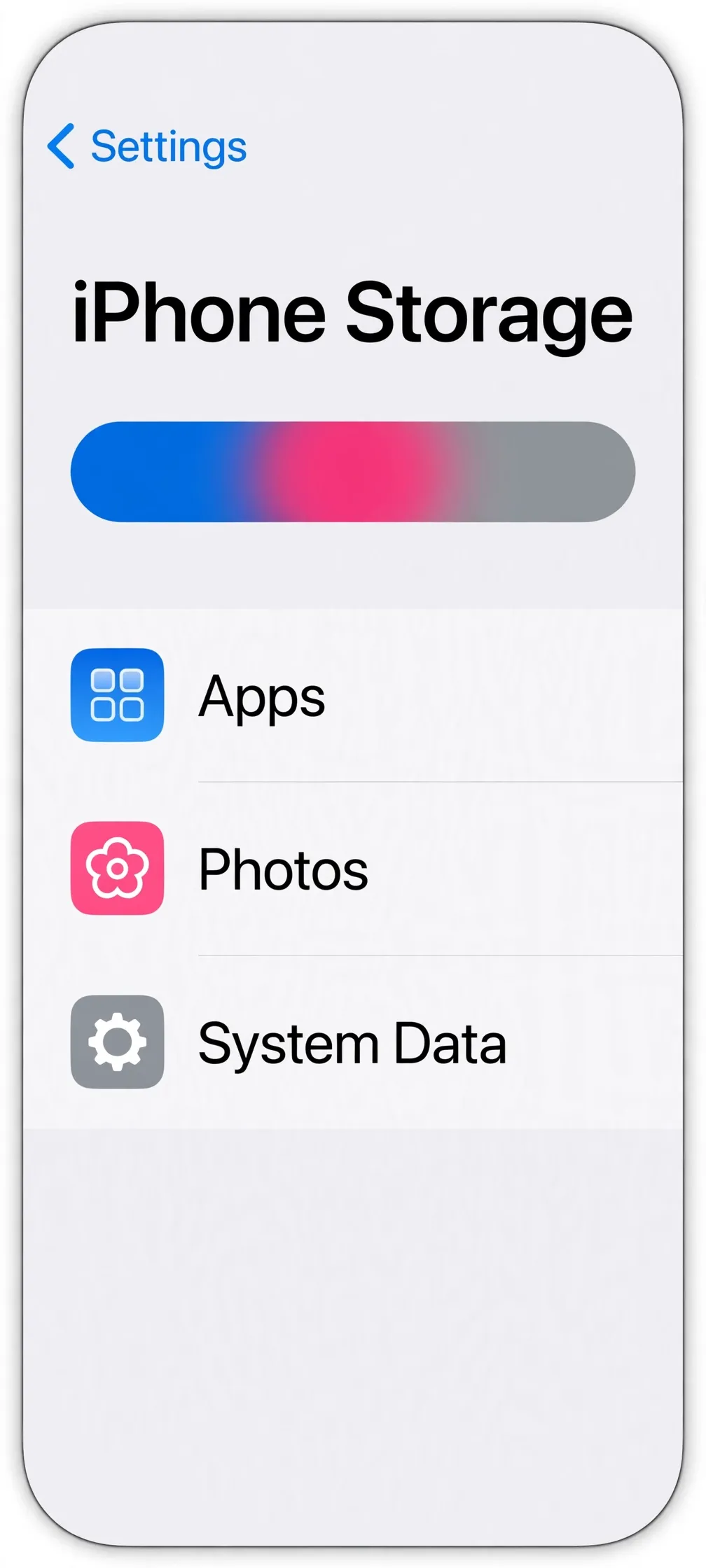
- See what is actually using the space. On iPhone, go to Settings, then General, then iPhone Storage: you will see a breakdown by apps, photos, and system data. On Android, go to Settings, then Storage. Do not delete anything yet. You need this picture first so you clear the right things.
- Offload or uninstall apps you do not use. On iPhone, turn on Offload Unused Apps in the same storage screen, or tap an unused app and choose Offload App: this removes the app but keeps its documents and data. On Android, uninstall apps you have not opened in months. You can reinstall any of them later.
- Clear cached files, starting with the browser and social apps. On Android, go to Settings, then Apps, open a heavy app, then Storage, and tap Clear Cache. This removes temporary files, not your account or saved content. On iPhone there is no single clear-cache button, so offload and reinstall a heavy app, or clear its cache inside the app's own settings if it offers one.
- Delete downloads and old files you no longer need. Open your Files app and check the Downloads folder for installers, old documents, and videos you saved once and forgot. Delete what you recognize as finished with, and keep anything you might still need.
- Review large videos and duplicates last, not first. If you still need room after the steps above, look at your longest videos and any duplicates. Move the ones you want to keep to a backup first, so freeing space never means losing something you cannot replace.
- Check storage again. Return to the storage screen and confirm the free space has grown. If one category is still huge, that is your next target, and it is usually a single app holding cached data.
What NOT to do
- Do not delete system files or folders you do not recognize. Removing the wrong thing can break apps or the phone itself.
- Do not clear data instead of cache on Android unless you mean to. Clearing data signs you out and removes the app's saved content.
- Do not delete your only copy of photos to make room. Back them up first, then delete.
- Do not pay for a cleaner app that promises to free space. Your phone's built-in storage screen does the same job for free.
If storage is still tight after clearing apps and cache, your phone may simply be full of things you genuinely use. At that point, moving photos and videos to a backup is the honest fix, and it is better than deleting things in a panic.
Frequently asked questions
What is the quickest fix in this guide?
See what is actually using the space.
What should I avoid doing?
Do not delete system files or folders you do not recognize.
What do I check after I finish?
Check storage again.