Accented Letters: Press and Hold
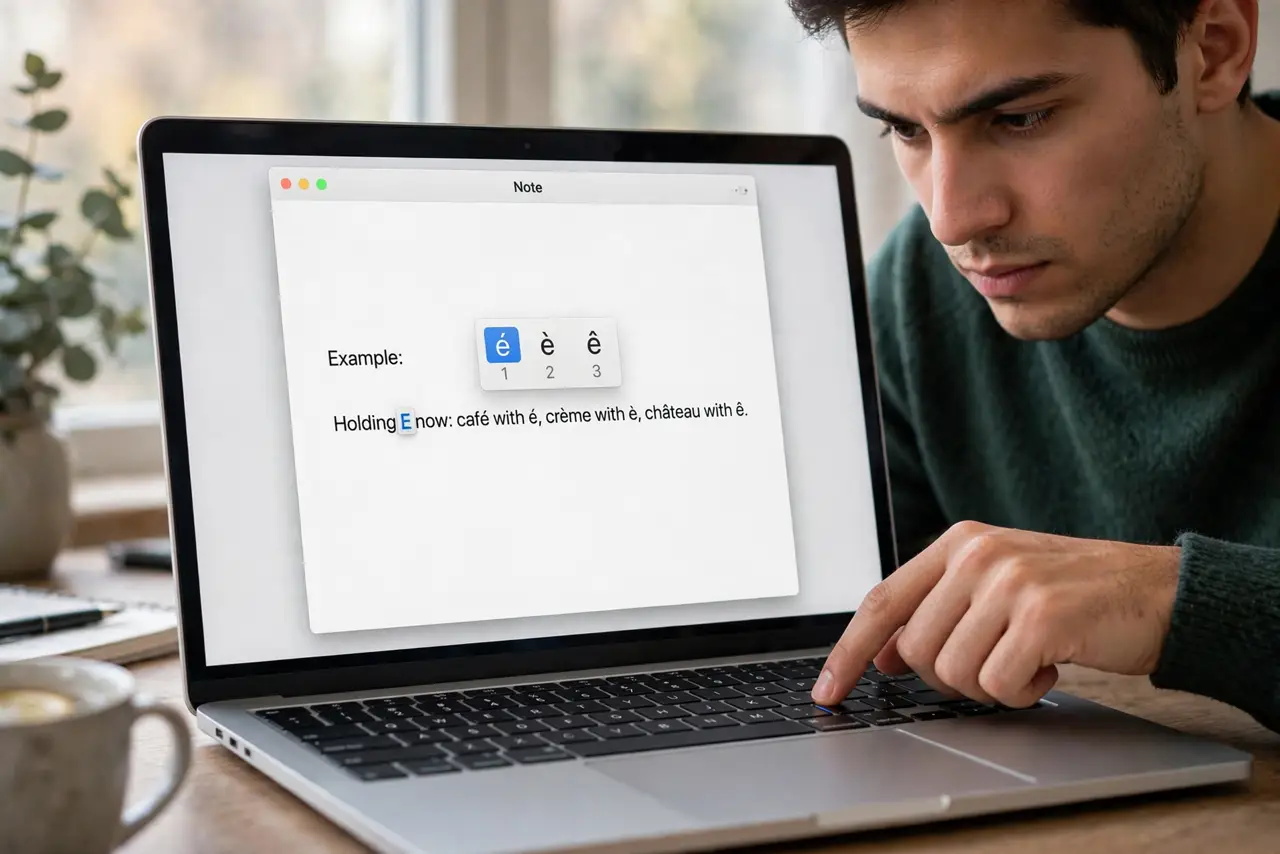
Café, naïve, résumé — the accents matter, and the Mac's press-and-hold is the fastest way to type them. Hold a letter and a popup offers its accented versions; tap the number or click the one you want. If the popup never appears, one Keyboard setting is blocking it.
TL;DR / Quick Fix
Quick fix: press and hold a letter — a popup shows its accents after a moment. Pick with the number keys or a click. If nothing pops up, your [[key repeat rate|mac-key-repeat-rate]] may be interfering, or the press-and-hold feature is disabled — check System Settings > Keyboard.
Follow these steps
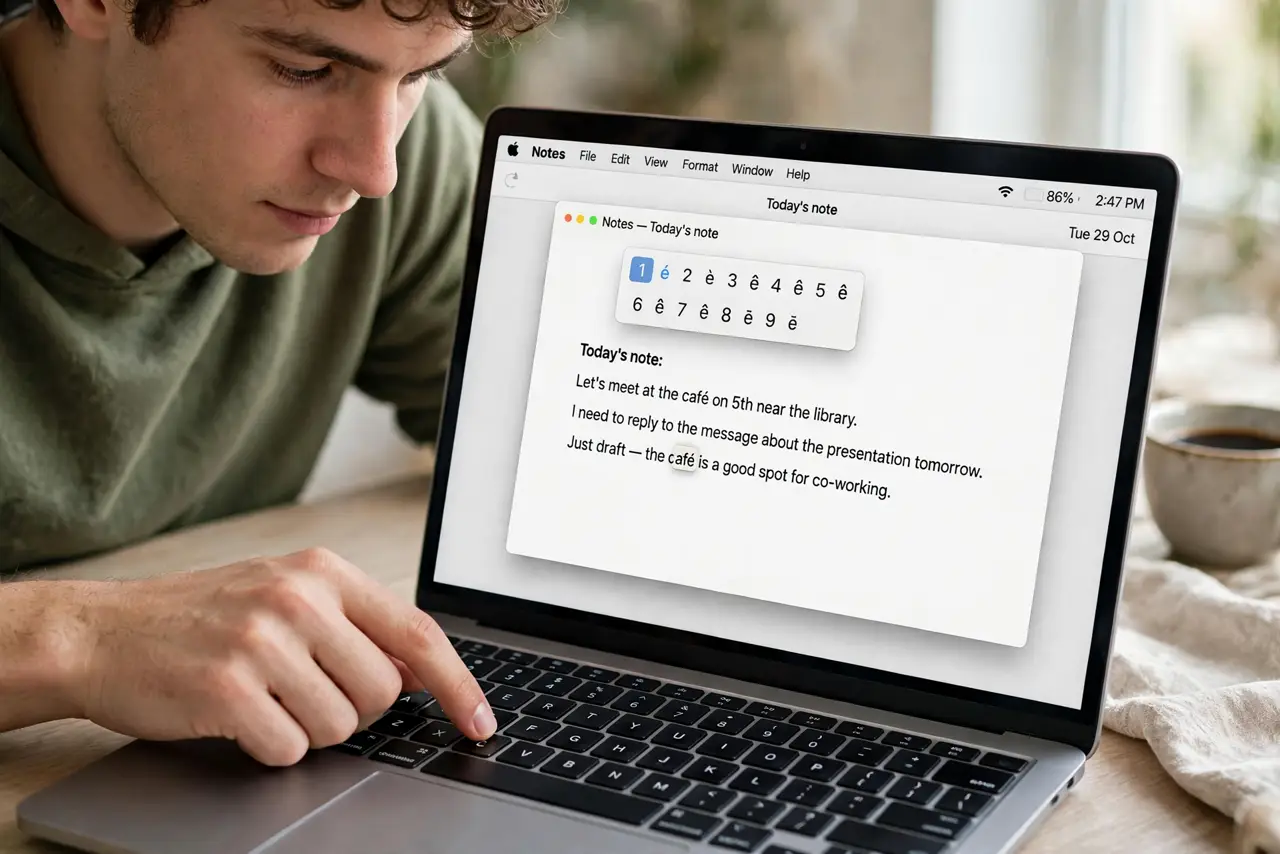
- Press and hold any vowel. Hold E, A, O, U, or C. After a brief pause the accent menu appears above the cursor with numbered options.
- Pick with a number or a click. Tap the number under the accent you want, or click it. Release the key and the accented letter types.
- Do not hold too briefly. A quick tap types the plain letter — the popup needs a deliberate hold. This is where the repeat delay interacts.
- Use the Character Viewer for rarities. Press Control-Command-Space for the full character palette — currency symbols, math, and every accent ever made.
- Learn the Option-key shortcuts for speed. Option-E then E gives é; Option-U then U gives ü. Faster than the popup once memorized.
- Check the setting if the popup never shows. Some setups disable press-and-hold in favor of key repeat. System Settings > Keyboard controls which behavior wins.
What NOT to do
- Do not hold the key forever waiting. If the popup has not appeared after a second, the feature is off — holding longer will not summon it.
- Do not use the popup for passwords. Accented characters in passwords cause login grief on systems that do not expect them.
- Do not confuse it with autocorrect. The popup offers accents; autocorrect changes whole words — different features, different fixes.
- Do not memorize every Option combo at once. Learn the two or three accents you actually type; the popup covers the rest.
Frequently asked questions
Why doesn't the accent menu appear when I hold a key?
Press-and-hold is likely disabled in favor of key repeat — check System Settings > Keyboard and re-enable the accent behavior.
How do I type ñ on a Mac?
Hold N and pick ñ from the popup, or press Option-N then N — the shortcut is worth memorizing.
Does this work in every app?
In nearly all native Mac apps. A few cross-platform apps handle key holds their own way — the Character Viewer always works as backup.