Fix AirDrop Not Finding Your Device on Mac
AirDrop that cannot find a nearby iPhone, iPad, or Mac usually fails on discovery, not on the transfer itself. Both devices must have Wi-Fi and Bluetooth on, be close together, and allow discovery. Check those three things first.
TL;DR / Quick Fix
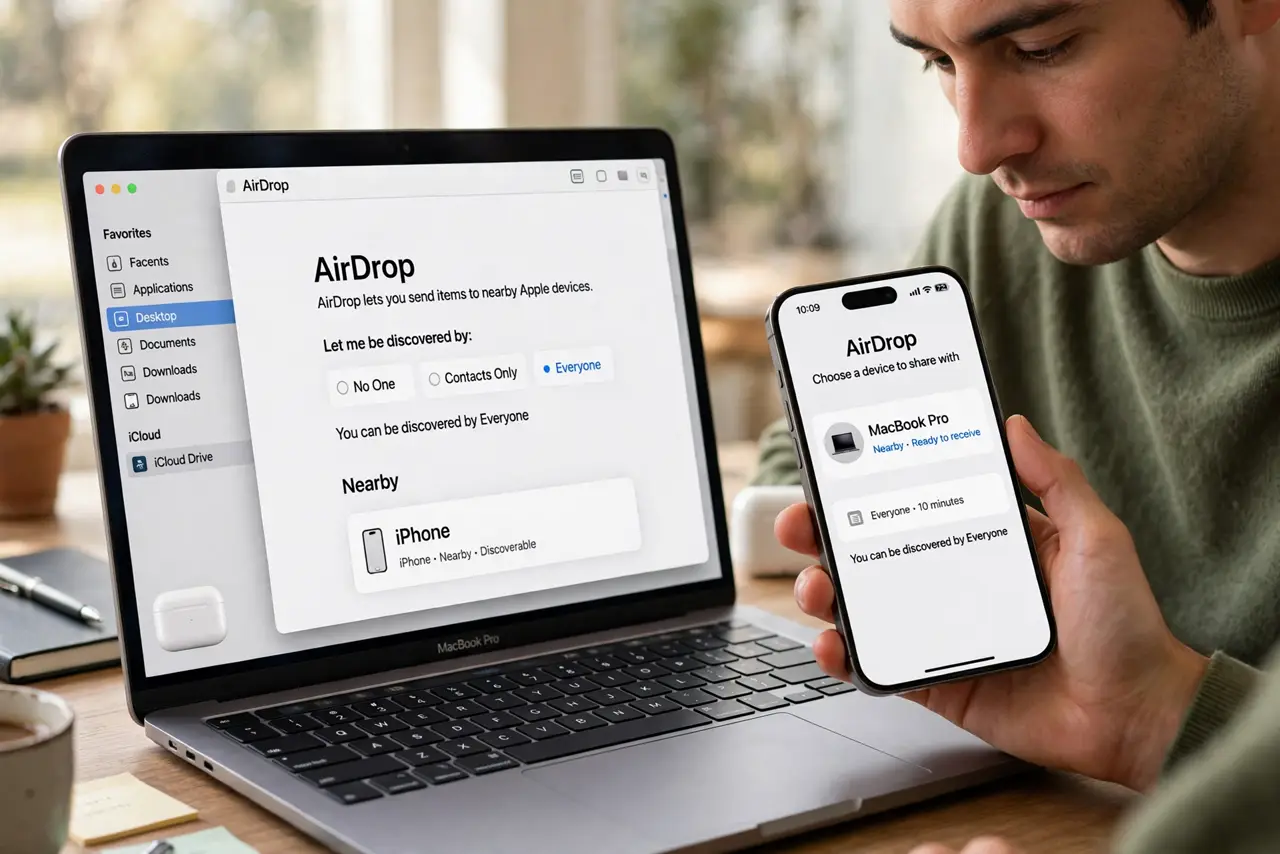
Quick fix: turn Wi-Fi and Bluetooth on for both devices and bring them within a few feet. Then open Finder, then AirDrop on the Mac, and set Allow me to be discovered by to Everyone or Contacts Only as appropriate. Retry the transfer once.
Follow these steps
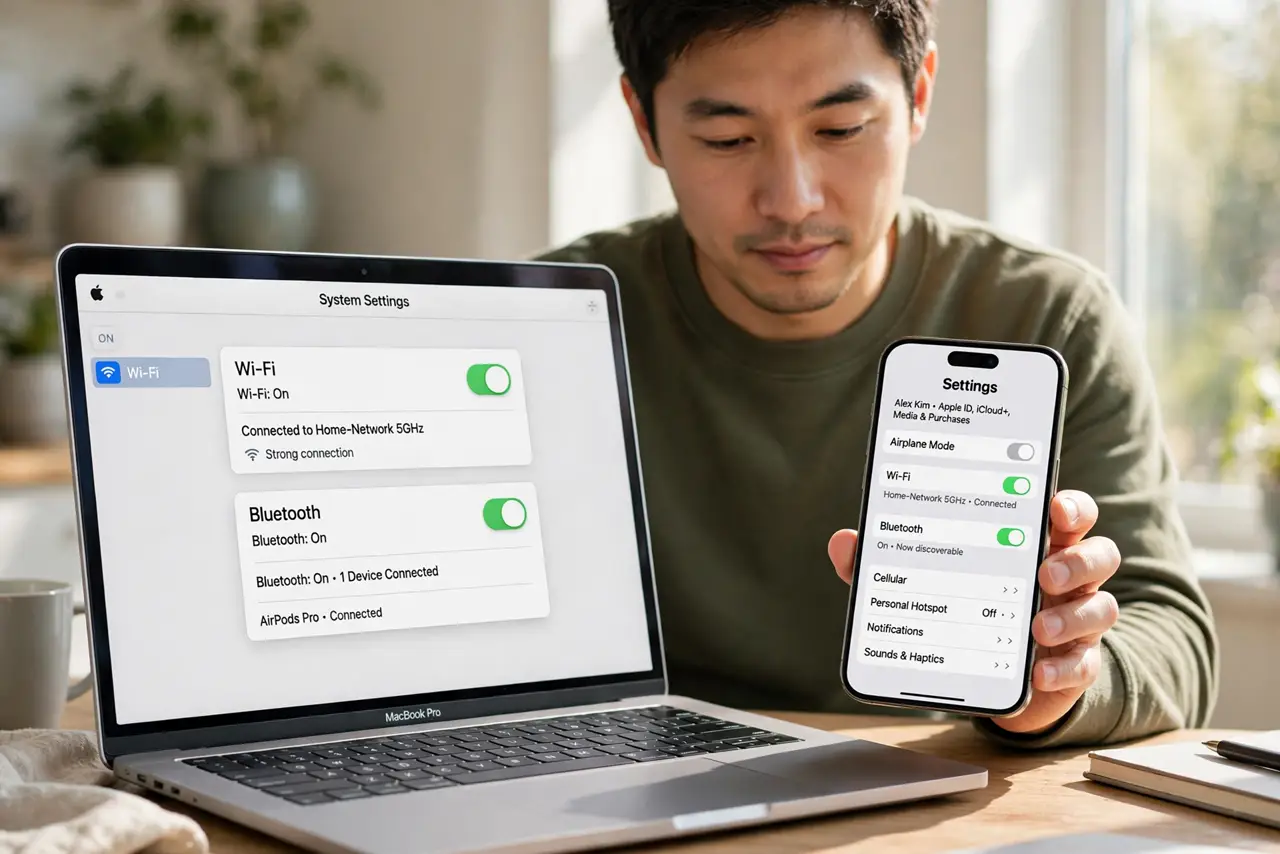
- Turn Wi-Fi and Bluetooth on both devices. Check that Wi-Fi and Bluetooth are on for the Mac and the other device. AirDrop needs both radios, even though the transfer itself does not use your internet connection.
- Bring the devices close together. Place the devices within a few feet of each other with nothing large between them. Distance and obstacles weaken the discovery signal.
- Open AirDrop in Finder. On the Mac, open Finder and click AirDrop in the sidebar. The AirDrop window shows nearby devices that allow discovery.
- Set discovery correctly. At the bottom of the AirDrop window, set Allow me to be discovered by to Contacts Only if the other device is in your contacts, or Everyone for a quick test with a trusted device.
- Check the other device's AirDrop setting. On the iPhone or iPad, open Control Center, press the network area, and check AirDrop is set to receive. A device set to Receiving Off will never appear.
- Toggle Wi-Fi and Bluetooth once. Turn Wi-Fi and Bluetooth off and on again on both devices, then open AirDrop again. A fresh radio restart often reveals devices that were hidden.
What NOT to do
- Do not reset network settings first. Wi-Fi, Bluetooth, discovery, and distance cover the common causes without wiping saved networks.
- Do not set discovery to Everyone permanently. Use it for a quick test with a trusted device, then return to Contacts Only afterwards.
- Do not test AirDrop across rooms. Discovery works best at close range, so bring the devices together before concluding it is broken.
- Do not use a public Wi-Fi network as a test. AirDrop discovery can behave differently on restricted networks, so test on your normal home network.
Frequently asked questions
Why can't AirDrop find a device right next to me?
One device usually has Wi-Fi or Bluetooth off, AirDrop set to Receiving Off, or discovery set to Contacts Only for a non-contact.
Does AirDrop need internet?
No. It needs Wi-Fi and Bluetooth on, but the transfer itself goes directly between devices, not through the internet.
Is Everyone discovery safe?
For a short test with a trusted nearby device, yes. Return to Contacts Only afterwards so strangers cannot see your device.