Pin an App to a Space
Every time you open your mail app it lands wherever it wants, and your carefully arranged Spaces fall apart. macOS lets you pin an app to a specific Space so it always opens in the same place — your virtual desks finally stay put.
TL;DR / Quick Fix
Quick fix: right-click the app's Dock icon, go to Options, then Assign To, and choose the Space (or 'This Desktop'). The app will always open there. Use 'All Desktops' for utilities like notes that should follow you everywhere across Spaces.
Follow these steps
- Create your Spaces first. Open Mission Control (F3 or three-finger swipe up) and add desktops with the + button. Name them mentally: Work, Comms, Media.
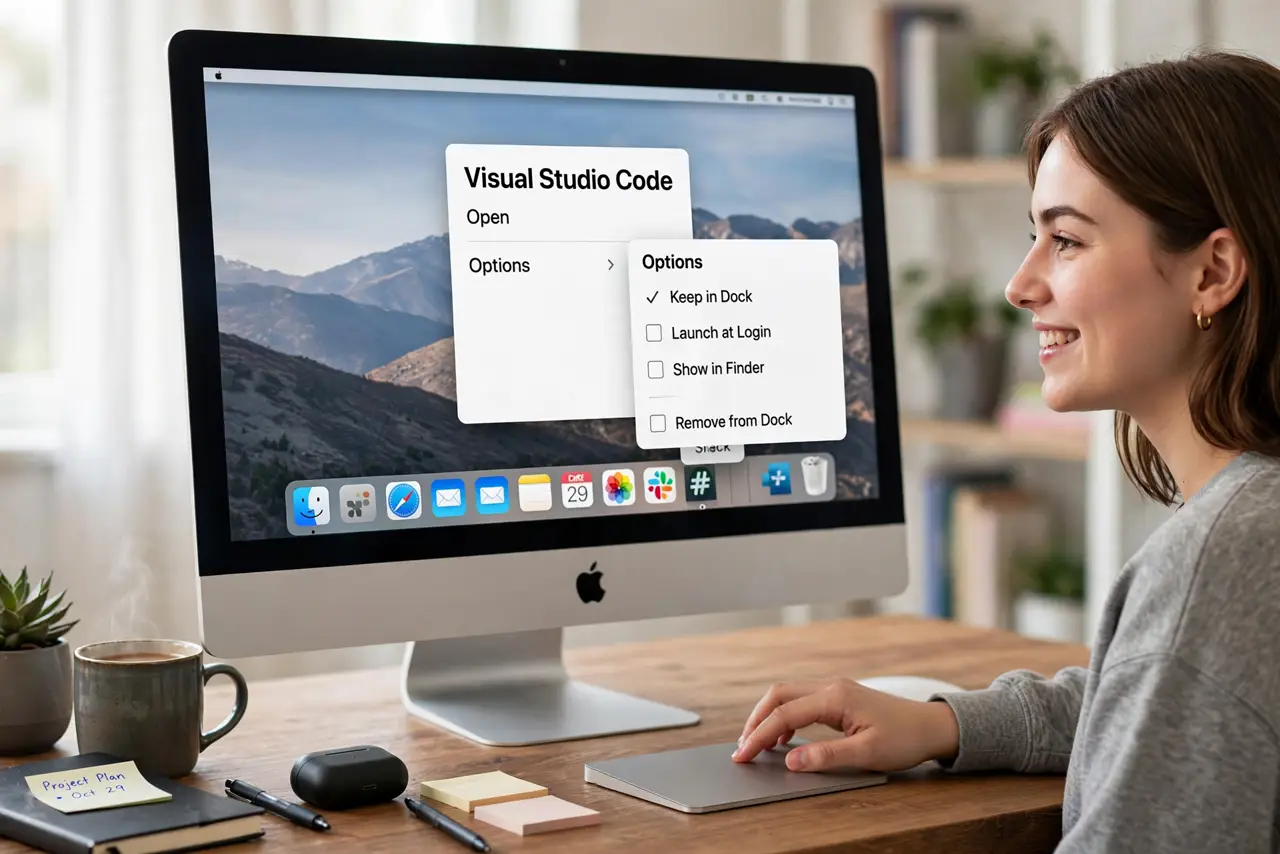
- Right-click the app's Dock icon. The app must be in the Dock — running or pinned. Right-click (or Ctrl-click) it.
- Choose Options > Assign To. Pick the numbered Desktop, 'This Desktop' for the current one, or 'All Desktops' for omnipresent utilities.
- Test the assignment. Quit and reopen the app — it should appear in its assigned Space. If it doesn't, you assigned it while viewing a different Space than you thought.
- Assign your core trio. Browser to Space 1, communication apps to Space 2, media to Space 3. Three assignments create 80% of the calm.
- Reorder Spaces when they drift. Spaces sometimes shuffle after restarts. If the order scrambles, see why Mission Control reorders spaces and lock it down.

What NOT to do
- Do not assign every app. Pin the five you live in; let the rest float — over-assignment turns Spaces into a rigid cage.
- Do not use 'All Desktops' for heavy apps. A video editor following you everywhere eats resources on every Space.
- Do not expect assignments to survive a deleted Space. Remove the Space and its apps revert to unassigned — re-pin after reorganizing.
- Do not confuse Spaces with Split View. Split View is two apps sharing one Space; assignment decides which Space an app calls home.
Frequently asked questions
The app opened in the wrong Space — why?
You likely assigned 'This Desktop' while viewing a different Space than intended. Re-do the assignment while sitting in the target Space.
Can I assign an app that isn't in the Dock?
Pin it to the Dock first (right-click > Options > Keep in Dock), assign it, and optionally remove it after — the assignment sticks.
Do fullscreen apps respect assignments?
Fullscreen apps create their own Space at the end, ignoring assignments. Assignments govern windowed apps.