Brightness Keys Dead? Fix It
The sun-keys on the keyboard do nothing — the screen stays blinding or dim no matter how you mash F1 and F2. On modern Macs this is rarely hardware; it is the function-key mode, an external display, or automatic brightness fighting you. Work the list and the keys come back.
TL;DR / Quick Fix
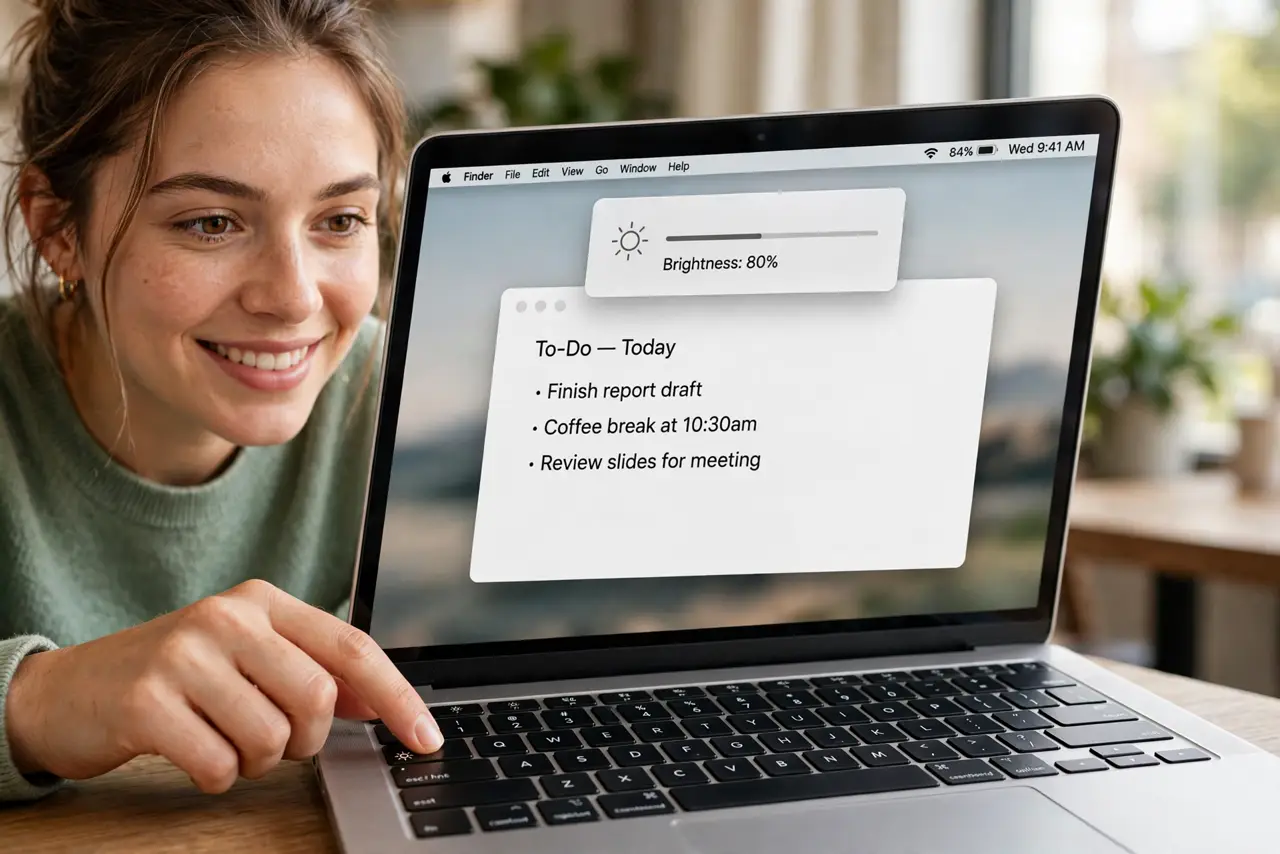
Quick fix: check System Settings > Keyboard — if F1 and F2 act as standard function keys, turn that off so they control brightness. Brightness keys only affect the built-in display, and automatic brightness can override your presses — check Displays settings.
Follow these steps
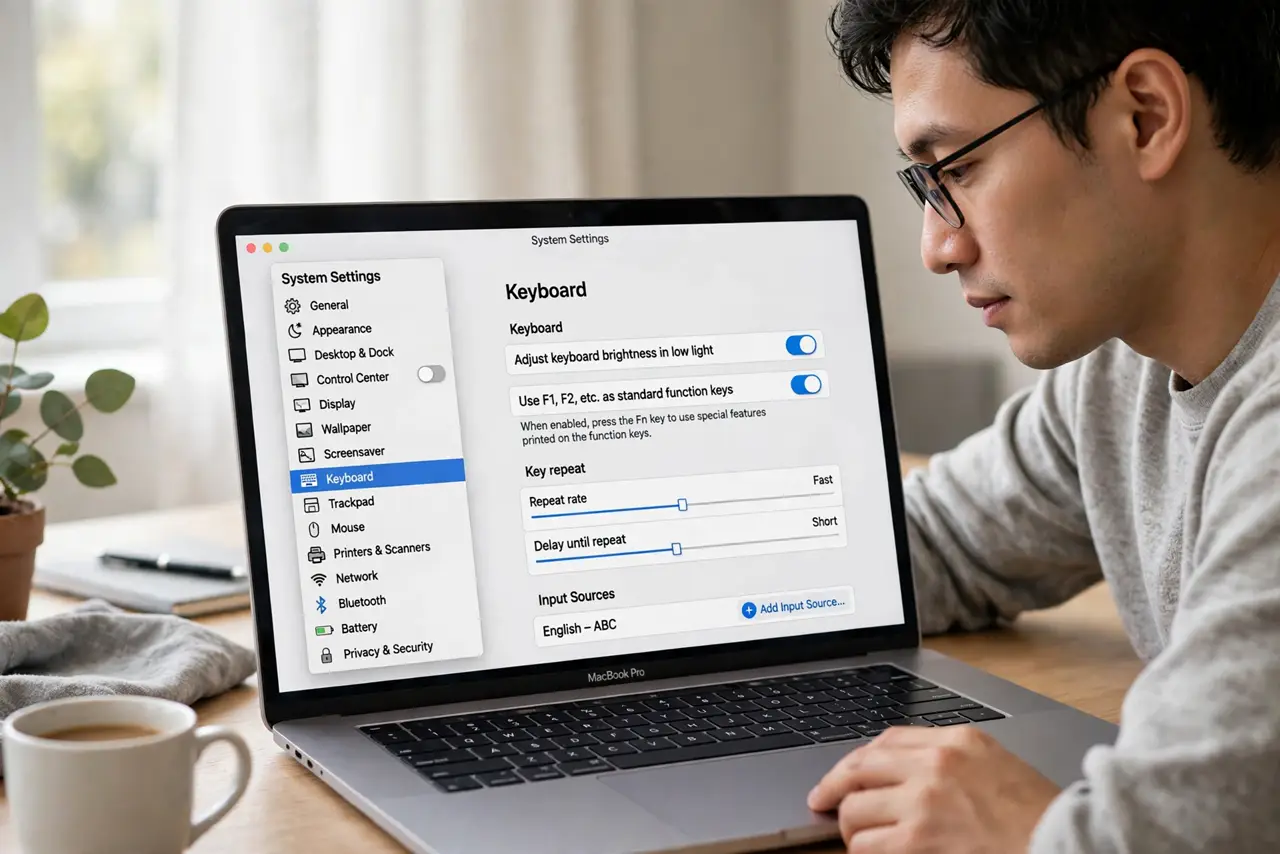
- Check the function-key mode. System Settings > Keyboard: if 'Use F1, F2, etc. as standard function keys' is on, the brightness keys need the Fn key held. Turn it off — or make them standard deliberately and use Fn.
- Confirm you are adjusting the right display. The brightness keys control the built-in MacBook display only. An external monitor needs its own buttons or app — the keys will never touch it.
- Check automatic brightness. System Settings > Displays > turn off Automatically adjust brightness. Auto-brightness can instantly undo your manual presses, which looks exactly like dead keys.
- Look for a stuck Fn or modifier key. A physically stuck Fn key flips every function key's behavior. Tap each modifier once and feel for a normal click.
- Test in a clean state. Log out and test the keys at the login screen. If they work there, a running app or utility is intercepting them.
- Reset the SMC on Intel Macs. On Apple silicon this step does not apply. On Intel Macs, an SMC reset revives misbehaving keyboard backlights and brightness keys.
What NOT to do
- Do not assume the keyboard is broken. Nine times out of ten it is the function-key mode or an external display — not hardware.
- Do not crank brightness to maximum permanently. Full brightness all day is the fastest way to halve your battery life.
- Do not install a random 'brightness fix' utility. Most are unnecessary and some intercept keys system-wide — the settings above are the real fix.
- Do not ignore a truly stuck key. If one brightness key feels physically different, no setting will fix a mechanical problem.
Frequently asked questions
Why do the brightness keys work on the laptop screen but not my monitor?
By design — the keys only drive the built-in display. External monitors need their own controls.
The on-screen brightness bar appears but nothing changes — why?
Automatic brightness is likely overriding you, or you are looking at an external display while the built-in one changes.
Do the keys work with the lid closed?
No — with the lid closed the Mac uses the external display, which the keys cannot control.