Hotel Wi-Fi Login Page Never Appears on Mac
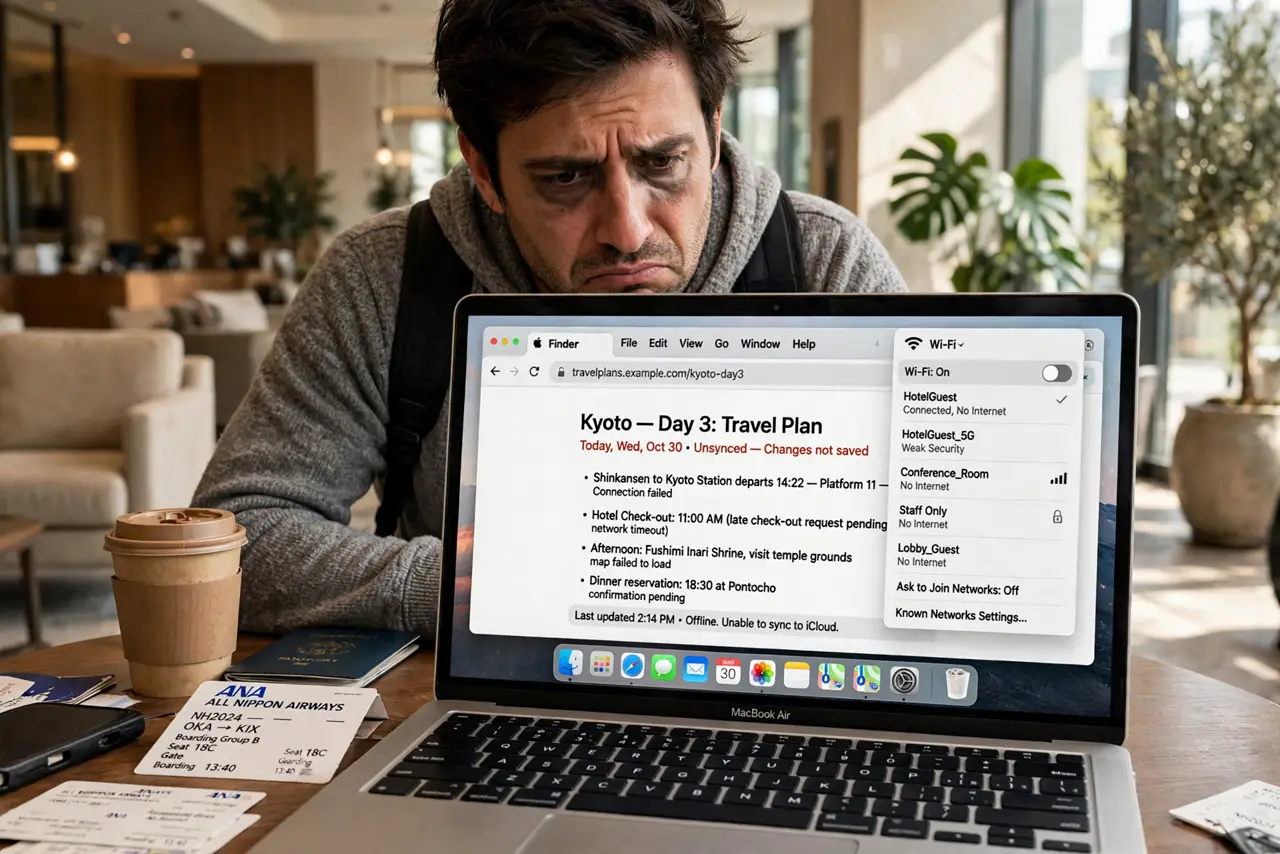
You join the hotel or airport Wi-Fi and the login page never appears — no browser popup, no redirect, just a 'connected, no internet' limbo. The captive portal detection failed, often because of DNS settings, a VPN, or a stale redirect cache. This guide forces the login page to show.
TL;DR / Quick Fix
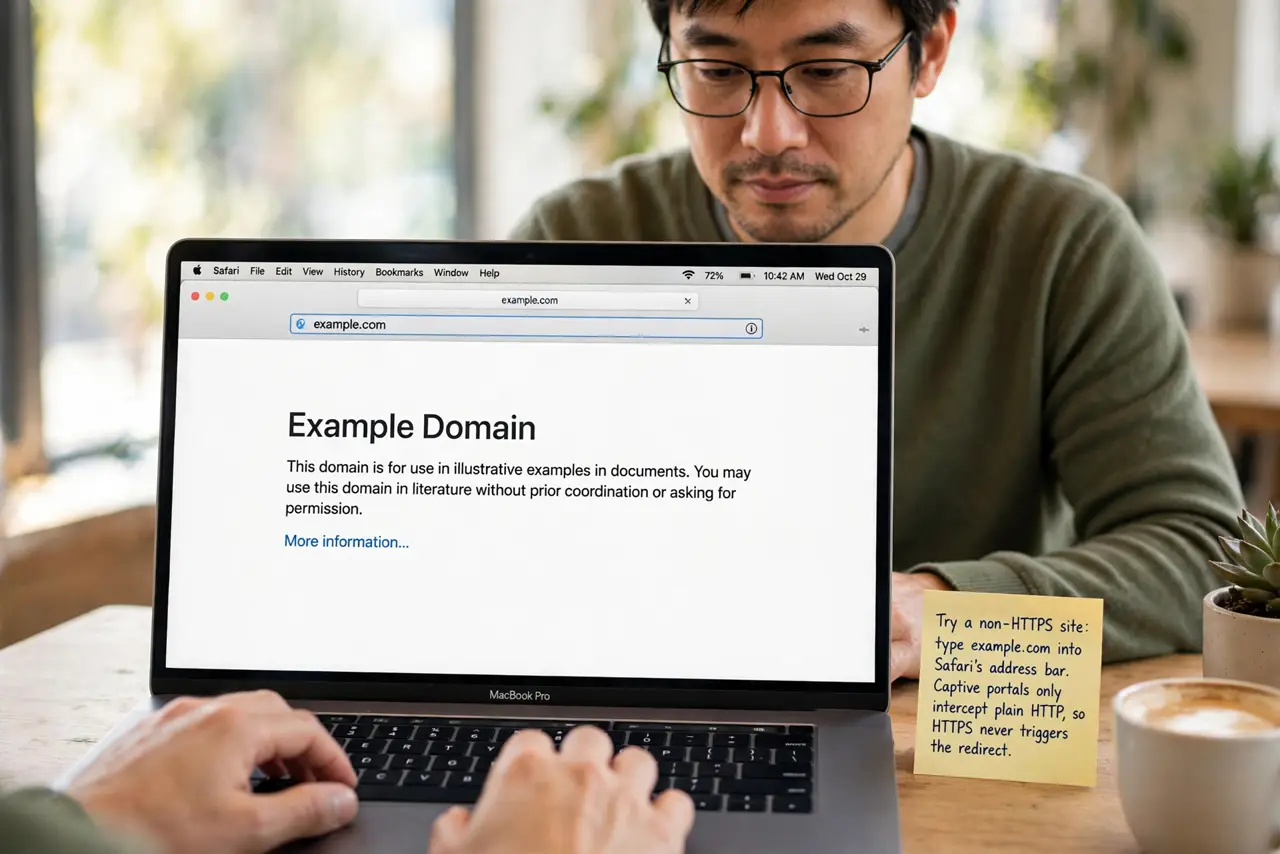
Quick fix: type a plain non-HTTPS address like example.com into Safari to trigger the portal redirect. Disconnect any VPN and set DNS back to automatic, since both block the redirect. Ask the venue for the portal's direct address as a fallback.
Follow these steps
- Try a non-HTTPS site. Type example.com into Safari's address bar and load it. Captive portals can only intercept plain HTTP, so an HTTPS site never triggers the redirect.
- Disconnect the VPN. A VPN tunnels past the portal's interception, so the login page can never appear. Disconnect it completely until you have finished logging in.
- Set DNS back to automatic. In Wi-Fi network details > DNS, remove any custom DNS servers. Custom DNS bypasses the portal's redirect, which is exactly why the page never shows.
- Clear the redirect cache. If the portal half-loaded before, Safari may cache the failure. Clear the browser cache or try a private window to get a fresh redirect attempt.
- Renew the DHCP lease. In the network details, renew the DHCP lease to get a fresh address from the portal's network. A stale lease from another network confuses the portal.
- Ask for the portal's direct address. Hotels and venues can give you the login page's direct URL or IP. Typing it manually bypasses the broken auto-detection entirely.
What NOT to do
- Do not enter passwords on the portal over an untrusted page blindly. Verify the portal looks legitimate — real hotel branding, no odd URLs — before typing room details.
- Do not stay on hotel Wi-Fi without a VPN afterward. Log in first, then connect your VPN for actual browsing protection.
- Do not disable your firewall to reach the portal. The firewall is not blocking the login page; DNS and VPN settings are.
- Do not assume your Mac is broken. Captive portals fail on every device type — this is the portal's fragility, not your Mac's.
Frequently asked questions
Why won't the hotel Wi-Fi login page appear?
The portal redirect failed — usually because of a VPN, custom DNS, or trying an HTTPS site that cannot be intercepted.
Is hotel Wi-Fi safe after logging in?
Not by itself. Connect your VPN after login for real protection on shared networks.
What if the page appears but won't accept my details?
Ask the front desk. Portal backends fail often, and they can register your device manually.