Change Your Apple ID Email
That ancient email address on your Apple ID — the one from college, or the work address you lost access to — is now a liability. Changing the Apple ID email does not create a new account; it renames the sign-in for the same account, keeping every purchase and photo. But it must be done in the right place.
TL;DR / Quick Fix
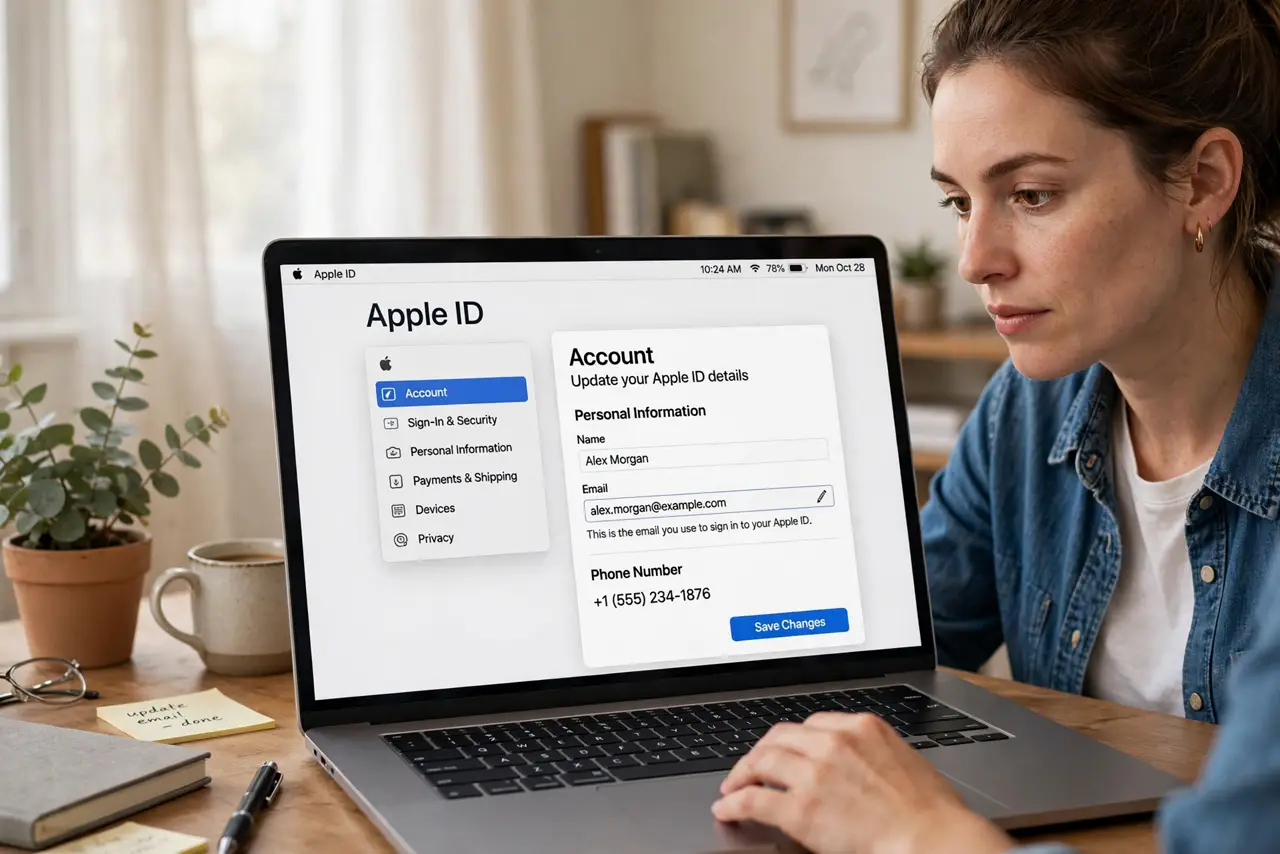
Quick fix: sign in at your Apple ID account page, go to Sign-In and Security, and change the email address there — not in Settings on the Mac. Verify the new address with the code Apple sends. Your purchases, photos, and data all stay attached to the account.
Follow these steps
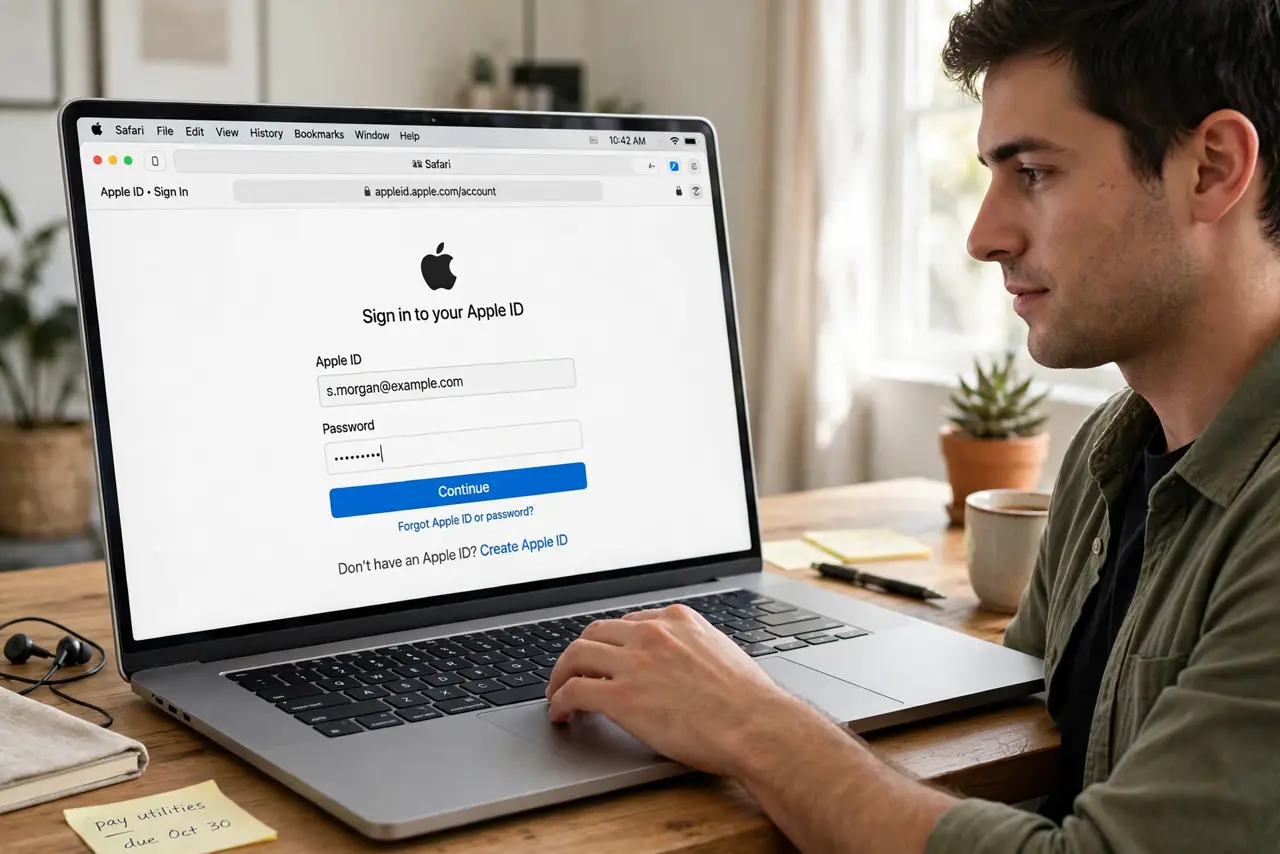
- Go to the Apple ID account page. Open a browser and sign in to your Apple ID account. Email changes happen here — the Mac's Settings app cannot do this one.
- Open Sign-In and Security. Find your current Apple ID email in this section and choose to change it.
- Enter the new email address. Use an address you actually control and will keep. Apple sends a verification code to it immediately.
- Verify with the code. Enter the code Apple sends. Until verified, the change does not complete — check spam if it does not arrive.
- Sign back in on your devices. Your Mac, iPhone, and iPad will ask for the password again under the new email. This is normal — the account is the same.
- Update anything using the old email. Password managers, family sharing invites, and app sign-ins referencing the old address need updating to avoid confusion.
What NOT to do
- Do not create a brand-new Apple ID instead. A new account loses every purchase, subscription, and photo — changing the email keeps them all.
- Do not use an email you might lose. A work or school address you will leave someday becomes a lockout risk — use a permanent personal address.
- Do not skip verification. An unverified change leaves the account in limbo and can trigger security locks.
- Do not change it right before traveling. Verification codes and re-sign-ins across devices are miserable without reliable access to the new inbox.
Frequently asked questions
Will I lose my purchases?
No. The account stays the same — only the sign-in email changes. Apps, music, movies, and subscriptions all remain.
Can I change it to an iCloud address?
You can change to most addresses you own. Some Apple-domain addresses have special rules — the account page will tell you if yours qualifies.
What if I no longer access the old email?
You can still change it by signing in with the old address and password. If you have lost both, account recovery is the path — slower but possible.