Set Up Mac Color Filters
Red and green look identical, charts are unreadable, and “in the red” means nothing to your eyes. That is color vision deficiency, and macOS has a built-in fix: color filters that remap the whole screen so problem colors become distinguishable. For general readability rather than color issues, add a contrast boost too.
TL;DR / Quick Fix
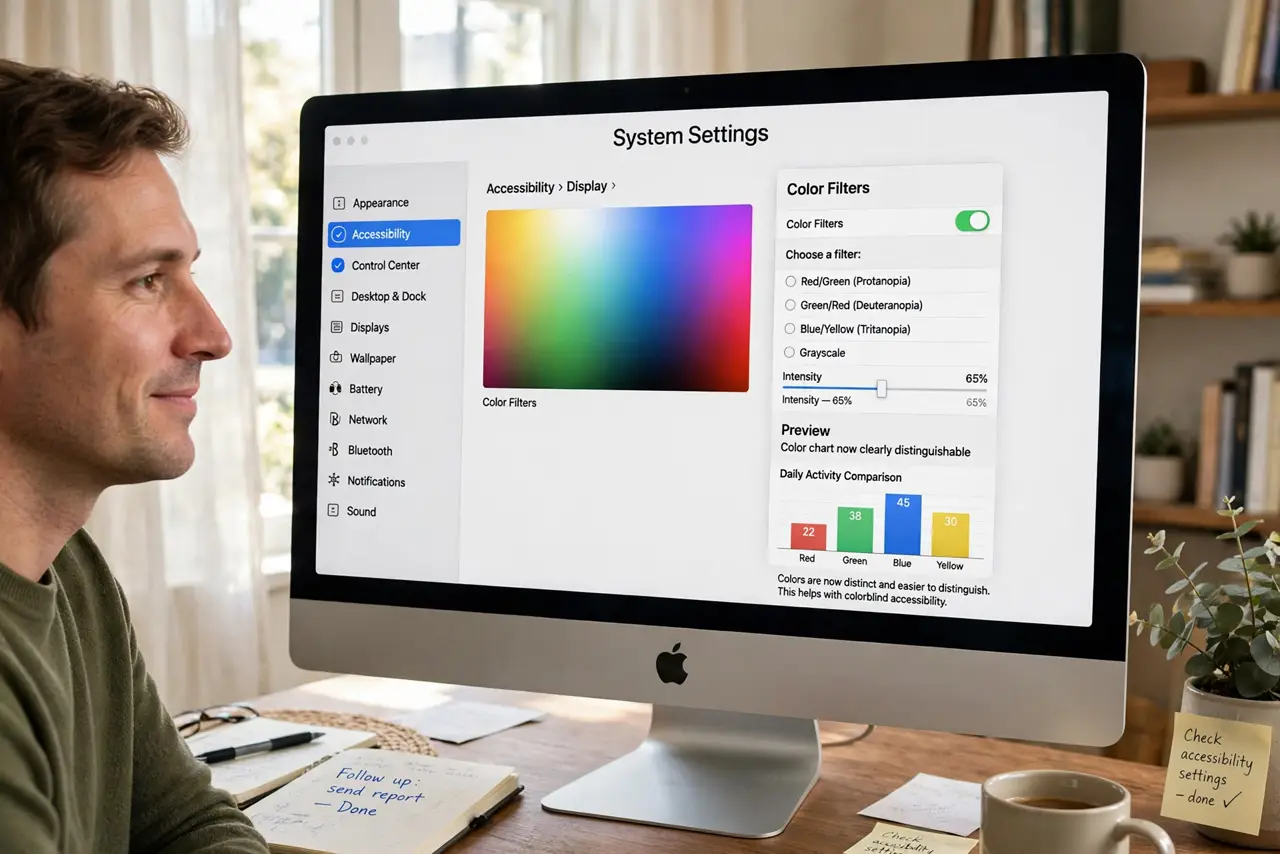
Quick fix: open System Settings > Accessibility > Display, turn on Color Filters, and pick the type matching your vision — red-green filters help the most common color blindness. Slide intensity until UI colors are distinguishable. Enable the keyboard shortcut so you can toggle filters instantly for design work.
Follow these steps
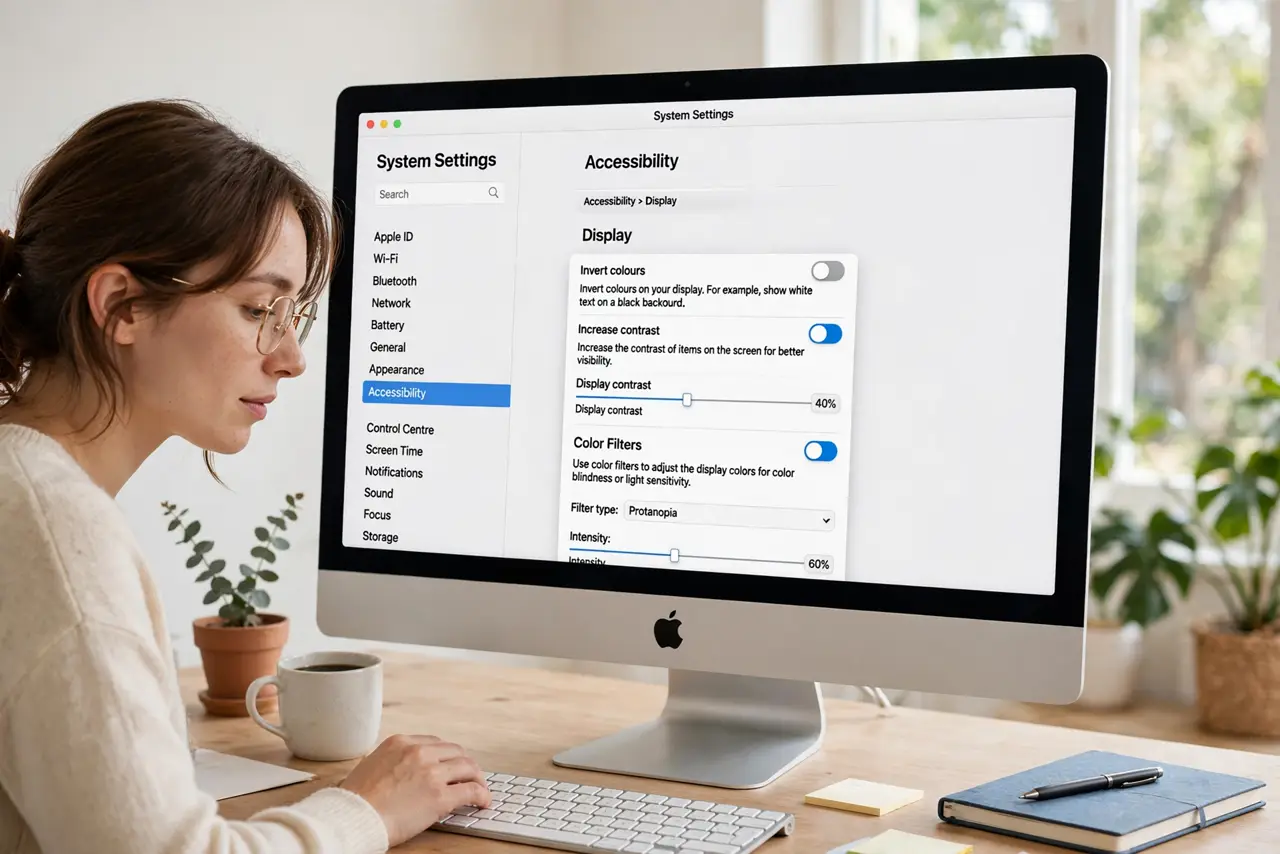
- Open the Color Filters settings. Go to System Settings > Accessibility > Display and find Color Filters. It sits right below the contrast options on the same pane.
- Pick the filter matching your vision. Choose from Red/Green, Green/Red, Blue/Yellow, Grayscale, or Color Tint. Most color blindness is red-green — start there and compare.
- Adjust the intensity slider. Drag intensity until problem colors separate clearly without making everything look alien. Moderate is usually right; maximum is rarely needed.
- Enable the keyboard shortcut. Turn on the Accessibility shortcut for color filters. One key combo toggles the filter — handy when showing your screen to someone with normal color vision.
- Test with real content. Open a chart, a map, or the app that was giving you trouble. Filters are only useful if they fix your actual problem, not the demo swatches.
- Combine with contrast if needed. Filters fix color confusion; contrast fixes washed-out edges. The two together cover most visibility complaints.
What NOT to do
- Do not leave Grayscale on and think the screen broke. It is the most common “my Mac lost color” panic — check this setting first.
- Do not use color filters for photo or design work. They deliberately lie about color — toggle them off before judging hues.
- Do not max the intensity by default. Over-filtering distorts everything; find the lowest setting that works.
- Do not confuse this with Night Shift. Night Shift warms colors for evening comfort; filters remap them for vision.
Frequently asked questions
Which filter is for red-green color blindness?
The Red/Green filter (protanopia/deuteranopia types) — try both red-green options, since the right one depends on your specific type.
Will filters change my screenshots?
No — color filters apply to the display pipeline only. Screenshots capture the original colors.
Can I make just one app use a filter?
No, filters are system-wide. The keyboard shortcut toggle is the practical workaround.