Desk View With Continuity Camera
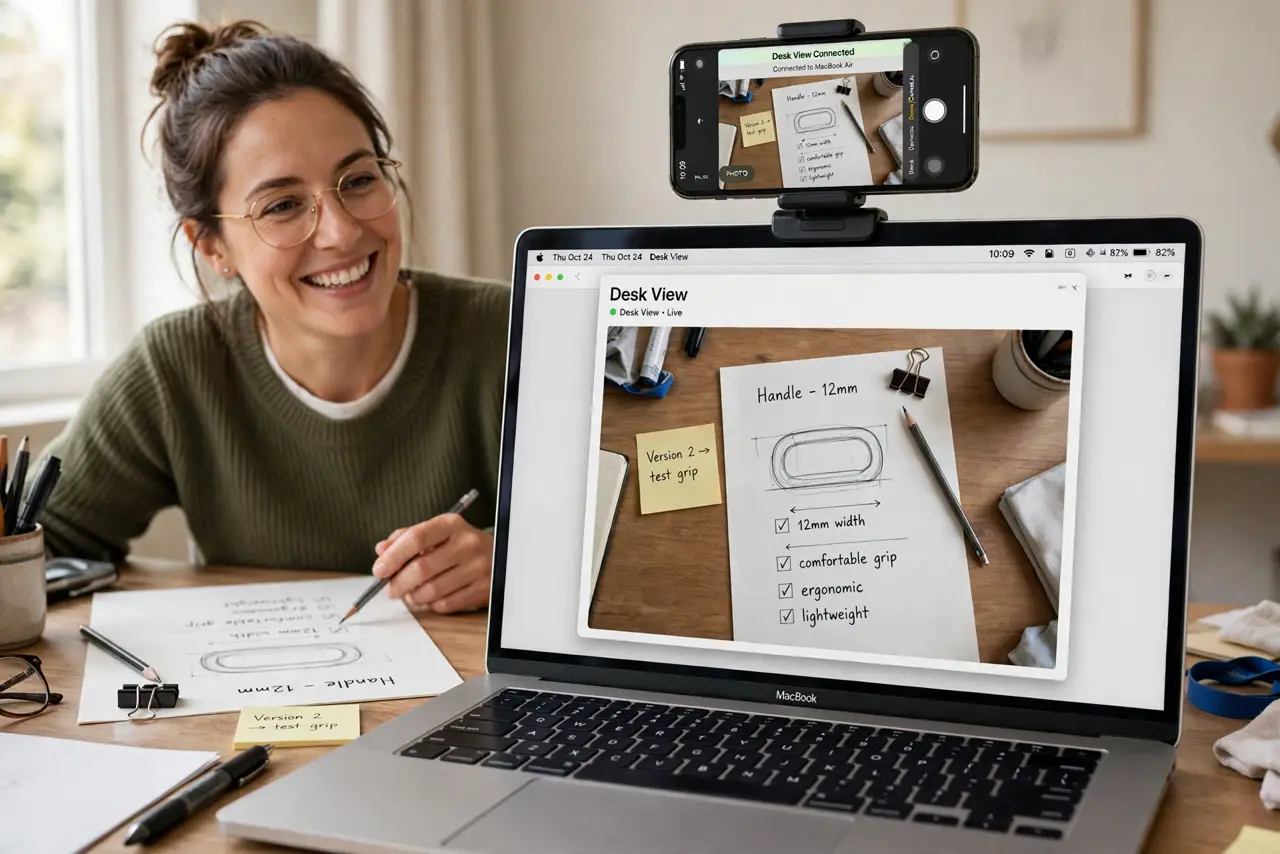
Desk View is the party trick inside Continuity Camera: your iPhone's ultra-wide lens shows your face and your desk at the same time — perfect for demos, whiteboard walkthroughs, and unboxing videos. It needs the same setup as the webcam feature, plus the iPhone in exactly the right position.
TL;DR / Quick Fix
Quick fix: set up Continuity Camera first — iPhone XR or later on iOS 16+, Mac on Ventura or later, same Apple ID, iPhone locked in landscape on the mount. In FaceTime or Photo Booth, choose Desk View from the video menu. Position matters: it uses the ultra-wide camera.
Follow these steps
- Get Continuity Camera working first. Desk View is not separate — it rides on the webcam setup. If the iPhone does not appear as a camera, fix that before touching Desk View.
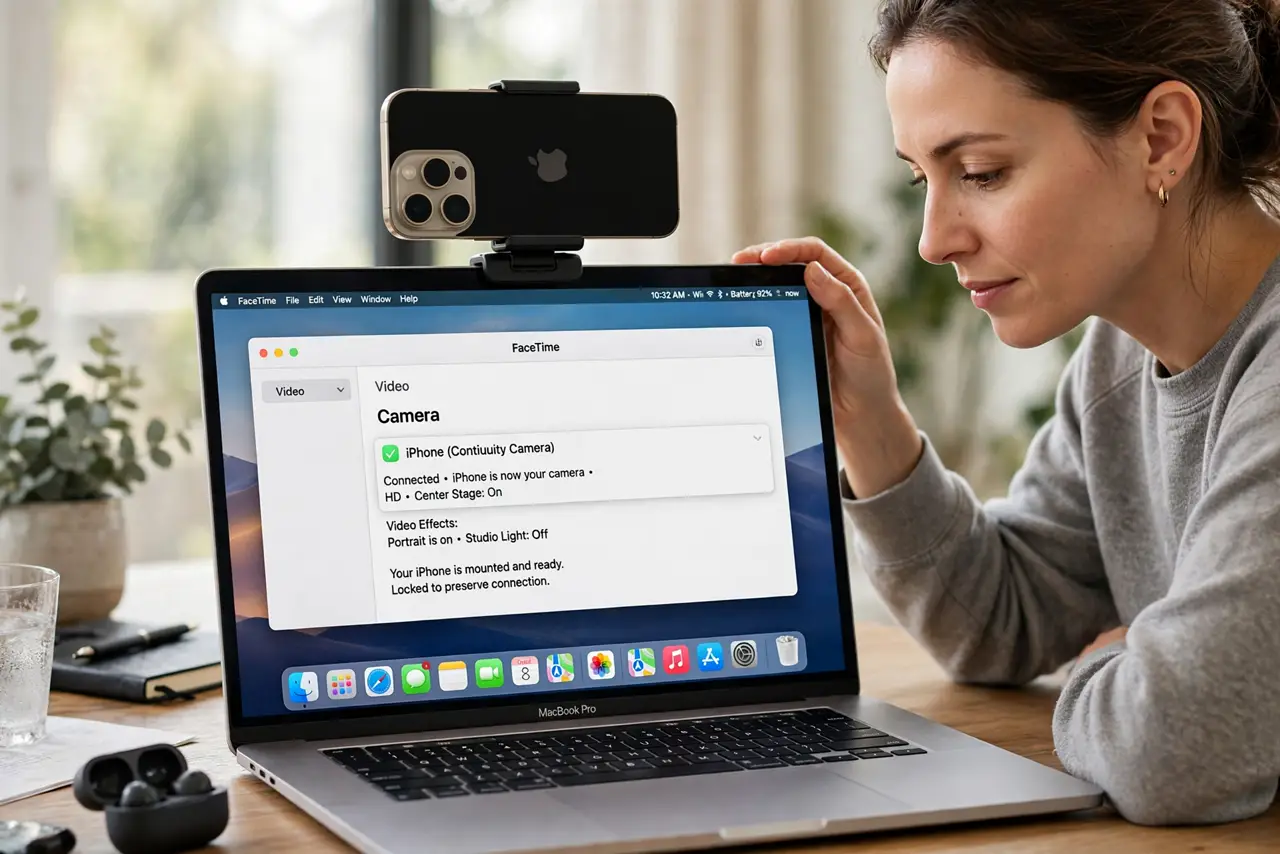
- Keep the iPhone locked in landscape. Desk View needs the ultra-wide lens, which only engages when the iPhone is locked, in landscape, mounted at the top of the Mac.
- Open FaceTime or Photo Booth. Both apps expose Desk View in their Video menu. Third-party apps vary — Zoom added support later, so update it if the option is missing.
- Choose Desk View from the video menu. In FaceTime: Video > Desk View. A second window opens showing the overhead shot while your normal camera keeps your face.
- Position the desk items in the frame. Desk View crops a top-down slice. Slide papers or objects until they sit in the overhead window — it shows less desk than you expect.
- Check the lighting on the desk. The ultra-wide lens needs decent light. A desk lamp pointed at the work area beats the room's ceiling light for clarity.
What NOT to do
- Do not expect it to work with the iPhone in your hand. Desk View needs the mounted, locked, landscape position — handheld breaks the geometry.
- Do not use it in a dark room. The ultra-wide sensor is smaller and noisier; bad light makes the overhead view grainy.
- Do not forget which window is which. The Desk View window shows the desk; your main camera still shows you — narrate accordingly.
- Do not leave sensitive papers in frame. The overhead view catches everything on the desk, including that password sticky note.
Frequently asked questions
Why is the Desk View option greyed out?
Your iPhone model or position is wrong — Desk View needs an iPhone 11 or later with the ultra-wide lens, locked, in landscape, on the mount.
Can I record the Desk View?
Yes — in Photo Booth or QuickTime screen recording, the Desk View window records like any other window.
Does Desk View work in Zoom?
In recent Zoom versions, yes, via the camera menu. Update Zoom if you only see the standard iPhone camera.