Use Your iPhone as a Mac Webcam
Your Mac's built-in webcam is fine; your iPhone's camera is spectacular. Continuity Camera lets the Mac borrow the iPhone as its webcam — sharper video, better low light, and tricks like Desk View — with no app to install. The setup is five quiet requirements, and the mount is the only thing you might need to buy.
TL;DR / Quick Fix
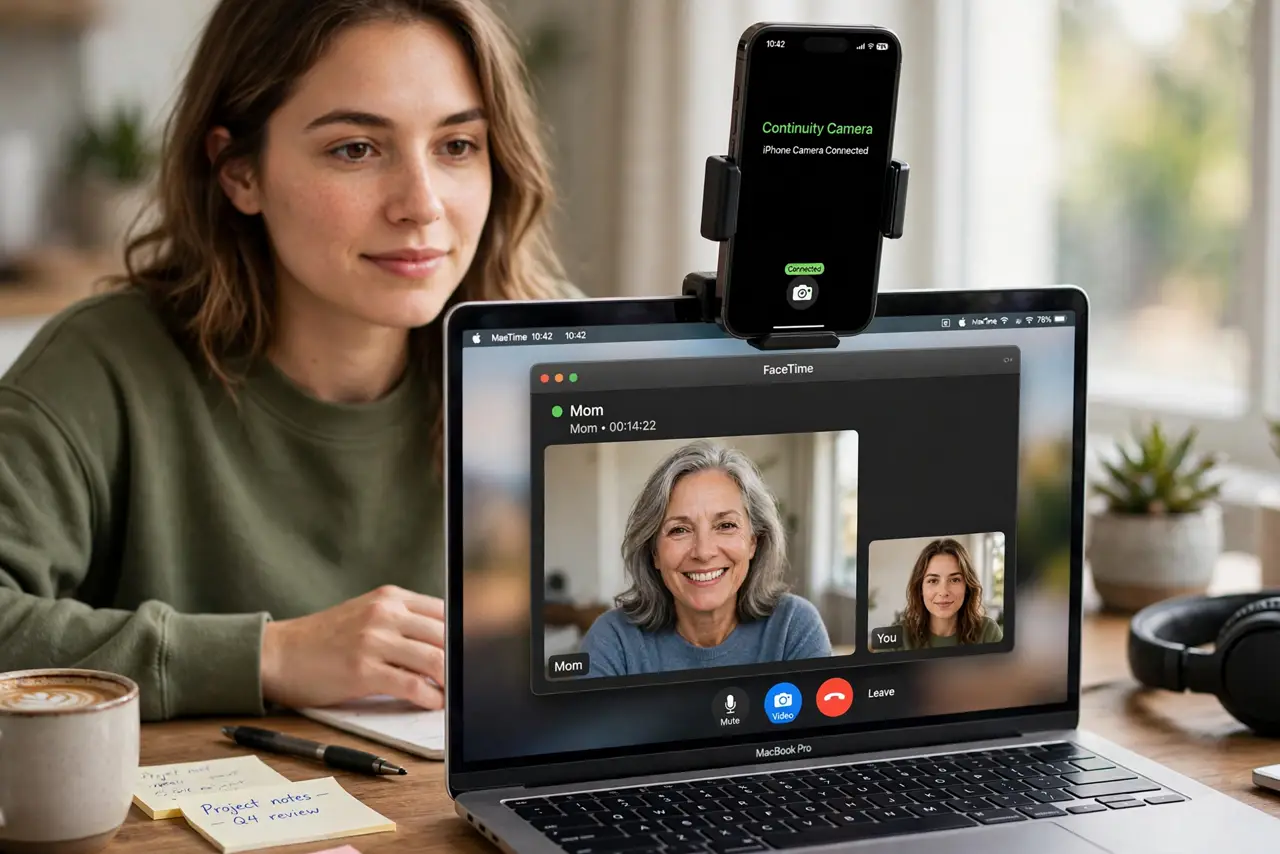
Quick fix: you need an iPhone XR or later on iOS 16+, a Mac on macOS Ventura or later, both on the same Apple ID with Wi-Fi and Bluetooth on. Mount the iPhone on top of the Mac, lock it, and pick it as the camera in FaceTime or Zoom.
Follow these steps
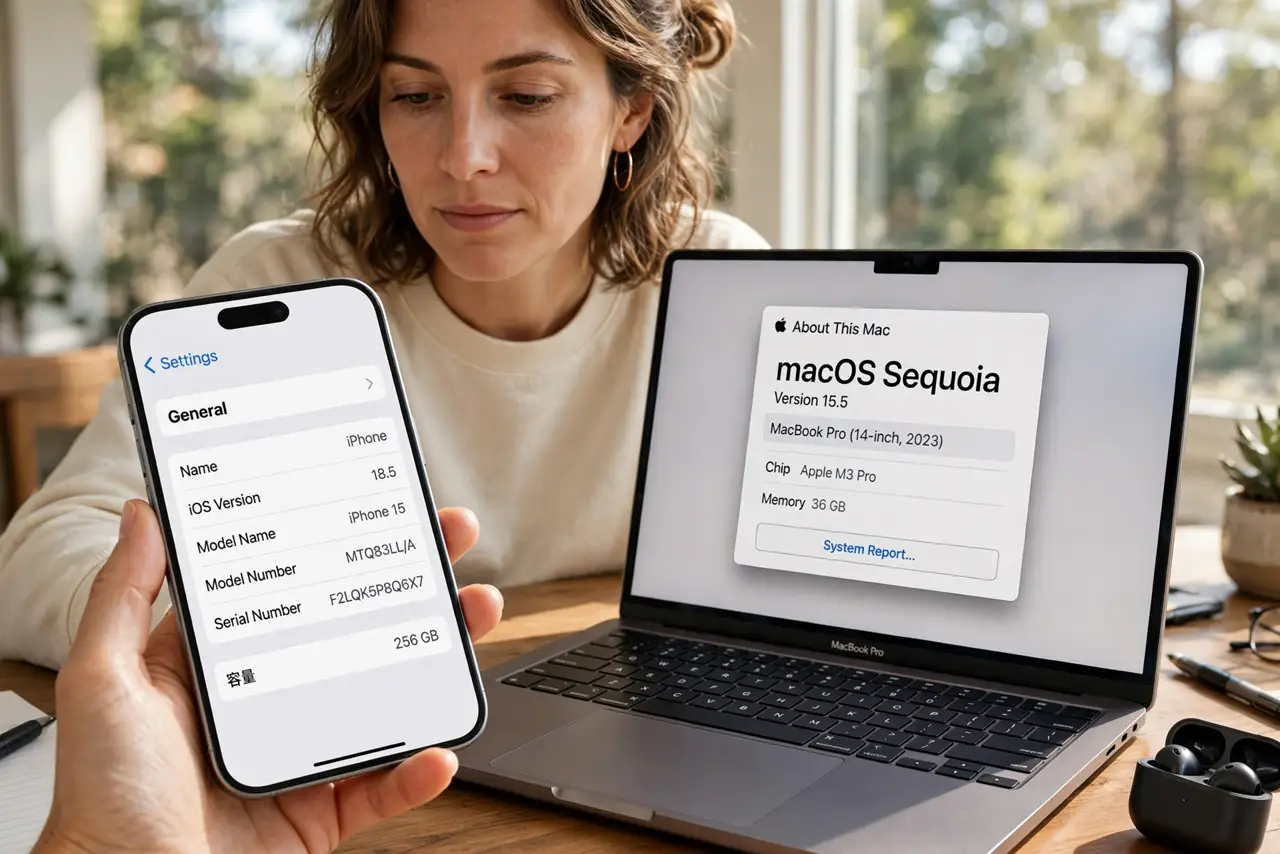
- Check the version requirements. iPhone XR or later running iOS 16 or later, and a Mac running macOS Ventura or later. Older combinations simply do not offer the feature.
- Use the same Apple ID with two-factor on. Sign both devices into the same Apple ID with two-factor authentication. This is how the Mac trusts the iPhone as its camera.
- Turn on Wi-Fi and Bluetooth on both. The iPhone connects to the Mac wirelessly — no cable needed. Both radios on, devices near each other, and you are set.
- Mount the iPhone on top of the Mac. Apple's Belkin mount or any clip holds the iPhone in landscape at the top of the lid. Lock the iPhone, keep it in landscape, and do not use it while it is the camera.
- Pick the iPhone as the camera. In FaceTime, Zoom, or any video app, open the video or camera menu and choose your iPhone. The Mac switches to it within seconds.
- Try the bonus effects. Once connected, Control Center > Video Effects offers Center Stage, Portrait, and Studio Light. Desk View shows your desk from above — great for demos.
What NOT to do
- Do not keep using the iPhone while it is the camera. Picking it up or unlocking it drops the video feed instantly.
- Do not mount it in portrait. Continuity Camera expects landscape — portrait mounting gives you a sideways or cropped image.
- Do not plug it in and assume that is enough. A cable does not replace the Apple ID, Wi-Fi, and Bluetooth requirements.
- Do not ignore a hot iPhone. Long calls warm it up; if it overheats it pauses the camera — give it airflow, not a case blanket.
Frequently asked questions
Why doesn't my iPhone appear in the camera list?
Usually one of the five requirements is off — most often Bluetooth, or the iPhone is unlocked and in use. Lock it, keep it nearby in landscape, and wait a few seconds.
Does it drain the iPhone battery?
Yes, steadily. Keep a charger handy for long calls, or use a MagSafe mount that charges while it films.
The video freezes — what fixes it?
Move the devices closer and check for heavy Wi-Fi congestion. The connection troubleshooter covers the stubborn cases.