Mac Default Browser Keeps Changing? Lock It In
You set your default browser, but links keep opening elsewhere, and the choice never sticks. Another browser or profile is resetting it. Set the default in System Settings, decline rival prompts, and check for profiles.
TL;DR / Quick Fix
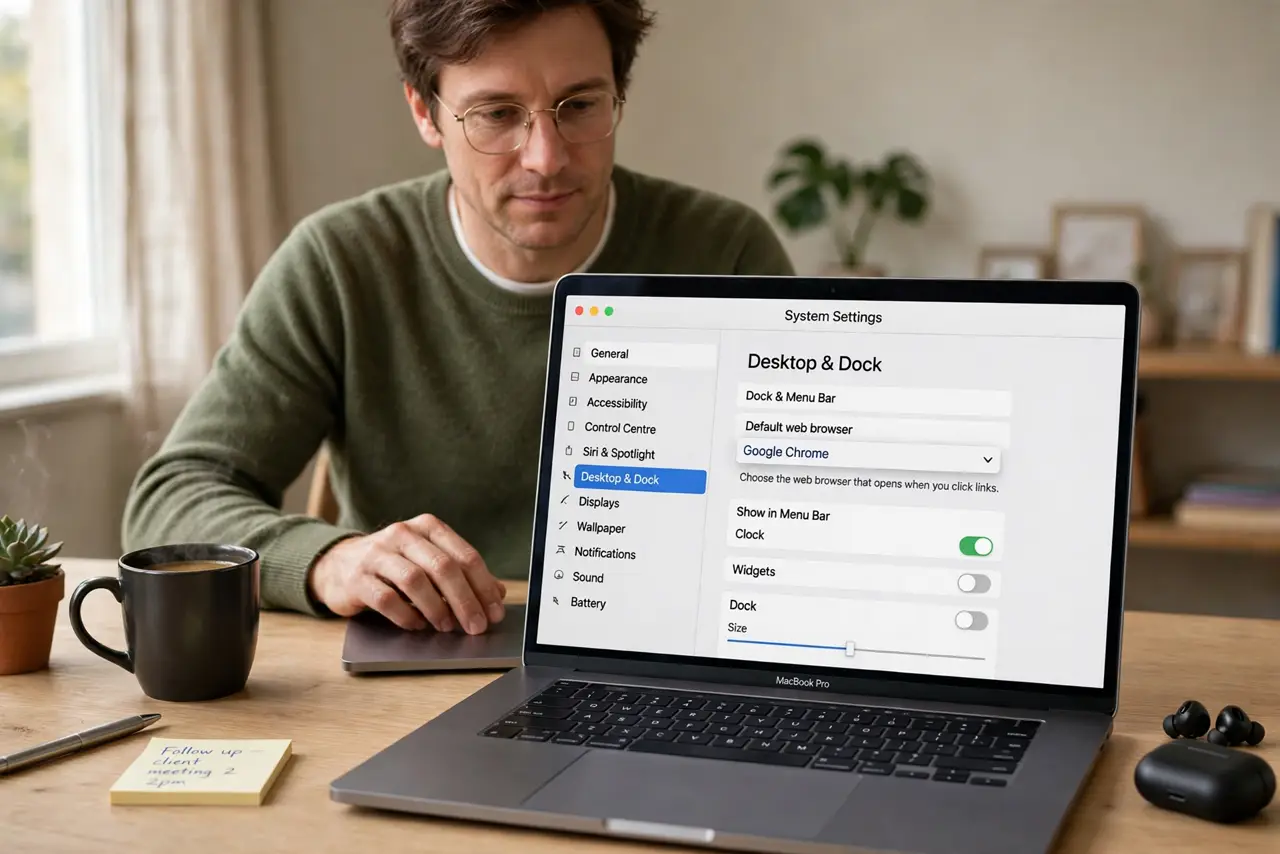
Quick fix: open System Settings, then Desktop and Dock, and set Default web browser to your choice. When another browser asks to become default, click Not Now, then test a link. Then test the fix for a full day before changing anything else.
Follow these steps
- Set the default in System Settings. Open System Settings, then Desktop and Dock, and choose your browser in Default web browser. This is the setting macOS itself uses for links.
- Decline rival default prompts. When another browser asks to be the default, choose Not Now or decline. Accepting that prompt is the most common way the default changes back.
- Test with a real link. Click a link in Mail or Notes and confirm it opens in your chosen browser. Testing a real link proves the setting, not just the menu.
- Check browser settings too. Open your chosen browser settings and confirm it is set as default there as well. Conflicting browser settings can fight the system choice.
- Check for installed profiles. Open System Settings, then Privacy and Security, then Profiles, if present, and look for profiles that set browser defaults. Remove only profiles you did not intend.
- Repeat after updates. After a browser or system update, recheck the default. Updates sometimes re-prompt, and a quick decline keeps your choice intact.
What NOT to do
- Do not accept every Set as default prompt. Each acceptance overwrites your choice, even if you set it correctly before.
- Do not delete browsers to lock a default. Deleting a browser you sometimes need creates new problems without fixing the setting.
- Do not change defaults inside every app separately. The system default in System Settings is the one that governs links.
- Do not ignore a profile that resets the browser. A managed profile can override your choice until it is removed.
Frequently asked questions
Why does my default browser keep changing?
Usually another browser prompt was accepted, or a profile resets it. Declining prompts and checking profiles fixes most cases.
Where is the Mac default browser setting?
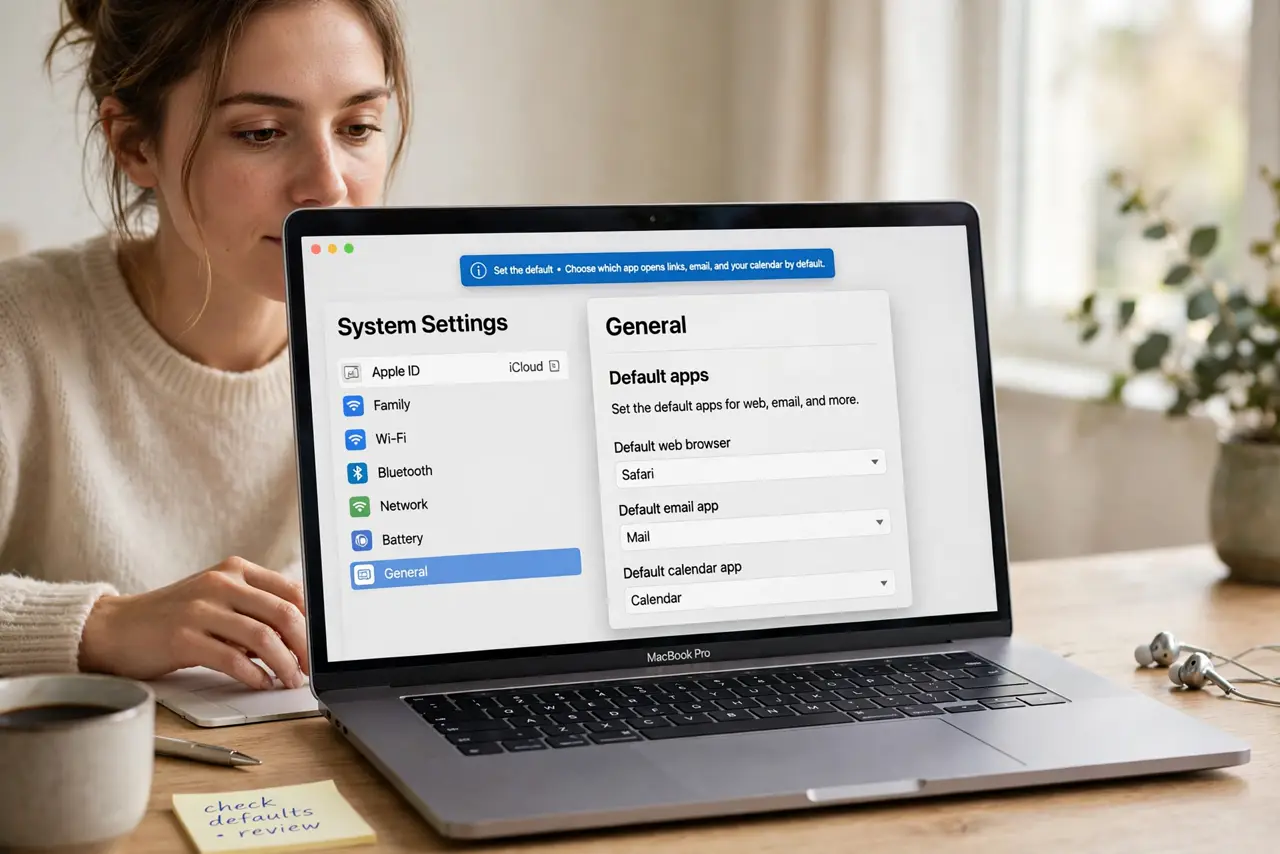
In System Settings, then Desktop and Dock, under Default web browser.
Will an update change my default?
Sometimes an update re-prompts. Recheck the setting after updates and decline rival prompts to keep your choice.