Hide Recent Apps From the Dock
Apps you opened once — a random installer, a file that launched the wrong program — now squat in your Dock behind the divider, cluttering the lineup you curated. macOS adds recent apps automatically, but the behavior is one toggle. Your pinned apps are untouched.

TL;DR / Quick Fix
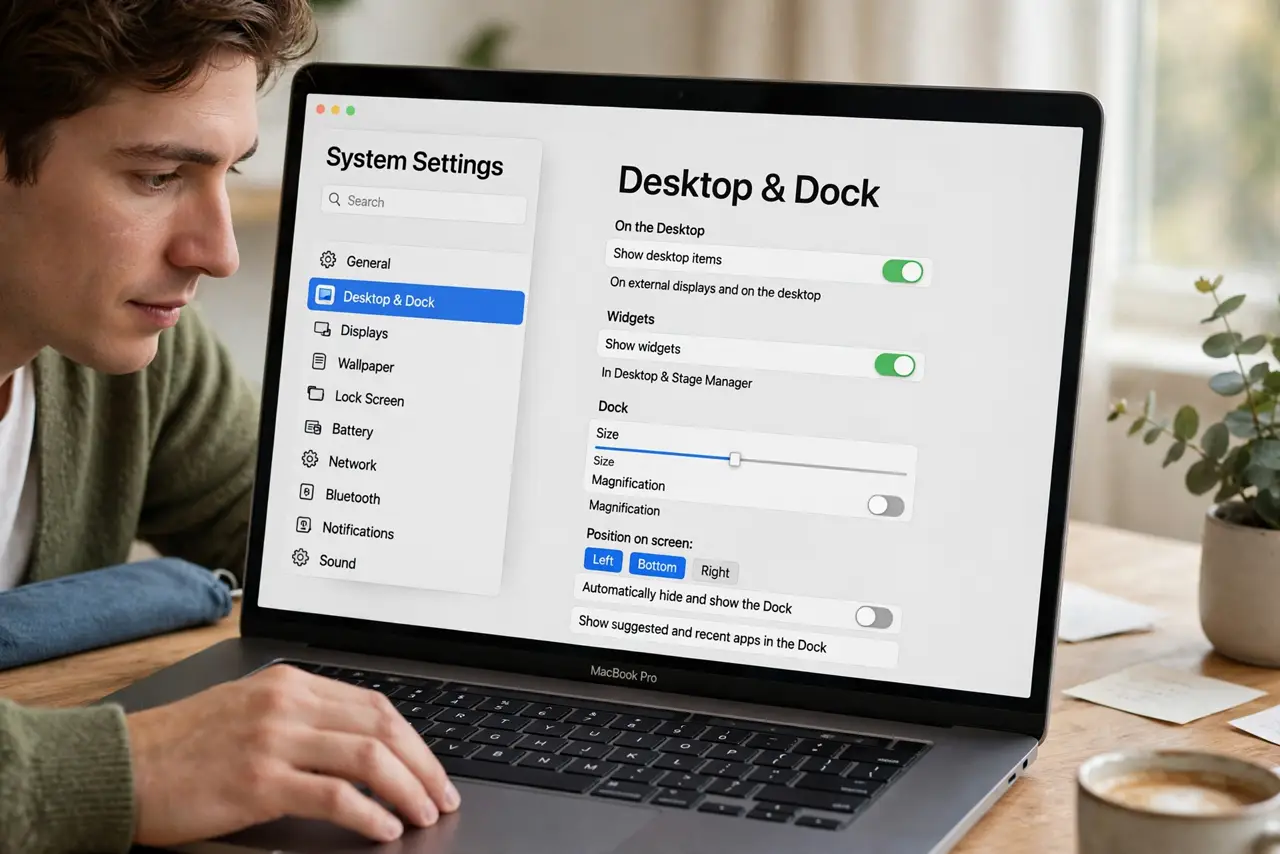
Quick fix: open System Settings > Desktop & Dock and switch off Show recent applications in Dock. The divider-separated recent apps vanish immediately. Your pinned apps stay untouched. Re-enable anytime the same way — nothing is uninstalled. It is purely cosmetic.
Follow these steps
- Open Desktop & Dock settings. Open System Settings and go to Desktop & Dock in the sidebar.
- Switch off recent apps. Find Show recent applications in Dock and turn it off. The recent-apps section disappears at once.
- Confirm your pins survived. Your deliberately pinned apps remain exactly where they were. Only the automatic recents — right of the divider — are gone.
- Remove one-off icons manually. Right-click any lingering icon > Options > Remove from Dock for individual cleanup without the global toggle.
- Re-enable if you miss it. The same toggle brings recents back. Some people like the convenience; the setting is pure preference.
- Know it is not uninstalling. Hiding recents removes icons, not apps. Everything remains in Applications and Launchpad.
What NOT to do
- Do not drag recent apps off expecting them gone forever. They return until you switch off the automatic behavior.
- Do not confuse recents with running apps. Dots under icons mark running apps — hiding recents does not quit anything.
- Do not reinstall macOS over Dock clutter. It is a single toggle, not a system problem.
- Do not forget the divider. Recents always sit on the far side of the divider — that is how you tell them from your pins.
Frequently asked questions
Will this delete my apps?
No. It hides icons only; every app stays installed and launchable from Applications or Spotlight.
Why do removed apps keep coming back?
Because the automatic recents feature re-adds whatever you launch. Switch it off to stop the cycle.
Can I keep recents but limit them?
No count control exists — it is all or nothing. All is the default; nothing is one toggle away.