Magnify the Dock? How To
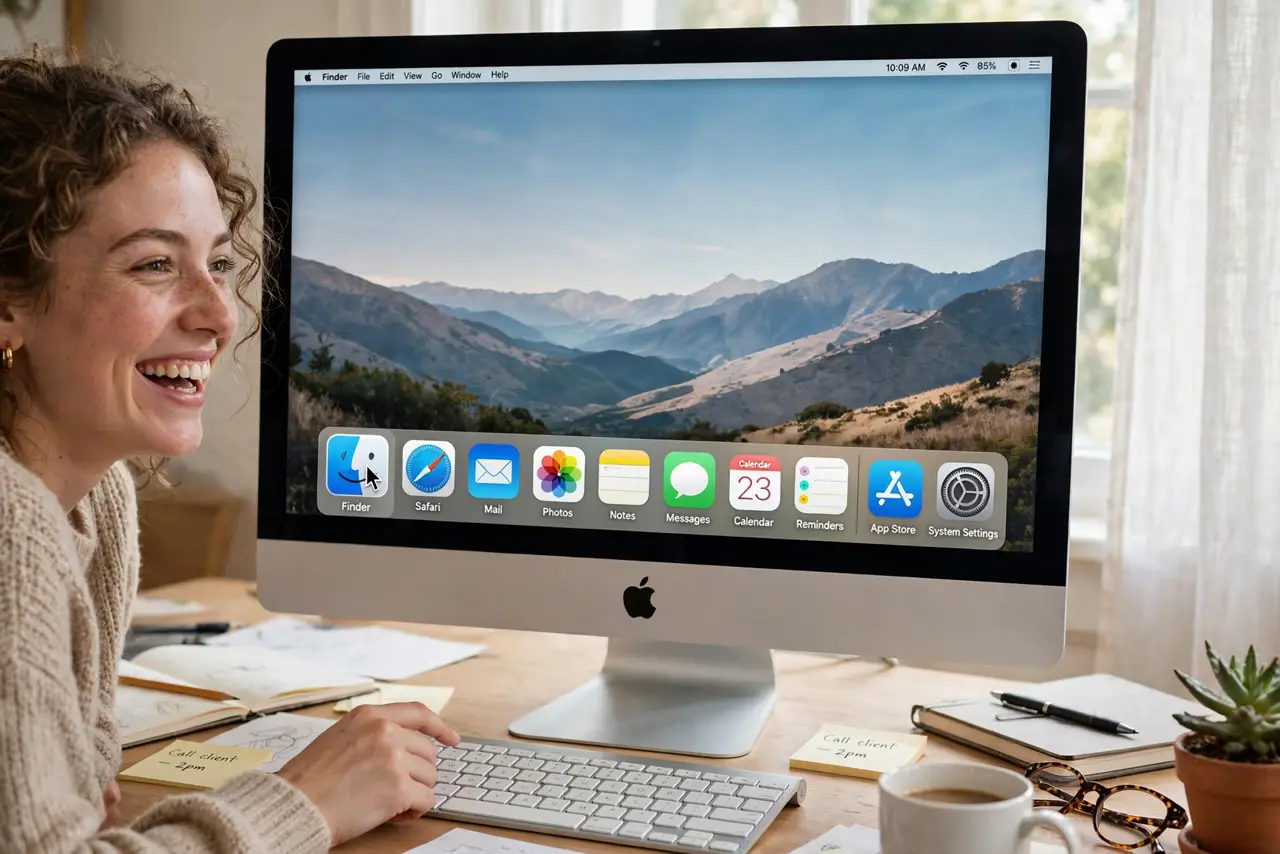
The Dock's icons are either too small to hit comfortably or so large they eat the screen. Magnification makes icons swell as your cursor passes — the classic Mac effect that's genuinely useful on big displays and for tired eyes.
TL;DR / Quick Fix
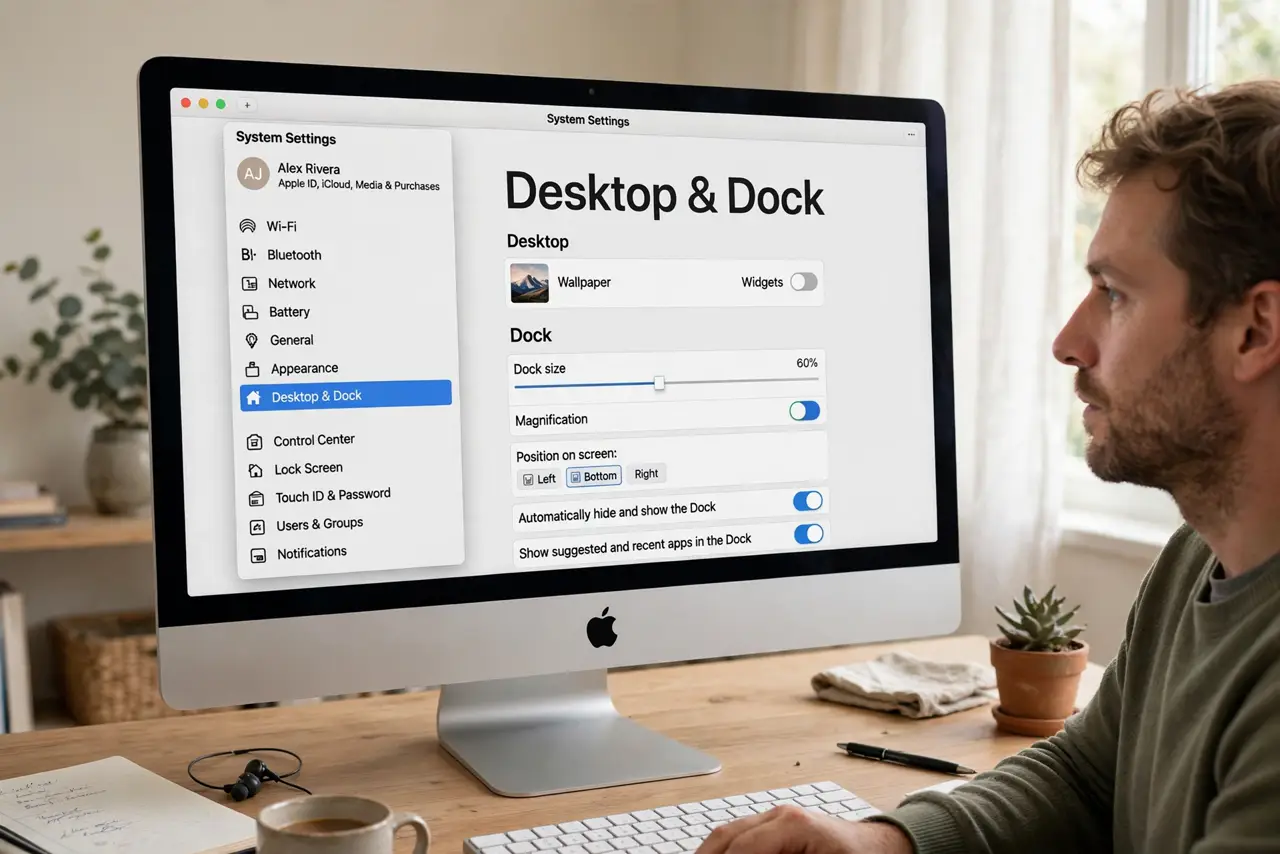
Quick fix: open System Settings, go to Desktop & Dock, and turn on Magnification. Drag the slider to set how large icons grow. Keep the base Dock size modest — magnification handles the readability when you need it as you hover.
Follow these steps
- Open Desktop & Dock settings. System Settings > Desktop & Dock. Magnification sits right under the Dock size slider.
- Turn on Magnification. Flip the toggle. Icons immediately start swelling under your cursor — the effect is live, no restart.
- Set the magnification amount. Drag the Magnification slider to taste. Bigger isn't always better — oversized icons push their neighbors around comically.
- Keep the base size small. A modest base Dock plus magnification gives you a slim Dock that blooms on demand — the best of both worlds.
- Fix it if magnification sticks. Icons sometimes freeze enlarged after sleep or display changes. Toggling the setting off and on resets it — the stuck magnification guide covers stubborn cases.
- Consider autohide for small screens. On a 13-inch display, combine magnification with Dock autohide for maximum screen space — the Dock appears, blooms, and vanishes.
What NOT to do
- Do not max both sliders. A huge base Dock plus huge magnification leaves no screen for actual work.
- Do not enable magnification and then complain the Dock 'moves.' The swelling shifts neighbors — that's the effect working as designed.
- Do not expect magnification on a hidden Dock to show first. Autohide reveals the Dock first; magnification applies once it's visible.
- Do not confuse this with icon spacers. Magnification changes size behavior; spacers change grouping — they solve different Dock complaints.
Frequently asked questions
Does magnification slow down the Mac?
No — it's a trivial animation for any modern Mac. If the Dock stutters, something else is wrong.
Why do icons stay big after I move the mouse away?
That's the stuck-magnification glitch, usually after sleep. Toggle the setting off and on to reset it.
Can I magnify only some icons?
No — it's all or nothing for the Dock. The magnification amount is global.