Move the Dock to the Side
On a widescreen monitor the Dock eats precious vertical space at the bottom, and you keep overshooting it with the mouse. Moving it to the left or right edge frees that vertical room and puts it where your cursor already travels. The setting is instant and reversible.
TL;DR / Quick Fix
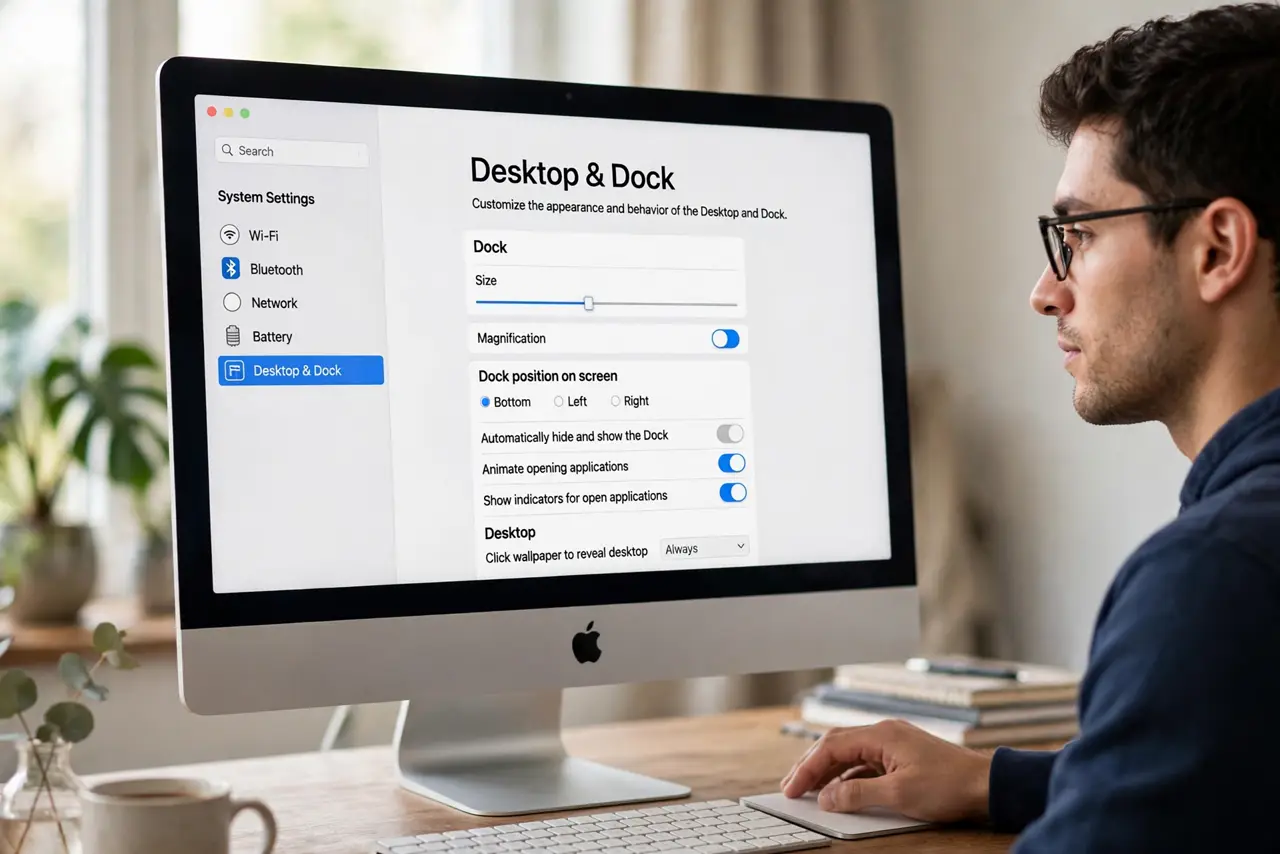
Quick fix: open System Settings > Desktop & Dock and set Position on screen to Left or Right. The Dock jumps to the chosen edge instantly. Side placement suits widescreen monitors by freeing vertical space. Your pinned apps and settings travel with it unchanged.
Follow these steps
- Open Desktop & Dock settings. Open System Settings and go to Desktop & Dock.
- Set Position on screen. Choose Left or Right from the Position on screen control. The Dock relocates immediately — no restart.
- Pick the side your cursor favors. Right suits right-handed mouse users; left keeps it near window traffic lights. Try each for a day.
- Reclaim vertical space. On 16:9 screens the side Dock returns a meaningful strip of height to every window. This is the real win.
- Adjust size if needed. A side Dock at a smaller size fits more icons. The Size slider is on the same settings page.
- Dock moved by itself? If the Dock moved on its own, check this same setting — accidental drags and display changes flip it.
What NOT to do
- Do not drag the Dock by its divider expecting it to move. Position changes happen in Settings, not by dragging.
- Do not assume side Docks hide the same. Autohide works on any edge, but the trigger zone moves with the Dock.
- Do not forget full-screen apps. The Dock stays hidden in full-screen regardless of which edge it lives on.
- Do not fight muscle memory for a day. Give a new edge 48 hours before declaring it wrong — the first hours always feel off.
Frequently asked questions
Which side is better, left or right?
Preference. Left sits near the traffic lights and feels natural to many; right keeps it out of the way of window controls. There is no performance difference.
Why did my Dock move to the side by itself?
Display changes and some settings syncs flip the position. The same Settings page puts it back in one click.
Does the side Dock work with magnification?
Yes — magnification expands icons along the edge just as it does at the bottom.