Dock Won't Hide in Full Screen on Mac
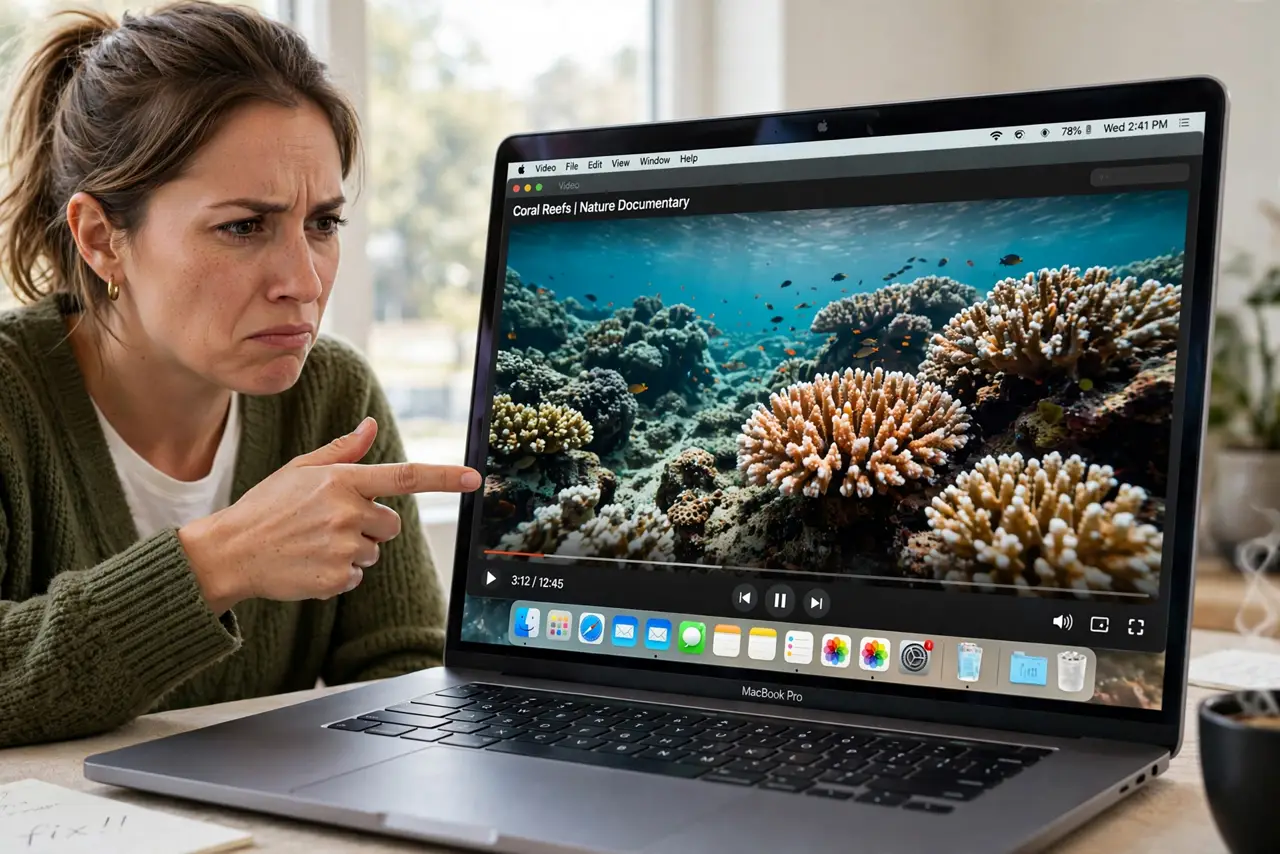
You go full screen and the Dock refuses to hide — it sits there covering the bottom of your video or app. The auto-hide setting is either off, stuck, or being overridden by an app holding the Dock visible. This guide gets the Dock out of the way.
TL;DR / Quick Fix
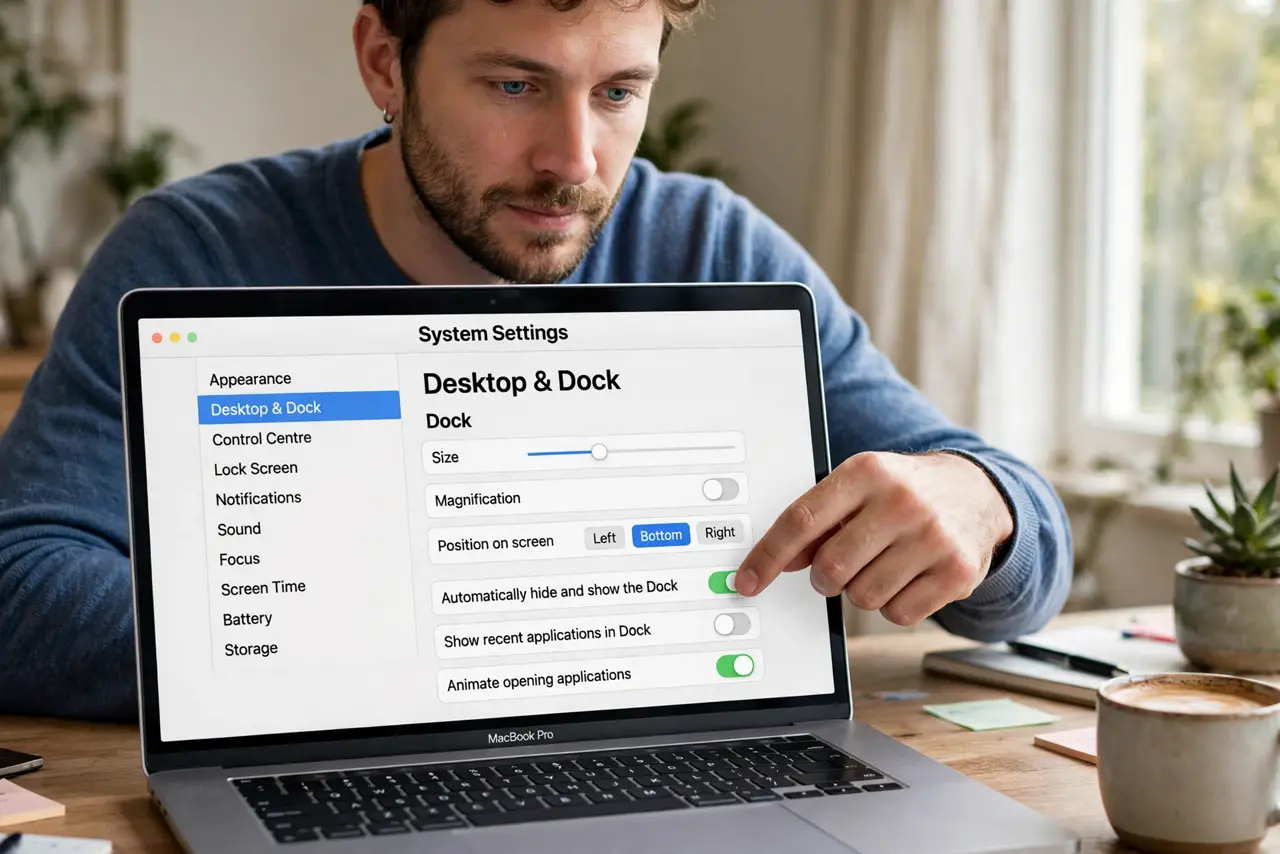
Quick fix: in System Settings > Desktop & Dock, turn 'Automatically hide and show the Dock' on — toggle it off and on again if it is already on. Then restart the Dock from Terminal to clear the stuck state, and test in Safari.
Follow these steps
- Turn on Dock auto-hide. Go to System Settings > Desktop & Dock and enable 'Automatically hide and show the Dock.' Full-screen apps expect this setting to manage the Dock's visibility.
- Toggle it off and on. If auto-hide is already on, switch it off, wait a few seconds, and switch it back on. A stuck preference often clears with one deliberate toggle cycle.
- Restart the Dock. Open Terminal and run killall Dock. The Dock process restarts fresh, releasing whatever held it visible over your full-screen app.
- Check the app's own full-screen mode. Make sure the app is truly full screen (green button held for options) and not just maximized. A maximized window is not full screen, and the Dock behaves differently for each.
- Look for an app holding the Dock. Some apps with badges or alerts keep the Dock visible. Quit menu bar and messaging apps one by one to find the holder.
- Test in a new user account. Log into a fresh user account and test full screen there. If the Dock hides properly, your main account's Dock preferences are corrupt — reset them.
What NOT to do
- Do not drag the Dock to another edge as a workaround. Moving the Dock dodges the symptom while the stuck setting remains.
- Do not kill the Dock repeatedly in anger. One clean restart fixes a stuck state; repeated kills just interrupt your work.
- Do not assume every app supports auto-hide equally. A few older apps genuinely keep the Dock visible — test with Safari or Finder first.
- Do not edit Dock preference files by hand. Deleting the wrong plist can reset your whole Dock layout for nothing.
Frequently asked questions
Why won't my Dock hide in full screen?
Auto-hide is off, the preference is stuck, or an app holds the Dock visible. Toggle the setting, then restart the Dock.
Does the Dock hide in every full-screen app?
It should, with auto-hide on. Test in Safari — if it works there, the specific app is the holdout.
Will restarting the Dock delete my icons?
No. Restarting the Dock process keeps your layout; it only refreshes the running state.