Downloads Stack Views? How To
Your Dock's Downloads stack is either a fanned-out mess or a mysterious pile you never open. The stack has four view modes — fan, grid, list, automatic — and the right one turns it from decoration into the fastest way to grab recent files.
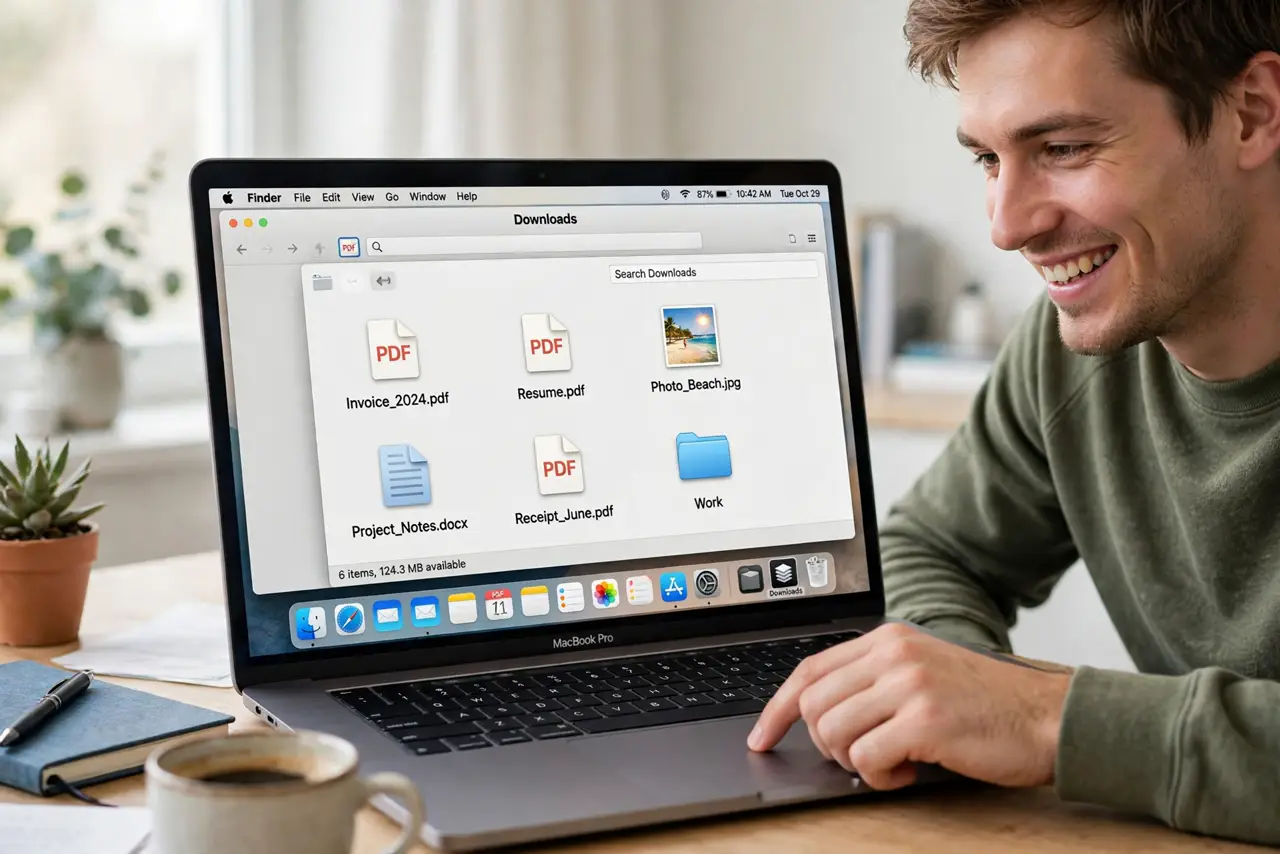
TL;DR / Quick Fix
Quick fix: right-click the Downloads stack in the Dock and choose your view — Grid for visual scanning, List for names and dates, Fan for a quick peek. Set Sort by to Date Added so the newest downloads always sit on top.
Follow these steps
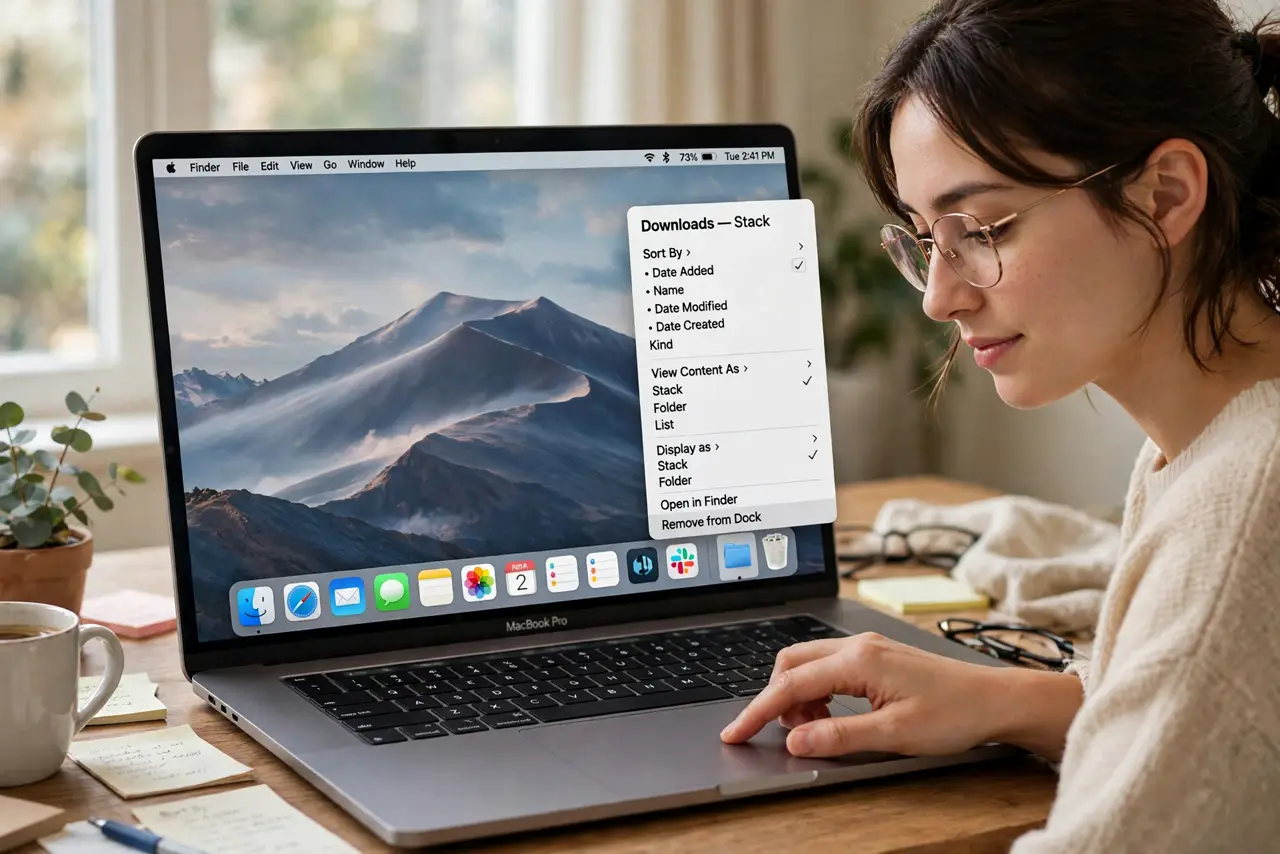
- Right-click the Downloads stack. It's the stack nearest the Trash in the Dock. The context menu holds all the view controls.
- Pick a view mode. Fan shows a quick arc of recent items; Grid shows a full visual spread; List shows names with dates and sizes; Automatic picks based on item count.
- Choose Grid for visual files. If your downloads are mostly images, PDFs, and installers, Grid's thumbnails let you spot the right file instantly.
- Choose List for documents. List view shows names, dates, and sizes in rows — the fastest way to find 'that spreadsheet from Tuesday.'
- Sort by Date Added. In the same menu, set Sort by to Date Added. Newest downloads land on top every time — no hunting.
- Apply the same thinking to the Desktop. If the Desktop itself is the mess, Stacks auto-organize it by kind or date — same principle, bigger canvas.
What NOT to do
- Do not leave it on Automatic and wonder why the view keeps changing. Automatic switches modes by item count — pick one mode and keep it.
- Do not use the stack as permanent storage. Downloads is a transit lounge; move keepers to real folders or they'll drown in installers.
- Do not fan out 200 items. Fan view collapses past a handful — switch to Grid or List when the stack grows.
- Do not confuse the stack with the folder. The stack is a view onto ~/Downloads; deleting from the stack deletes the real file.
Frequently asked questions
Why does my Downloads stack look different from my friend's?
View mode and sort order are per-user settings. Right-click the stack to see yours — theirs is just configured differently.
Can I add other folders as stacks?
Yes — drag any folder to the right side of the Dock (near Trash) and it becomes a stack with the same view options.
The stack shows nothing but the folder isn't empty — why?
Sort or view filters can hide things oddly, or Finder needs a relaunch. Check the actual ~/Downloads folder in Finder to confirm the files exist.