Downtime on Mac? Basics
Your Mac suddenly allows only a handful of apps in the evening — or your kid's Mac locks down at 8 PM sharp and homework is trapped behind the block. That is Downtime, Screen Time's scheduled lockdown mode. It is doing exactly what someone configured, but the configuration is often forgotten. This guide finds and adjusts it.
TL;DR / Quick Fix
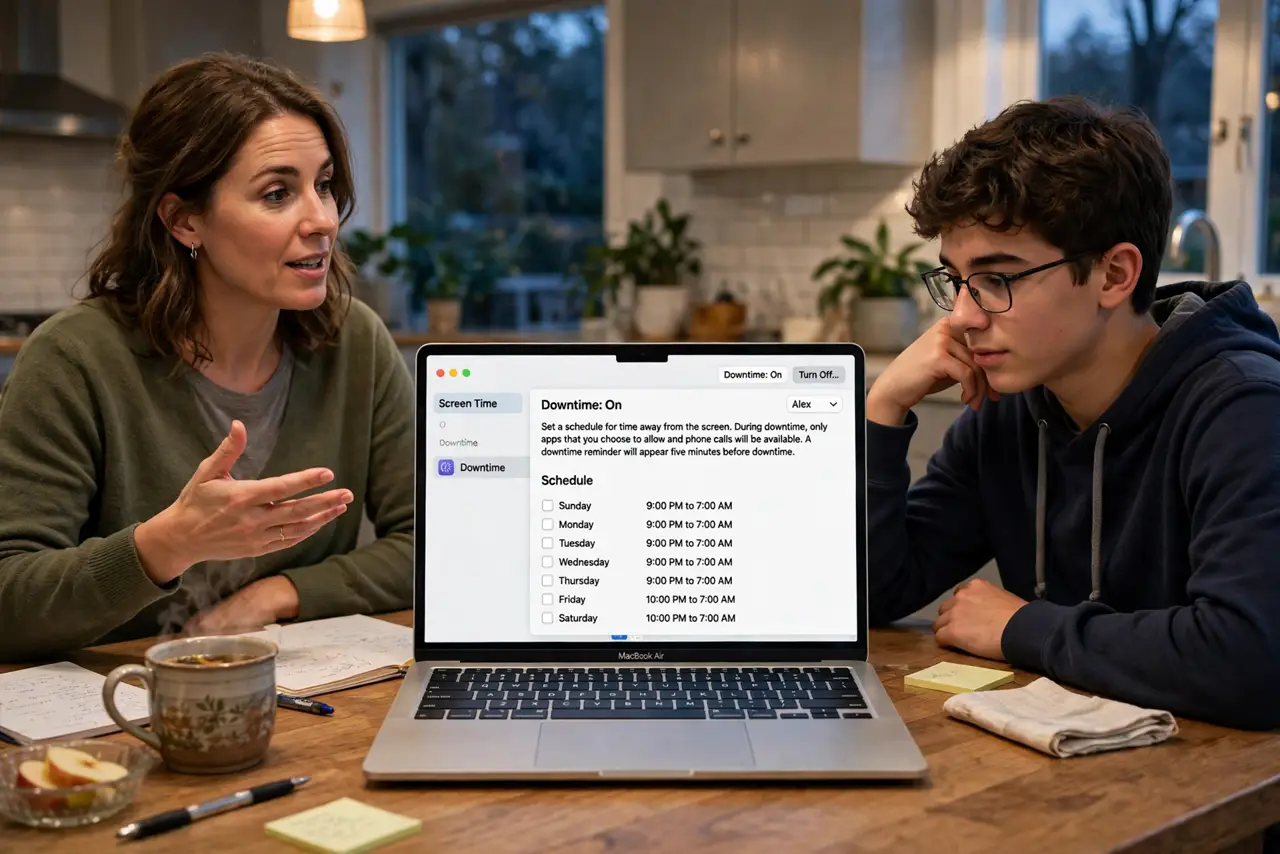
Quick fix: open System Settings, then Screen Time, then Downtime, to see the schedule. Turn it off or adjust the hours to match reality. Check Always Allowed — essential apps like school tools belong there so Downtime never blocks them. Remember the Screen Time passcode, since changes require it.
Follow these steps
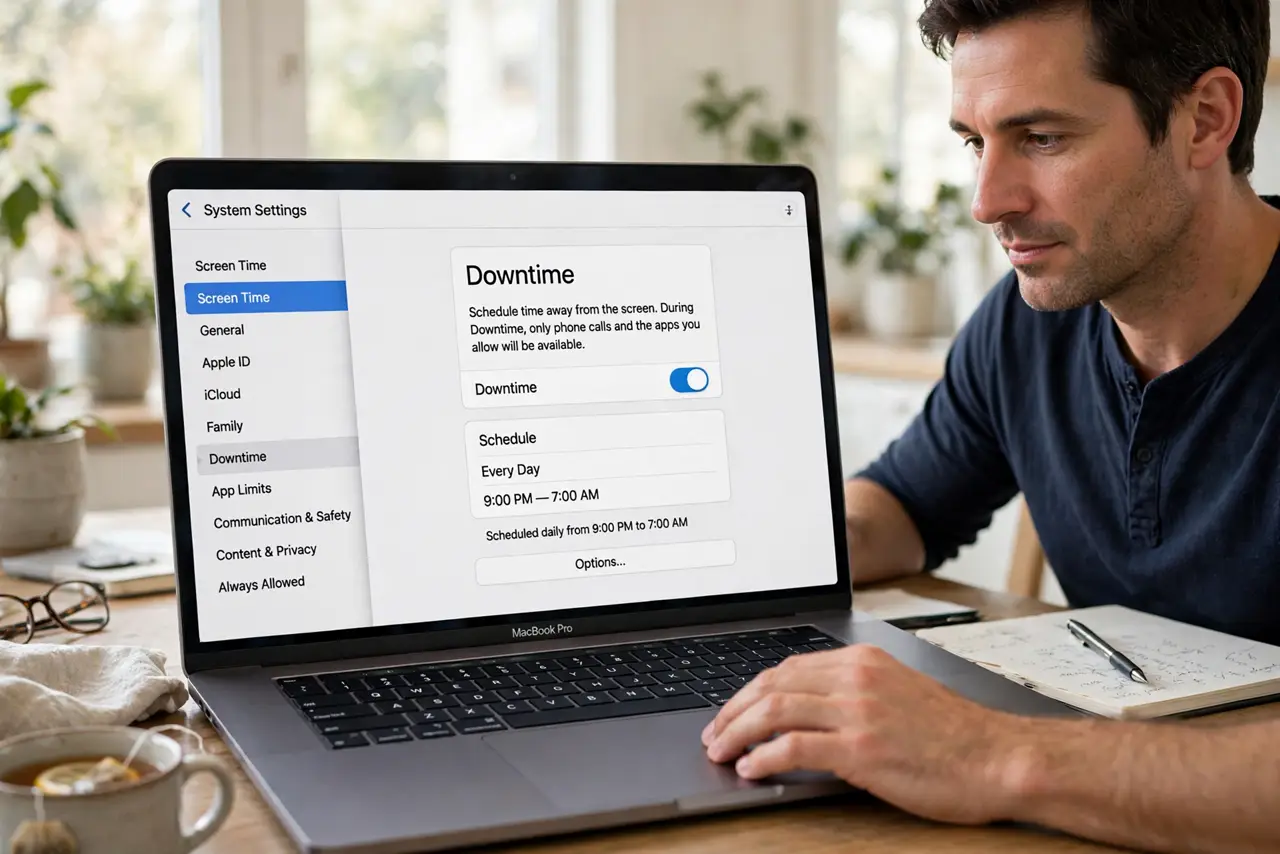
- Find the Downtime schedule. Go to System Settings, Screen Time, then Downtime. The schedule shows exactly when the lockdown runs — many surprises trace to a schedule someone set months ago and forgot.
- Adjust the hours. Change the start and end times to fit the real routine, or turn Downtime off entirely for a device that no longer needs it. School nights versus weekends can differ — set each.
- Check Always Allowed. In Screen Time, open Always Allowed and add anything essential: school apps, messaging for safety, music for homework. A blocked work app is the classic Downtime complaint — this list is the fix.
- Set the passcode. Without a Screen Time passcode, anyone can toggle Downtime off. Set one in Screen Time settings and store it somewhere safe — kids are remarkably good at finding unprotected settings.
- Handle the 'one more minute' requests. Downtime allows asking for more time, which the passcode holder approves. Decide your policy in advance — consistent rules beat nightly negotiations.
- Recover a lost passcode. If nobody remembers it, Apple ID recovery resets it — see the passcode recovery steps. Reinstalling macOS over a forgotten passcode never helps.
What NOT to do
- Do not schedule Downtime you cannot explain. A lockdown nobody remembers causes conflict — review it together, not as a surprise.
- Do not forget Always Allowed. Blocking the calculator during homework hour defeats the purpose of the whole system.
- Do not use Downtime as the only control. Pair it with app limits for daytime habits — Downtime only covers its scheduled window.
- Do not share the passcode with the kid. The moment it is shared, every limit becomes negotiable at 10 PM.
Frequently asked questions
Why is everything blocked except a few apps?
Downtime is active. Check the schedule in Screen Time — it is either running now or its hours are wrong.
Can Downtime apply only on school nights?
Yes — customize the schedule per day when you set it up. Weekends can stay open while weeknights lock down.
Does Downtime block phone calls?
No — calls and the Phone app stay available by default. Downtime targets apps, not essential communication.