Dynamic Wallpaper? How It Works
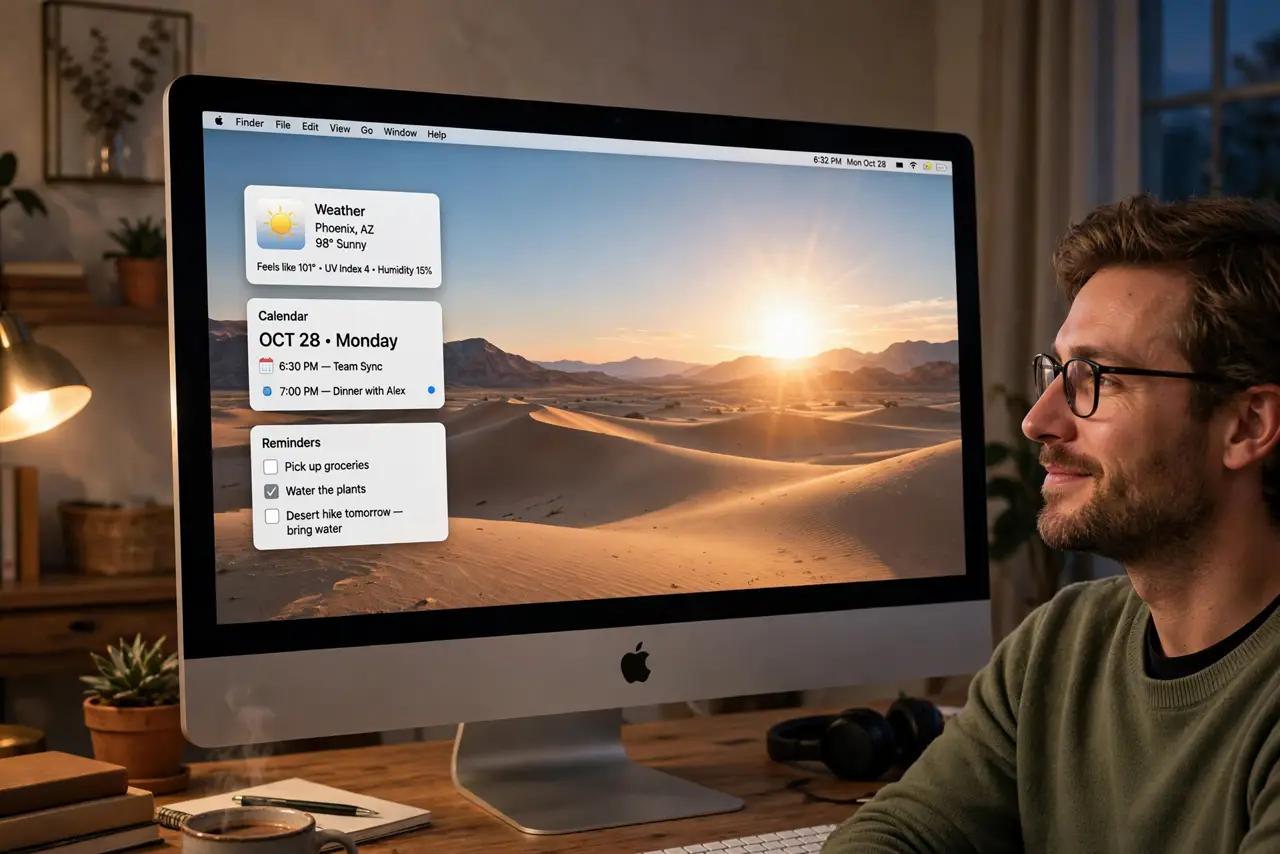
Your Mac's wallpaper shifts from bright daylight to deep night all by itself — that's Dynamic Desktop, not a slideshow. It follows the sun for your location, giving you a living background that matches the time of day. Here's how it works and how to control it.
TL;DR / Quick Fix
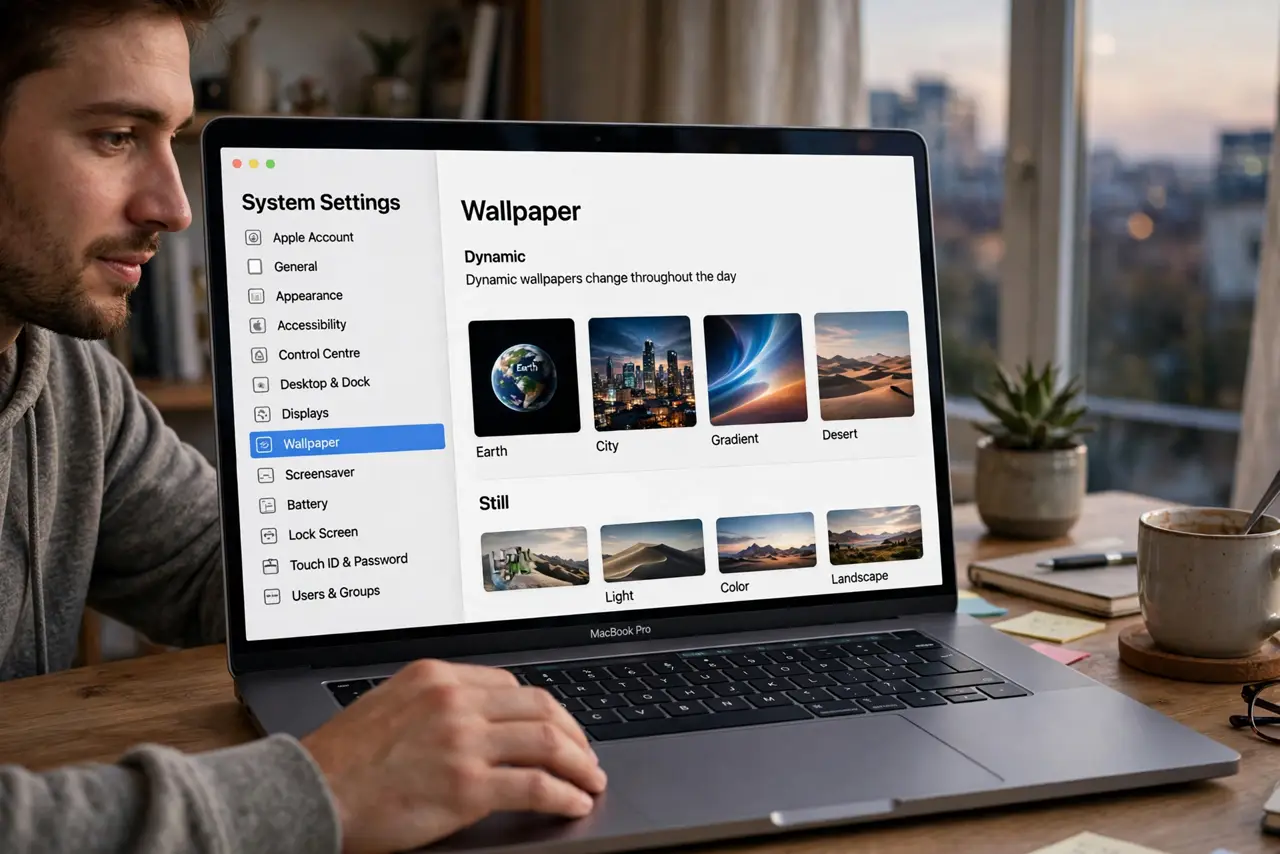
Quick fix: open System Settings, go to Wallpaper, and choose a wallpaper marked Dynamic. The image shifts with the time of day automatically. Pick Light or Dark instead if you prefer a fixed look that never changes through the day.
Follow these steps
- Open Wallpaper settings. System Settings > Wallpaper. Apple's built-in dynamic options sit at the top of the gallery.
- Pick one marked Dynamic. The thumbnail says Dynamic underneath. Light/Dark versions switch only between two images; Dynamic moves through many across the day.
- Let location drive the timing. Dynamic Desktop uses your location for sunrise and sunset times. With location off, it falls back to a fixed schedule — close, but not your actual sky.
- Preview the cycle. Some wallpapers let you scrub through the day's versions in the preview. Pick the one whose noon and midnight both please you.
- Turn it off cleanly. Choose any still image to stop the shifting. Your Desktop widgets stay exactly where they were — only the background freezes.
- Know it costs nothing. The transitions are pre-rendered images, not live rendering — zero battery or performance cost. The wallpaper changing unexpectedly issue is a different thing entirely.
What NOT to do
- Do not confuse Dynamic with a photo slideshow. Slideshow cycles your pictures on a timer; Dynamic follows the sun through one scene.
- Do not expect third-party wallpapers to be dynamic. The multi-image format is Apple's — downloaded images are stills unless built for it.
- Do not disable location services over this. The fallback schedule works fine; only the sunrise precision changes.
- Do not use Dynamic on a projector setup for presentations. A shifting background behind your slides is distracting — switch to a still first.
Frequently asked questions
Why doesn't my wallpaper change at the right time?
Location services are off, so macOS uses a generic schedule. Enable location for Wallpaper or accept the approximate timing.
Can I make my own dynamic wallpaper?
Yes, with third-party tools that bundle multiple images into Apple's format — but it's a project, not a setting.
Does it work on external displays?
Yes — the dynamic wallpaper applies per display, each following the same schedule.