Open the Emoji Picker Fast
The emoji you want is three seconds away, not thirty: the Mac has a system-wide emoji picker that pops up in any text field. Most people find it by accident years in — here is the shortcut, the backup shortcut, and the search trick that makes it instant.
TL;DR / Quick Fix
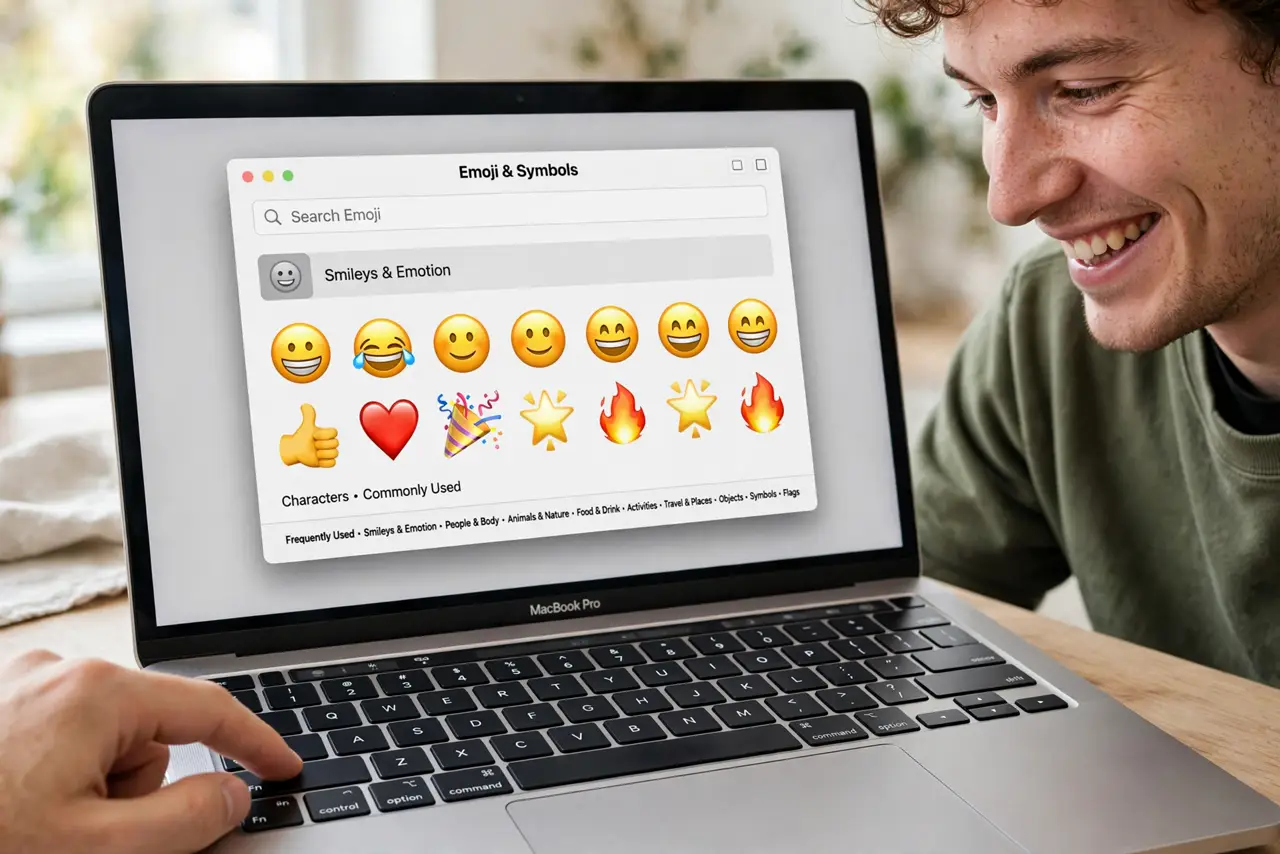
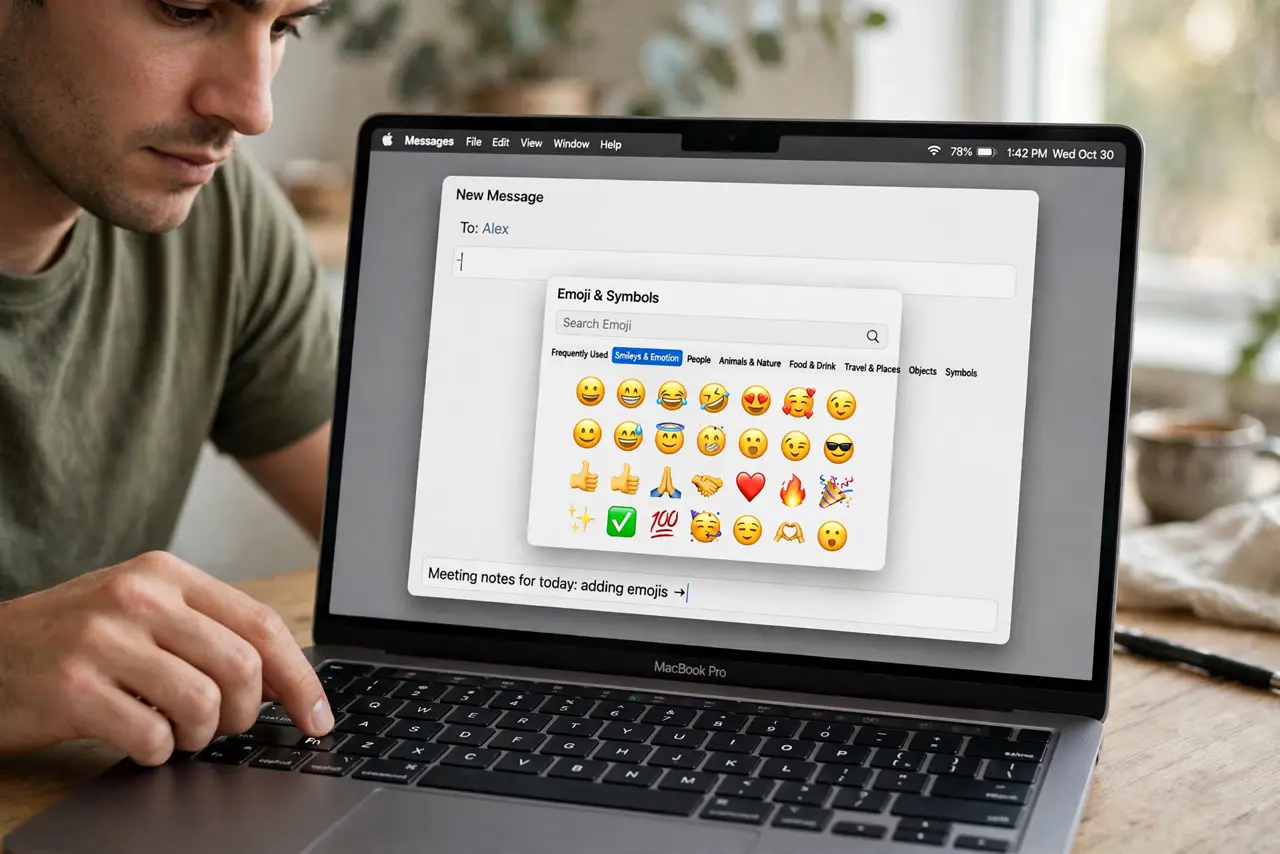
Quick fix: press the Fn key — or the globe key — once in any text field to open the emoji picker. The backup is Control-Command-Space. Type a word like 'happy' in the picker's search box to jump straight to the emoji.
Follow these steps
- Press Fn or the globe key. In any text field, tap the Fn key (or the globe icon key on newer MacBooks). The emoji picker appears at the cursor.
- Memorize the backup: Control-Command-Space. If the Fn key is remapped, Control-Command-Space opens the same picker everywhere — it never fails.
- Search instead of scrolling. Type a word in the picker's search field — 'cat', 'party', 'thumbs' — and the matching emoji appear instantly.
- Use the picker for symbols too. The same window holds arrows, math symbols, and currency — click the icon at the top to switch categories.
- Check the Fn key assignment. If Fn does something else, open System Settings > Keyboard and set 'Press fn key to' to Show Emoji & Symbols.
- Check the dedicated troubleshooter if it never opens. If the picker never opens, check the dedicated troubleshooter — a stuck input source is the usual cause.
What NOT to do
- Do not remap Fn away and forget. If the emoji shortcut dies right after a settings spree, the Fn assignment is the first suspect.
- Do not scroll the whole catalog. The search box is the entire point — scrolling two thousand emoji is nobody's idea of fast.
- Do not expect it in password fields. The picker stays out of secure fields by design — no emoji in passwords.
- Do not install a third-party emoji app. The built-in picker is faster than any menu-bar add-on and cannot leak keystrokes.
Frequently asked questions
Why does pressing Fn do nothing?
The Fn key is probably assigned to another action — check System Settings > Keyboard > 'Press fn key to' and set it to emoji.
Can I insert kaomoji like (╯°□°)╯?
Yes — the picker's symbols section includes text emoticons, or search 'shrug' for the classics.
Does the shortcut work in browsers?
Yes — any text field, including web forms and address bars. Control-Command-Space is the most reliable there.