Open Emoji and Symbols
You need an emoji, an arrow, a degree sign, or some obscure character — and hunting through menus feels absurd for something so small. macOS has a built-in viewer for every emoji and symbol ever standardized, one keyboard shortcut away, with search. Most Mac users discover it by accident years in. Here is the shortcut and how to actually use it.

TL;DR / Quick Fix
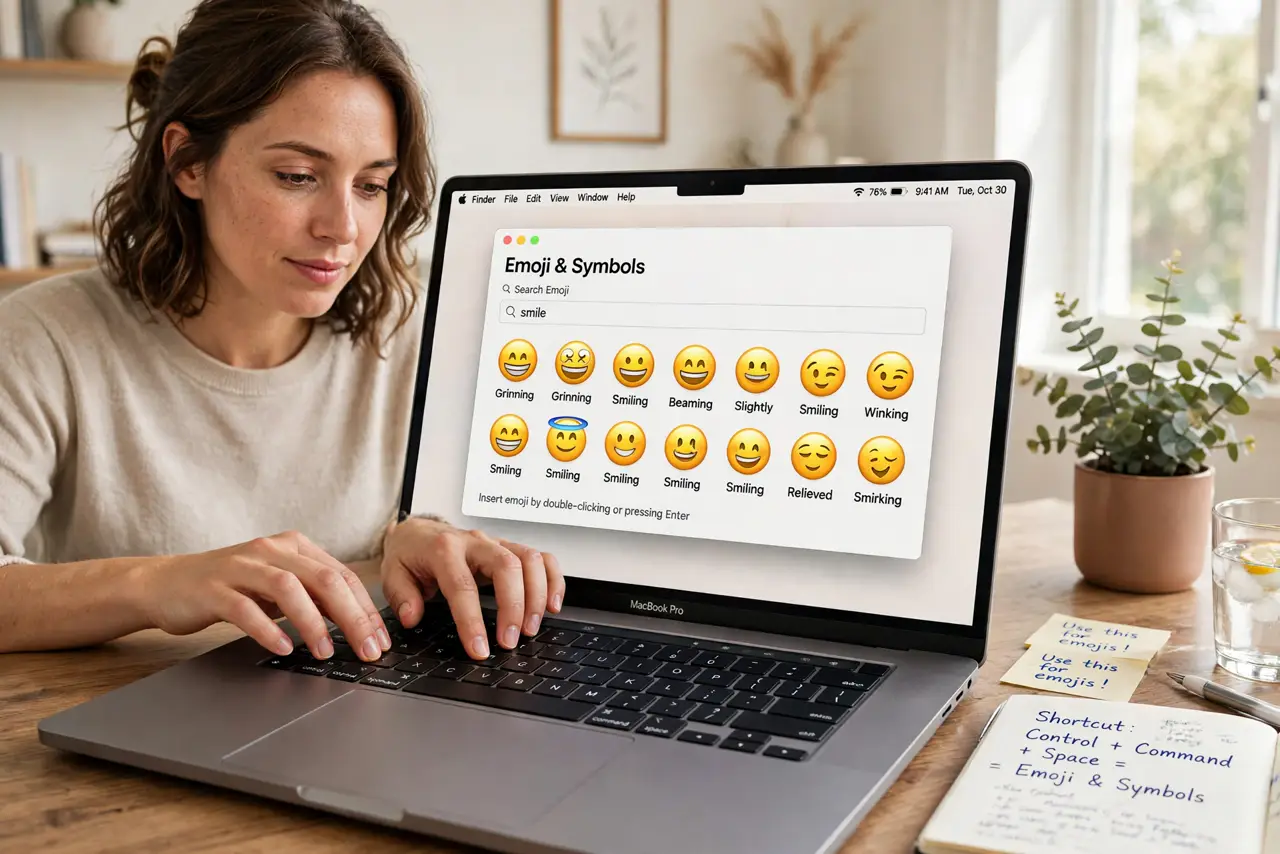
Quick fix: press Control, Command, and Space together to open the emoji and symbols viewer on any Mac. Type a word like arrow or heart to search symbols, click to insert, and use the search field for obscure characters. It works in nearly every app, from Messages to documents.
Follow these steps
- Learn the one shortcut. Press Control + Command + Space anywhere you can type. The Character Viewer pops up — emoji, arrows, math symbols, currency, the works. This single shortcut replaces every menu hunt; see the picker shortcut details if it doesn't appear.
- Search instead of browsing. Type a plain word in the viewer's search field — 'arrow,' 'heart,' 'check,' 'star' — and matching symbols appear instantly. Browsing categories is for fun; searching is for work.
- Insert with a click or double-click. Click a symbol to insert it at your cursor. Double-clicking opens the full Character Viewer with categories and variants. The symbol lands exactly where you were typing — no copy-paste needed.
- Find symbol variants. Many symbols have variants — skin tones for emoji, filled vs outline arrows. Click and hold, or look for the variant dots, to pick the exact form. The viewer remembers recent picks for speed.
- Expand to the full viewer for obscure characters. Click the expand icon for the full Character Viewer with Unicode categories — technical symbols, ancient scripts, musical notation. If a character exists in Unicode, it is in here somewhere.
- Know when it won't open. In password fields and some secure inputs, the viewer is blocked by design. If it refuses everywhere, check the viewer-not-opening fixes — usually a conflicting shortcut or input source issue.
What NOT to do
- Do not install a third-party emoji app. The built-in viewer covers everything and doesn't harvest your keystrokes — random 'emoji keyboards' are a privacy risk.
- Do not memorize symbol alt-codes from Windows. macOS doesn't use them; the viewer plus search is faster than any code chart.
- Do not paste symbols from random websites. Shady 'symbol' sites are ad farms; the viewer is offline, instant, and safe.
- Do not give up if the shortcut does nothing once. A conflicting app shortcut or a non-standard keyboard layout is usually the cause — fixable in minutes.
Frequently asked questions
What's the shortcut again?
Control + Command + Space, pressed together, in any text field. On some keyboards you may need Fn depending on function-key settings.
Can I insert kaomoji like shruggie?
Yes — search the viewer for 'shrug' or browse the text symbols. The viewer includes a whole section of text faces and decorative characters.
Does it work in every app?
Nearly every native Mac app. Some cross-platform apps with custom text fields handle it oddly — but the shortcut still opens the viewer.