Erase Your Mac Before Selling
Selling or giving away your Mac with your photos, passwords, and accounts still on it is one of the easiest privacy mistakes to make. A quick factory reset is not enough on modern Macs — you need to sign out of your accounts and erase properly so the new owner cannot recover anything. Here is the safe order that leaves nothing behind.
TL;DR / Quick Fix
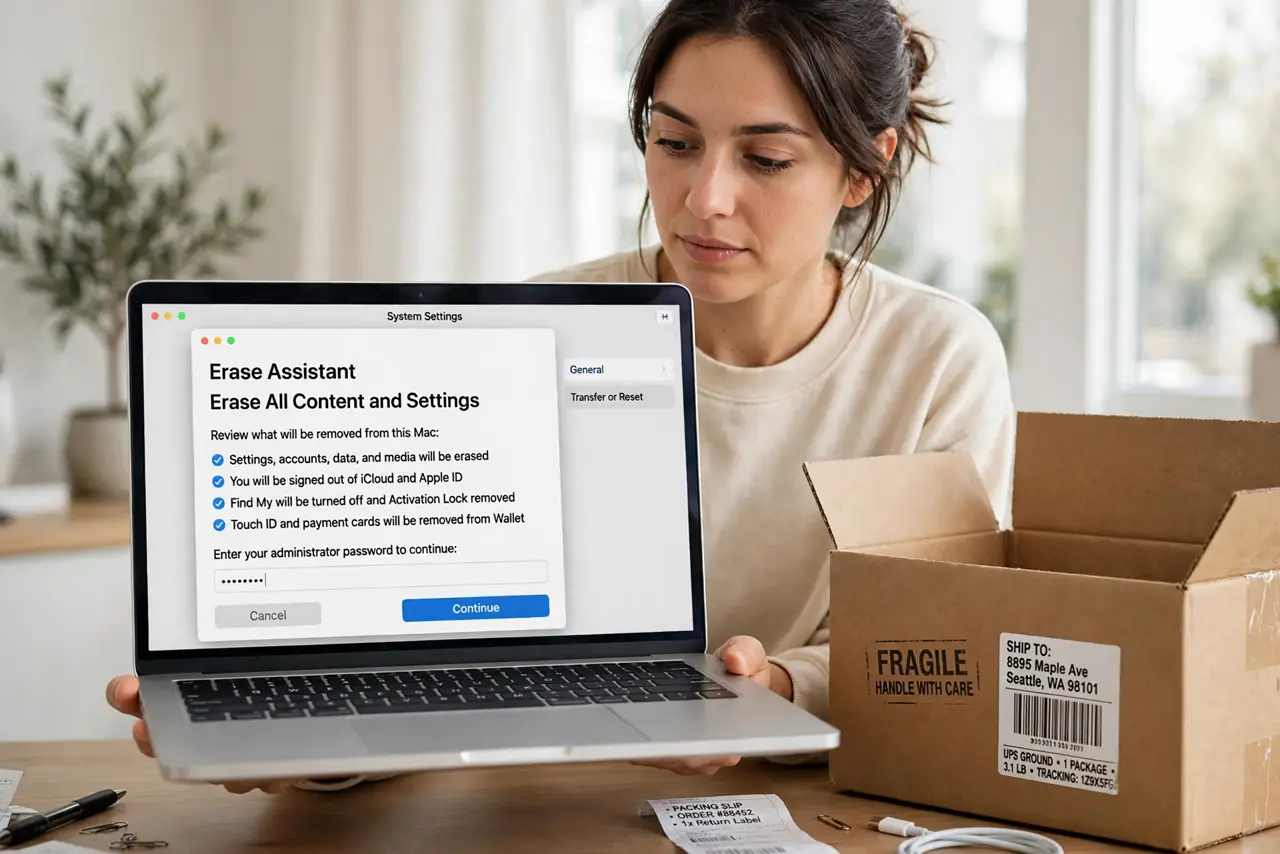
Quick fix: back up, sign out of iCloud and iMessage, then use Erase All Content and Settings to wipe the Mac. Never sell a Mac signed into your Apple ID — the buyer stays locked to your account. Leave it at the setup screen.
Follow these steps
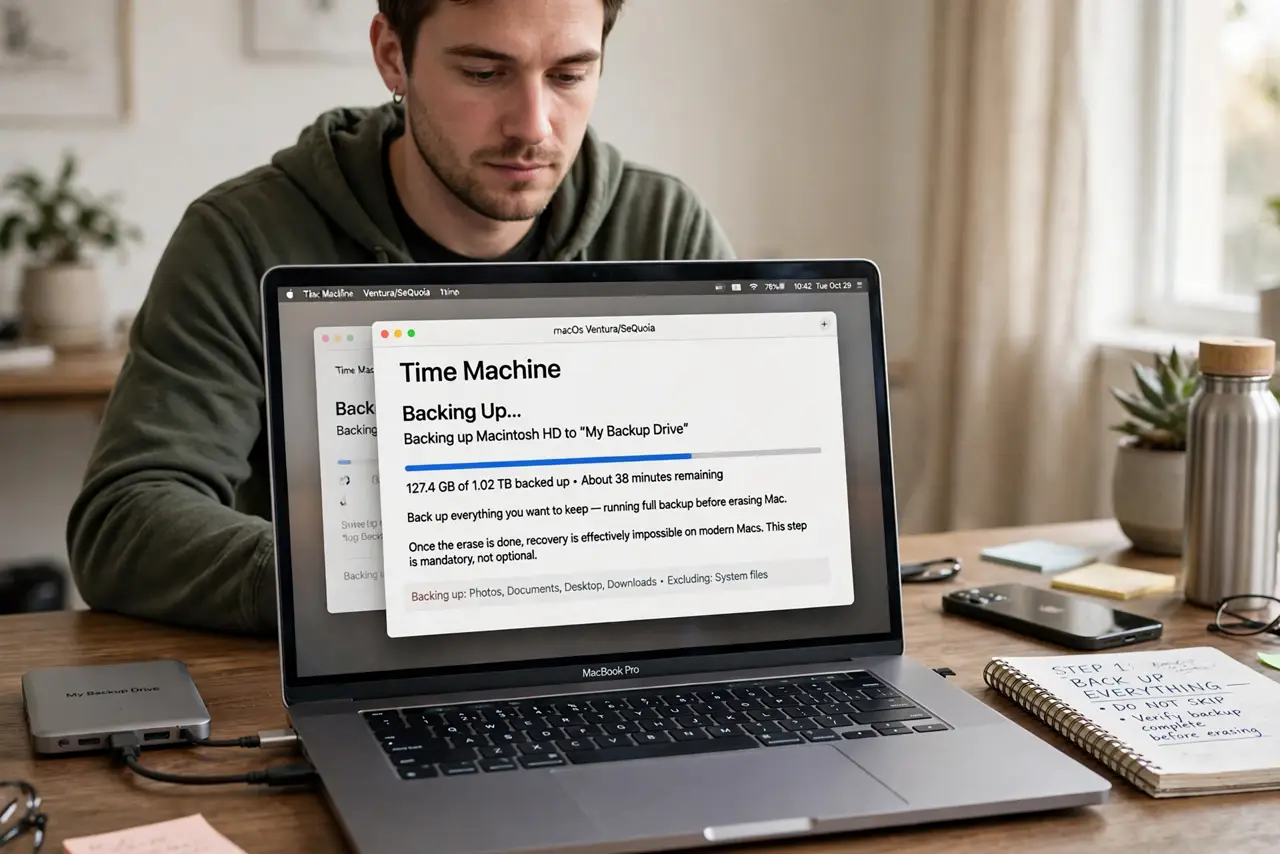
- Back up everything you want to keep. Run a full backup before touching anything. Once the erase is done, recovery is effectively impossible on modern Macs — treat this step as mandatory, not optional.
- Sign out of iCloud completely. Go to System Settings, click your Apple ID, and sign out. This removes Activation Lock, which otherwise bricks the Mac for the buyer and ties it to your account forever.
- Sign out of iMessage and FaceTime. Open Messages and FaceTime and sign out of each. Missed sign-outs cause the classic problem where your old Mac keeps stealing the new owner's text messages.
- Deauthorize media and other services. In the Music app, deauthorize this computer, and sign out of any other purchased-content services. Apple limits how many computers can use your purchases.
- Erase with the built-in tool. On Apple silicon Macs, use System Settings, General, Transfer or Reset, Erase All Content and Settings. On Intel Macs, boot to Recovery and erase from Disk Utility — then reinstall macOS for the buyer.
- Leave it at the setup screen. After erasing, shut down when the hello screen appears. The buyer gets the fresh-out-of-box experience, and none of your Wi-Fi networks or settings linger.
What NOT to do
- Do not just delete your user account and call it done. Files remain recoverable, and Activation Lock still ties the Mac to you.
- Do not forget Activation Lock. A Mac signed into your Apple ID is a paperweight for the buyer — sign out first, always.
- Do not sell with your passwords still saved. Erasing is the only reliable wipe — manually deleting files and browser data misses caches everywhere.
- Do not hand it over running your profile 'for the buyer to test.' If they need a demo, create a temporary guest setup instead of exposing your data — see how to add a separate user.
Frequently asked questions
Should I remove the Mac from my Apple ID devices list?
Yes. After signing out, check your Apple ID device list online and remove the Mac. This is the final confirmation Activation Lock is truly gone.
Does erasing remove the firmware password?
On Intel Macs, turn off the firmware password in Recovery before erasing. Apple silicon Macs handle this automatically with the erase assistant.
What if I already sold it without erasing?
Immediately change your Apple ID password, remove the device from your account remotely, and use Find My to erase it if it is still online.