An External Display Looks Oversaturated
An external display that looks oversaturated is usually showing the wrong color profile, or a wide color mode your content does not need. The display itself is rarely faulty; it is just interpreting colors more vividly than intended.
TL;DR / Quick Fix
Quick fix: open System Settings, then Displays, select the external display, and try a different color profile, such as the standard profile for that display. Compare the same photo before and after, and keep the profile that looks natural. Test the fix, then keep the setting that works.
Follow these steps
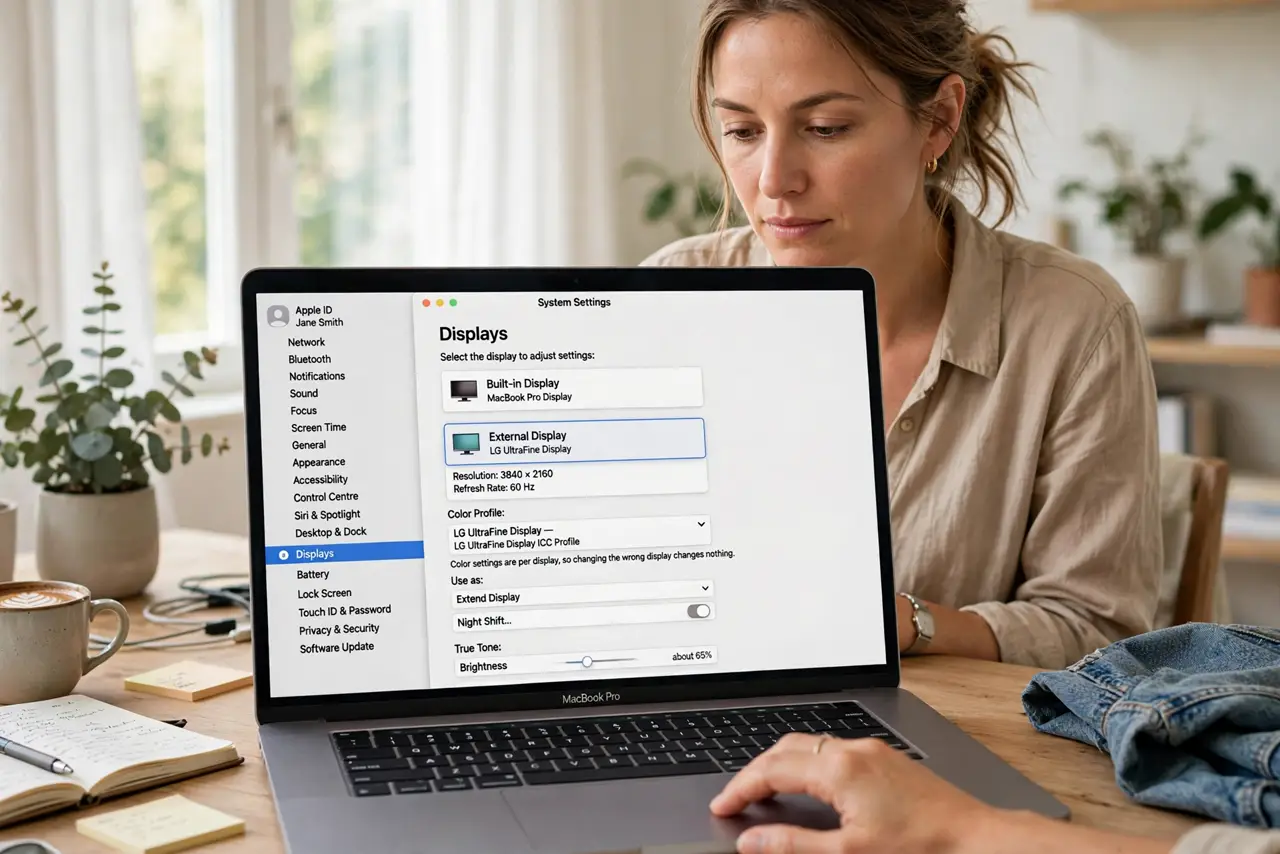
- Open Displays settings. Open System Settings, then Displays, and select the external display, not the built-in one. Color settings are per display, so changing the wrong display changes nothing.
- Try another color profile. Open the color profile list for the external display and try the standard profile for that model. A wrong or generic profile is the most common cause of oversaturation.
- Turn off wide color extras. Check the display's own menu for vivid, dynamic, or wide color modes and turn them off. A vivid mode boosts saturation for video but ruins photos and documents.
- Check the cable and port. Confirm the cable is fully seated and try another port if you can. A loose or faulty connection can shift colors, though it more often causes flicker or dropouts.
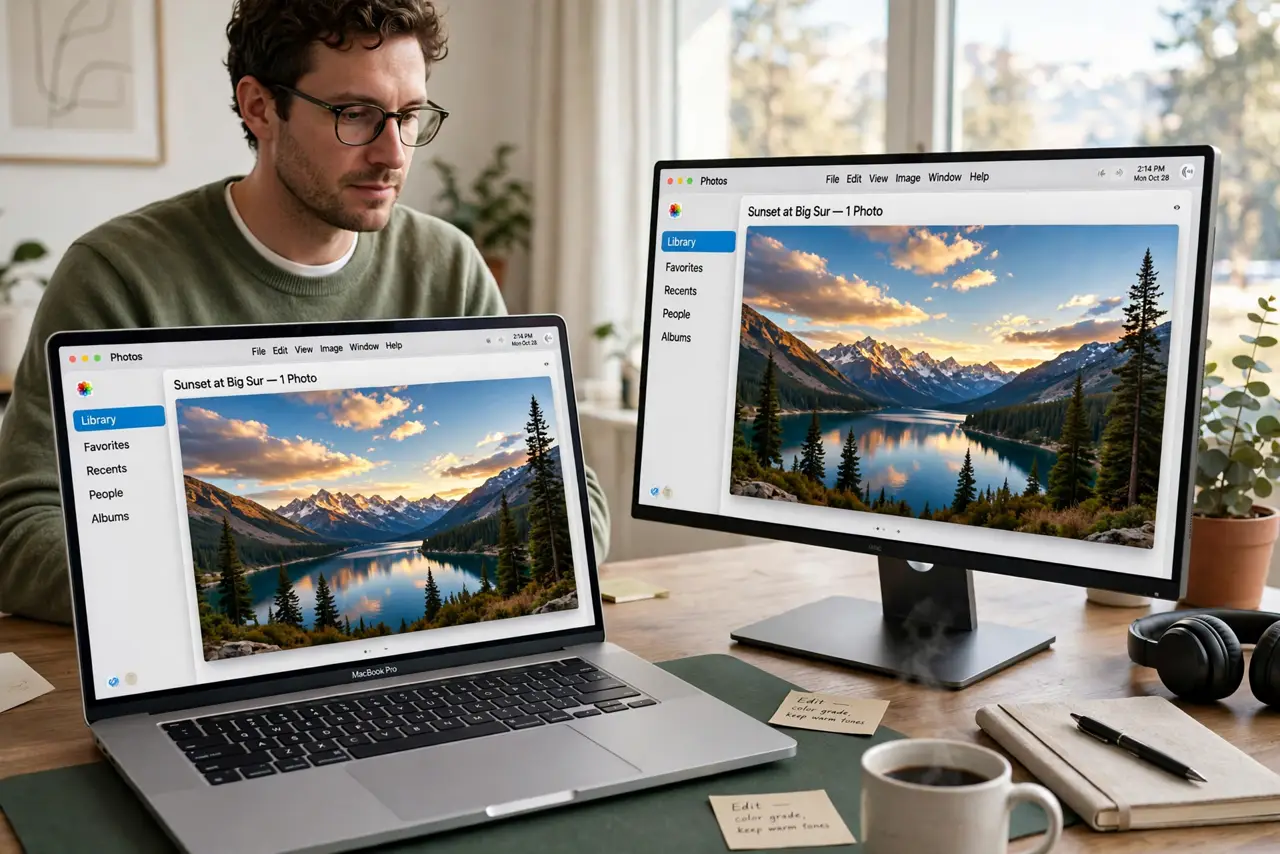
- Compare the same image. Open the same photo on the built-in display and the external display side by side. A direct comparison shows whether the external display is wrong, or your eyes just adjusted to it.
- Reset display settings. If profiles and modes do not help, reset the external display to its factory defaults from its own menu, then reapply the standard color profile. A clean baseline removes stacked tweaks.
What NOT to do
- Do not buy a new display over saturation. Color profiles and vivid modes explain most oversaturation, and a new display with the same settings looks the same.
- Do not calibrate by eye alone for critical color work. Visual tweaks feel right in the moment but drift, while a proper profile stays consistent.
- Do not change the built-in display profile to match a bad external one. Fix the external display, and leave the accurate built-in display alone.
- Do not ignore the display's own menu. macOS profiles and display vivid modes stack, so fixing only one side leaves the other still boosting color.
Frequently asked questions
Why does my external display look oversaturated?
Usually it uses the wrong color profile, or its vivid mode boosts saturation beyond what your content needs.
Will a different cable fix colors?
Sometimes, if the connection is loose or faulty. But profiles and display modes are the more common causes, so check those first.
What is a color profile?
It is a description of how a display reproduces color. The right profile makes colors look natural instead of exaggerated.