Fix External Display Refresh Rate
Your monitor's box proudly says 120Hz or 144Hz, but everything on your Mac still moves at a choppy 60Hz — and the setting to change it is buried where you would never look. Macs often default external displays to 60Hz, and the refresh-rate control hides behind an innocent-looking resolution menu. Here is how to unlock the smoothness you paid for.
TL;DR / Quick Fix
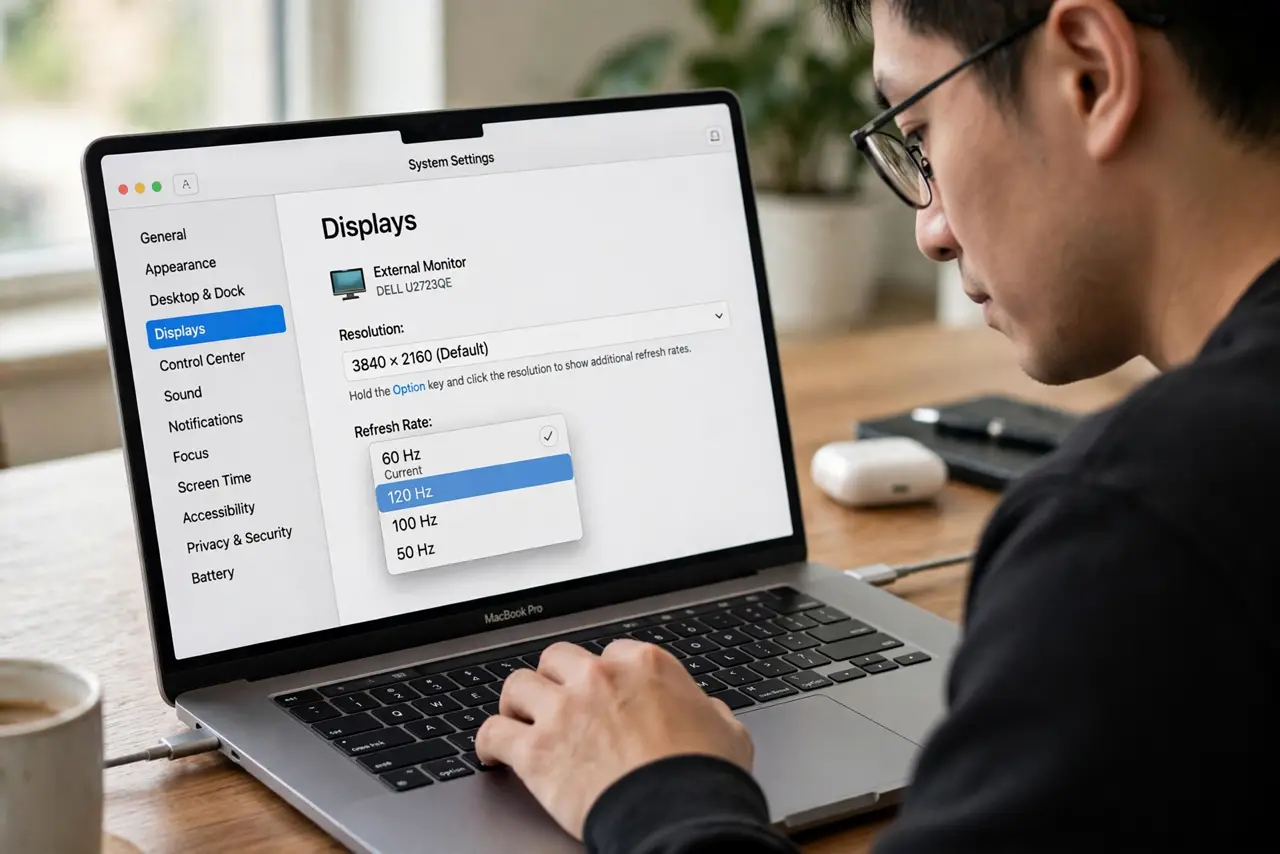
Quick fix: Macs often default external monitors to 60Hz even when the panel supports more. Open System Settings, Displays, click the resolution row to reveal the hidden Refresh Rate menu, and pick the highest your cable supports. If the option is missing, the cable or adapter is usually the bottleneck.
Follow these steps
- Find the hidden refresh-rate menu. Open System Settings, then Displays, and select your external monitor. Hold Option and click the resolution, or click the current resolution row — the Refresh Rate dropdown appears. Apple buries it; now you know where.
- Pick the highest rate the monitor supports. Choose 120Hz, 144Hz, or whatever your panel offers. The difference in scrolling and cursor smoothness is immediate and obvious — you will feel it in the first five seconds.
- Check the cable if options are missing. High refresh rates need bandwidth. Cheap adapters and old HDMI cables cap you at 60Hz — a proper USB-C/DisplayPort cable or HDMI 2.0+ cable is often the real fix, not a setting.
- Verify the monitor's own input settings. Some monitors need the right input mode enabled (check its on-screen menu for the port's version setting). A monitor stuck in a compatibility mode will not offer high refresh to any computer.
- Test with real motion. Drag a window quickly or scroll a long page. At 120Hz+ the motion looks continuous; at 60Hz it steps. Your eyes are the final confirmation the setting took.
- Know the battery and heat tradeoff on laptops. High refresh on the built-in display drains battery faster. For external monitors on a desk this barely matters — but on the go, 60Hz saves meaningful battery.
What NOT to do
- Do not buy a high-refresh monitor and never check the setting. Most buyers run 144Hz panels at 60Hz for years without knowing.
- Do not blame the Mac before checking the cable. Adapters are the number one cause of missing refresh-rate options.
- Do not enable monitor 'overclock' modes blindly. They can add input lag or artifacts — the native rate is the safe pick.
- Do not expect 120Hz over every dock. Cheap docks cap bandwidth; check the dock's specs if the direct cable works but the dock does not.
Frequently asked questions
Why is 120Hz missing on my 4K monitor?
4K at high refresh needs serious bandwidth — older cables and adapters fall back to 60Hz. A certified high-bandwidth cable usually restores the option.
Does refresh rate matter outside gaming?
Yes — scrolling, window dragging, and the cursor all feel dramatically smoother. It is one of the most noticeable everyday upgrades.
Will high refresh hurt my MacBook battery?
On the built-in display, yes, noticeably. On a plugged-in external monitor, the cost is negligible — leave it high.