Turn Off FaceTime Reactions
You give a thumbs up on a client call and fireworks explode behind you. You raise a hand and confetti rains. macOS watches your camera for hand gestures and fires off full-screen Reactions — charming with friends, mortifying in a board meeting. The effects trigger in FaceTime, Zoom, Teams, and anywhere else the camera runs. One toggle turns them off, and they stay off until you say otherwise.
TL;DR / Quick Fix
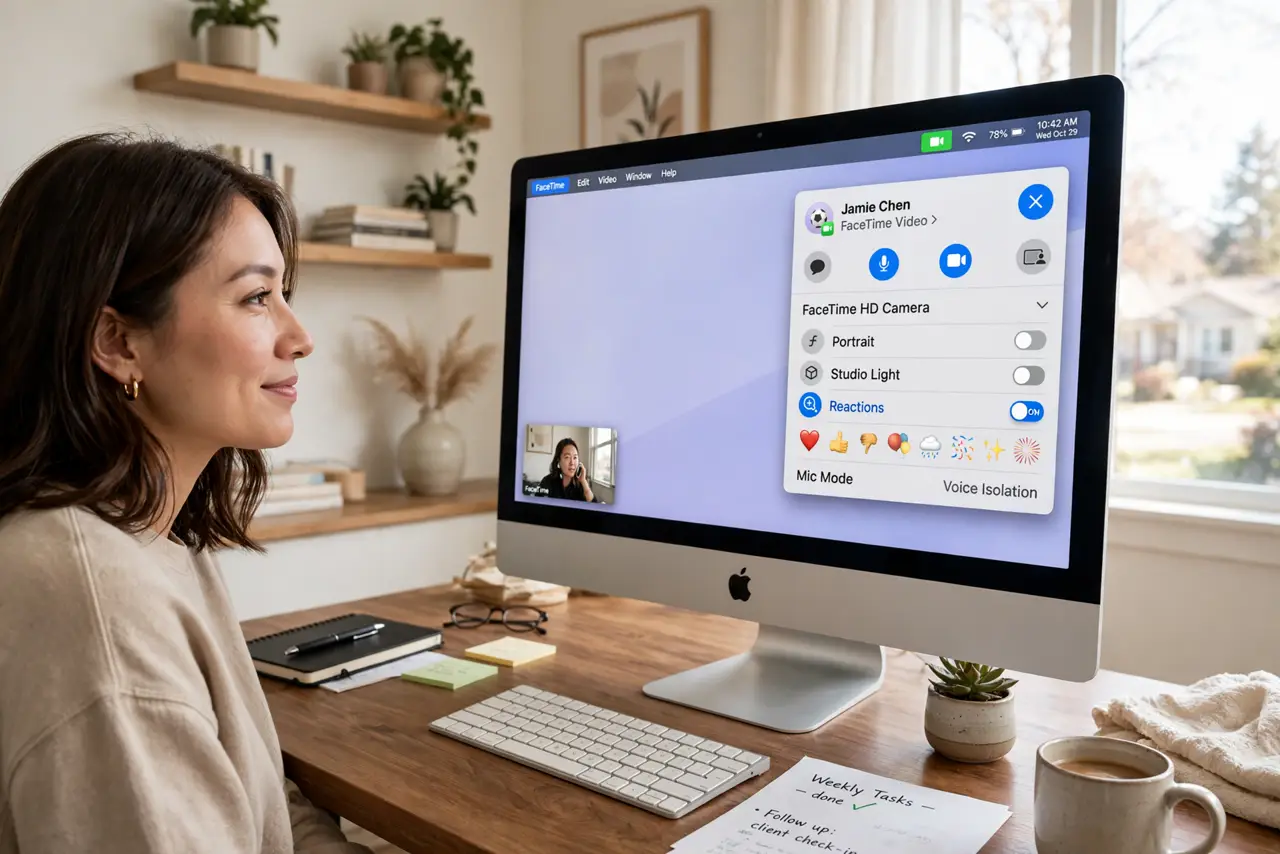
Quick fix: macOS turns hand gestures into on-screen effects — a thumbs up launches fireworks behind you on work calls. Click the FaceTime icon in the menu bar during a call and toggle Reactions off. It stays off until you re-enable it, so one toggle ends the surprise confetti.
Follow these steps
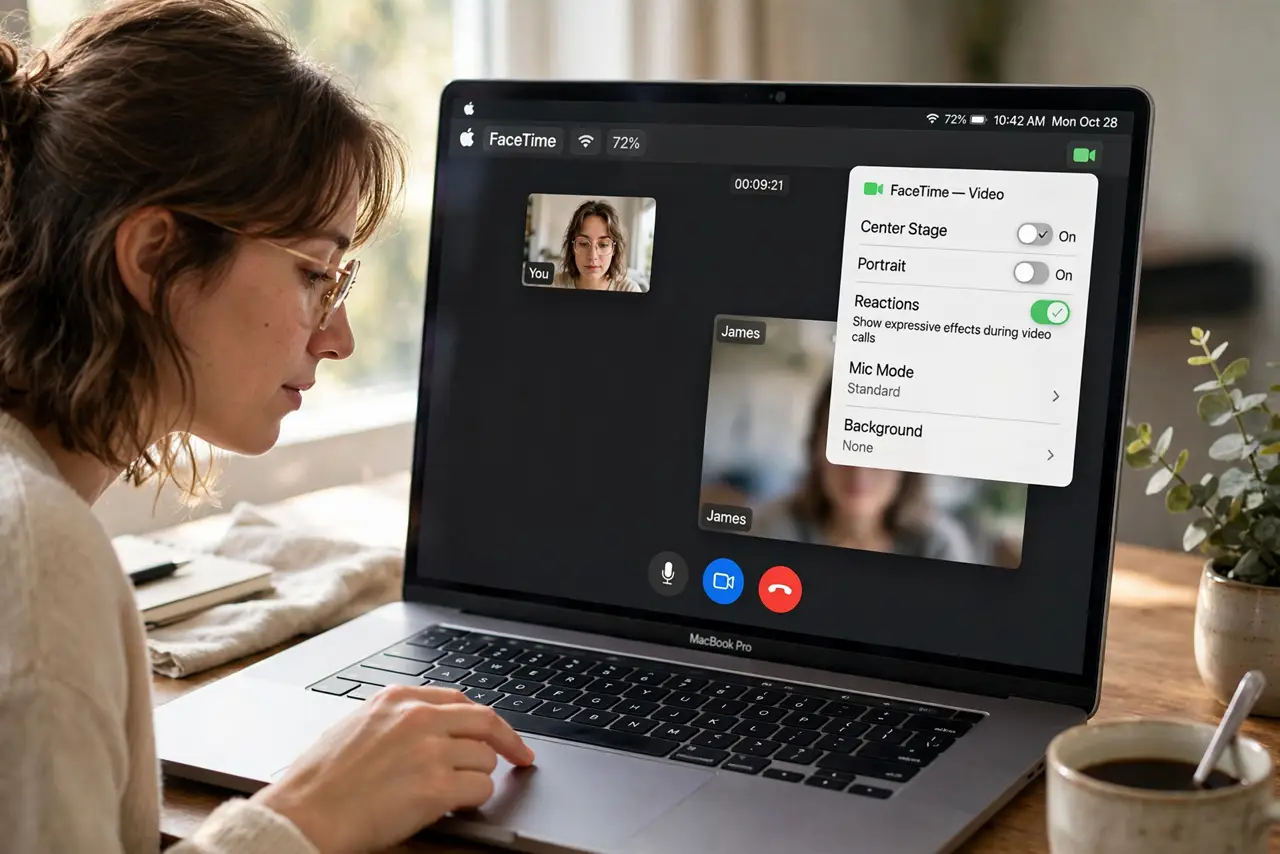
- Find the Reactions toggle. During any video call, click the FaceTime (video) icon in the menu bar — the one that appears when your camera is active. The Reactions toggle sits right there; switch it off. This works in FaceTime, Zoom, Teams, and Meet alike.
- Understand it is per-app and persistent. The toggle applies to the calling app and stays off until you turn it back on — set it once per app you use for work. Your weekend FaceTime with family can keep the fireworks.
- Know which gestures trigger what. Thumbs up: fireworks. Two thumbs up: more fireworks. Peace sign: confetti. Raised hand: balloons. Heart hands: hearts. Knowing the triggers helps you avoid them even with Reactions on — keep hands out of frame on serious calls.
- Check before important calls. Make the menu-bar glance part of your pre-meeting routine, like checking mute. Ten seconds before the client joins beats explaining confetti during the quarterly review.
- Re-enable for fun calls. The effects are genuinely delightful with friends and kids — toggle back on for personal calls. The setting remembers per app, so work stays professional while family stays festive.
- Use presenter tools instead. For work calls, macOS offers genuinely useful camera features like presenter overlay — your face over your shared screen. Professional polish without the surprise fireworks.
What NOT to do
- Do not assume it is off because you turned it off in FaceTime. The toggle is per app — Zoom and Teams each need their own toggle-off.
- Do not gesture emphatically on work calls even with it off. Verify the toggle rather than trusting memory; one missed app is all it takes.
- Do not disable it system-wide out of embarrassment and forget the fun. Personal calls with the effects on are a joy — keep both modes and switch consciously.
- Do not blame the meeting app. The effects come from macOS, not Zoom or Teams — toggling inside the meeting app's settings will not find them.
Frequently asked questions
Why did Apple add these?
For fun personal video calls — the work-call chaos was an unintended side effect once the feature reached every camera app on the Mac.
Do Reactions work on iPhone too?
Yes, on recent iOS during FaceTime and some third-party calls — the same menu-bar-style toggle lives in Control Center during a call.
Can I keep some reactions and disable others?
No — it is all or nothing per app. Off means off for every gesture in that app.