Save Your FileVault Recovery Key
FileVault encrypts your entire Mac — wonderful for security, terrifying if you forget your password. The recovery key is Apple's escape hatch: a long code generated when FileVault was turned on, and the only way back in without the password. Most people never saved it anywhere findable. If you are locked out already, see the lost recovery key guide — otherwise, find your key now and store it safely off the Mac.
TL;DR / Quick Fix
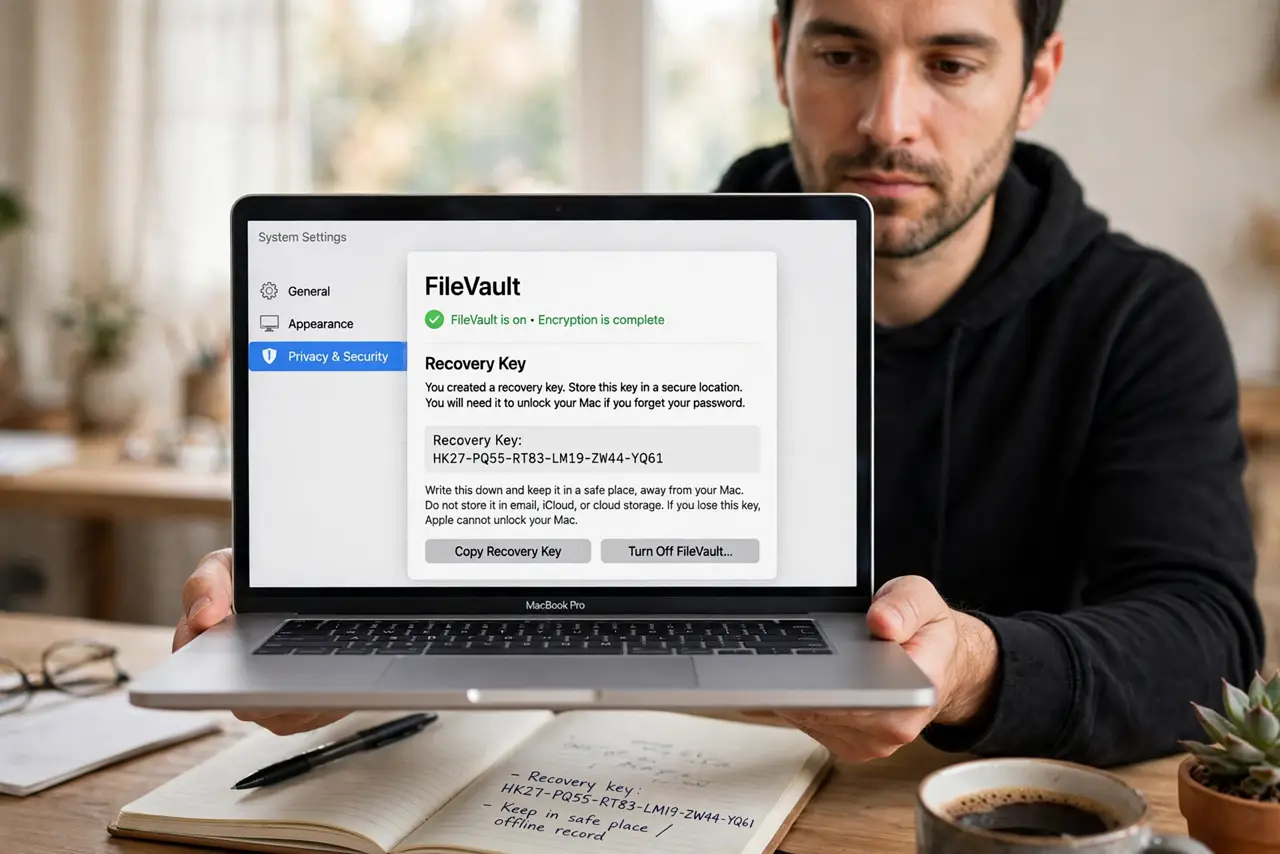
Quick fix: the FileVault recovery key is your only way back in without your password — check System Settings, Privacy and Security, FileVault, or wherever you stored it at setup. Save a copy off the Mac now. Without the key and the password, your data is unrecoverable.
Follow these steps
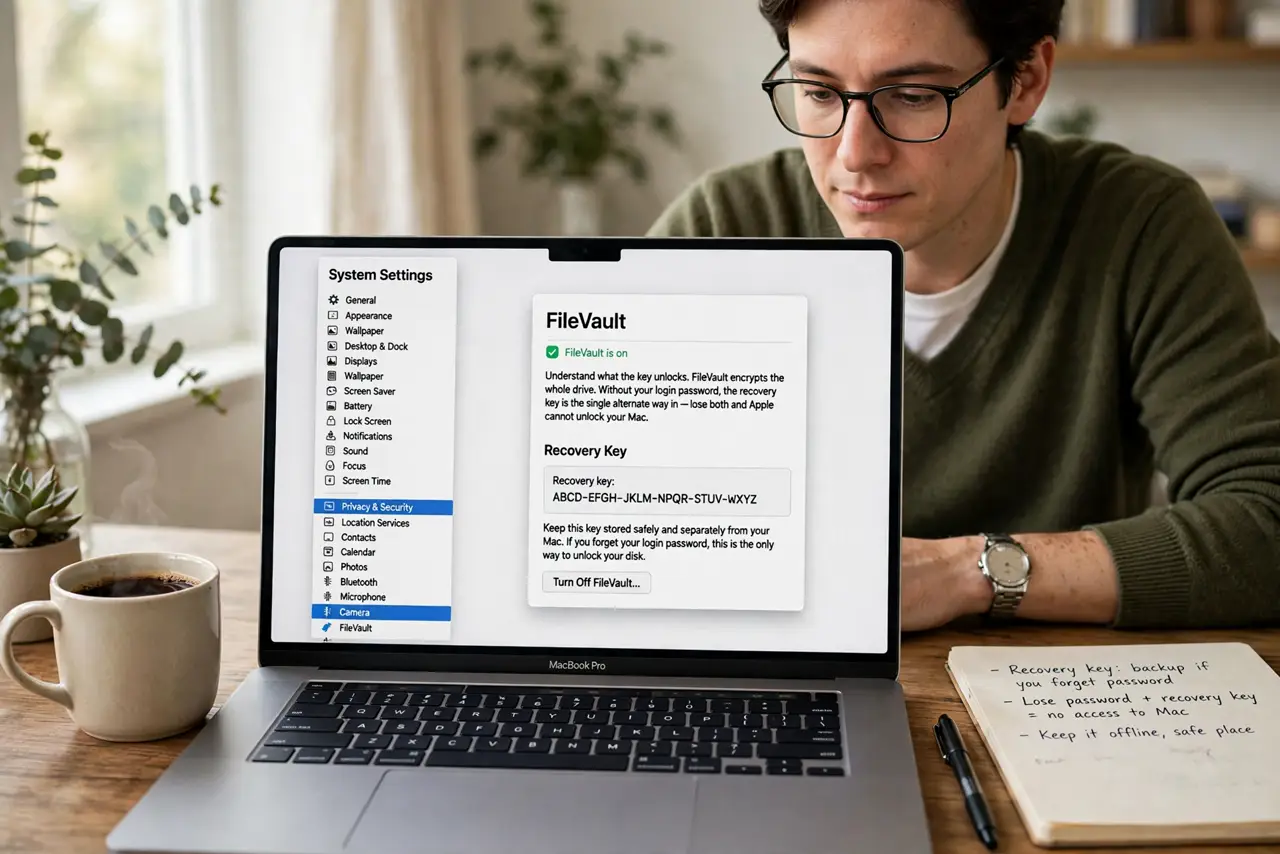
- Understand what the key unlocks. FileVault encrypts the whole drive. Without your login password, the recovery key is the single alternate way in — lose both and Apple cannot help you, because the encryption is genuinely unbreakable. That is the point of encryption.
- Check where you stored it at setup. When FileVault was enabled, macOS offered to store the key with Apple (tied to your Apple Account) or show it for you to write down. Think back to which you chose — many people picked one and forgot.
- Look in System Settings now. Go to System Settings, then Privacy and Security, then FileVault. If you are logged in, you can view your recovery options and generate a new key if needed — do this while you still have access.
- Save a copy somewhere off the Mac. Write it on paper in a safe place, or store it in a password manager on another device. On the encrypted Mac itself is the one place it must not live — that is the drive it unlocks.
- Test that you can actually find it. A key you cannot locate in a panic is no key at all. Close your eyes, imagine being locked out, and walk through retrieving it — if any step is fuzzy, fix it today.
- Decide: Apple-held key or personal copy. Storing with Apple means account recovery can retrieve it; a personal copy means no dependence on Apple. Either is fine — having neither is the disaster scenario.
What NOT to do
- Do not store the only copy on the encrypted Mac. That is like locking your spare key inside the house — useless when locked out.
- Do not screenshot it into iCloud Photos casually. A photo of the key synced everywhere is convenient and one breach away from exposure — a password manager is better.
- Do not assume Apple can bypass FileVault for you. They cannot — the encryption math does not care who is asking.
- Do not wait until you are locked out. Finding the key takes two minutes today and is impossible from inside a locked Mac.
Frequently asked questions
I never saved my key — am I doomed?
Not yet: while you can still log in, you can generate a new recovery key in the FileVault settings. Do it now, before the password slips your mind too.
Can I turn FileVault off instead?
Yes, in the same settings pane — decryption takes a while but removes the risk. Just know your data then sits unencrypted if the Mac is stolen.
Is the Apple-stored key safe?
It is tied to your Apple Account's recovery process, which is as secure as that account. Use a strong password and two-factor authentication on the Apple Account itself.