Alias vs Symlink? Plain Difference
You want the same folder reachable from two places without duplicating it, and macOS offers an 'alias' — while terminal folks talk about 'symlinks.' They look similar but behave differently when you move the original. Picking the right one saves a special kind of confusion later.
TL;DR / Quick Fix
Quick fix: use an alias (right-click, Make Alias) for everyday shortcuts — it keeps working even if you move the original file. Use a symlink only when software specifically needs a real filesystem link, which is rare outside development for most people.
Follow these steps
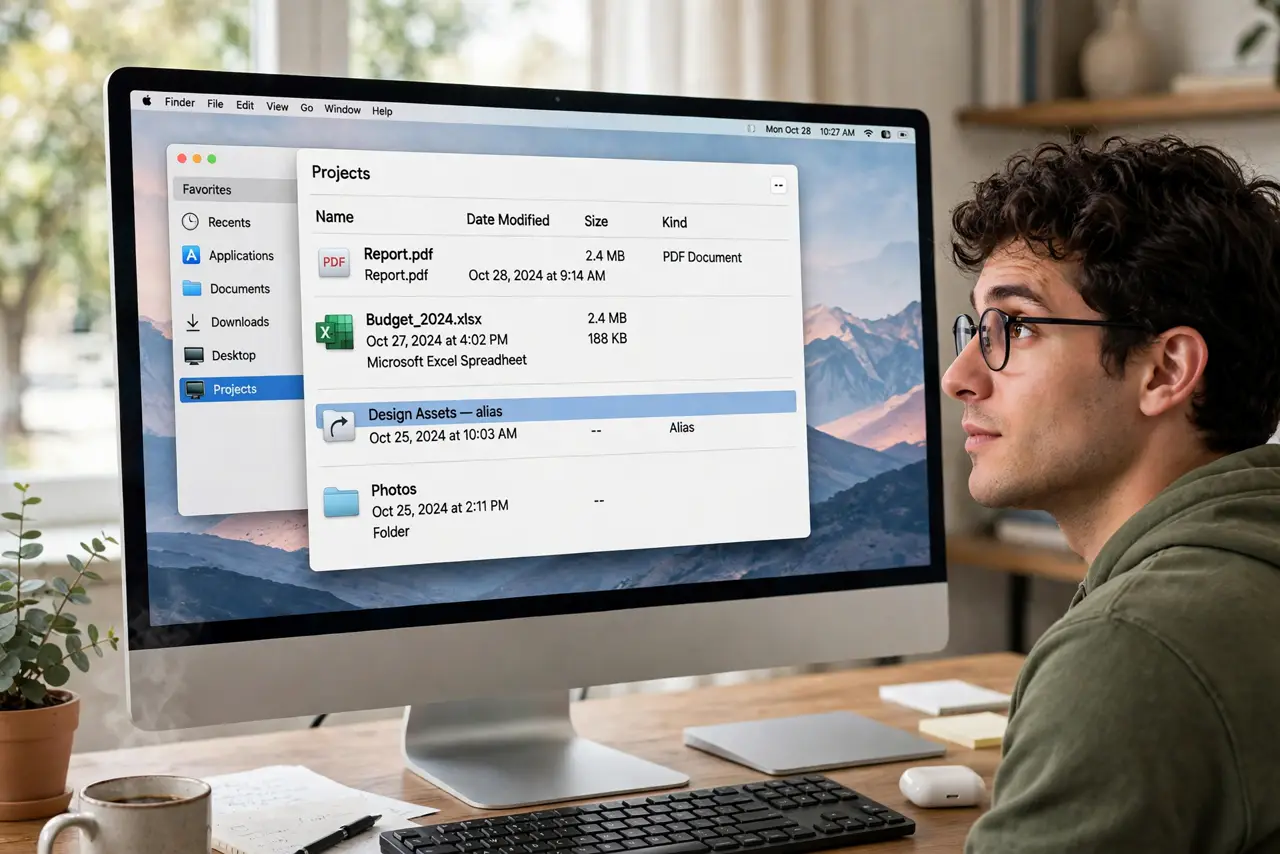
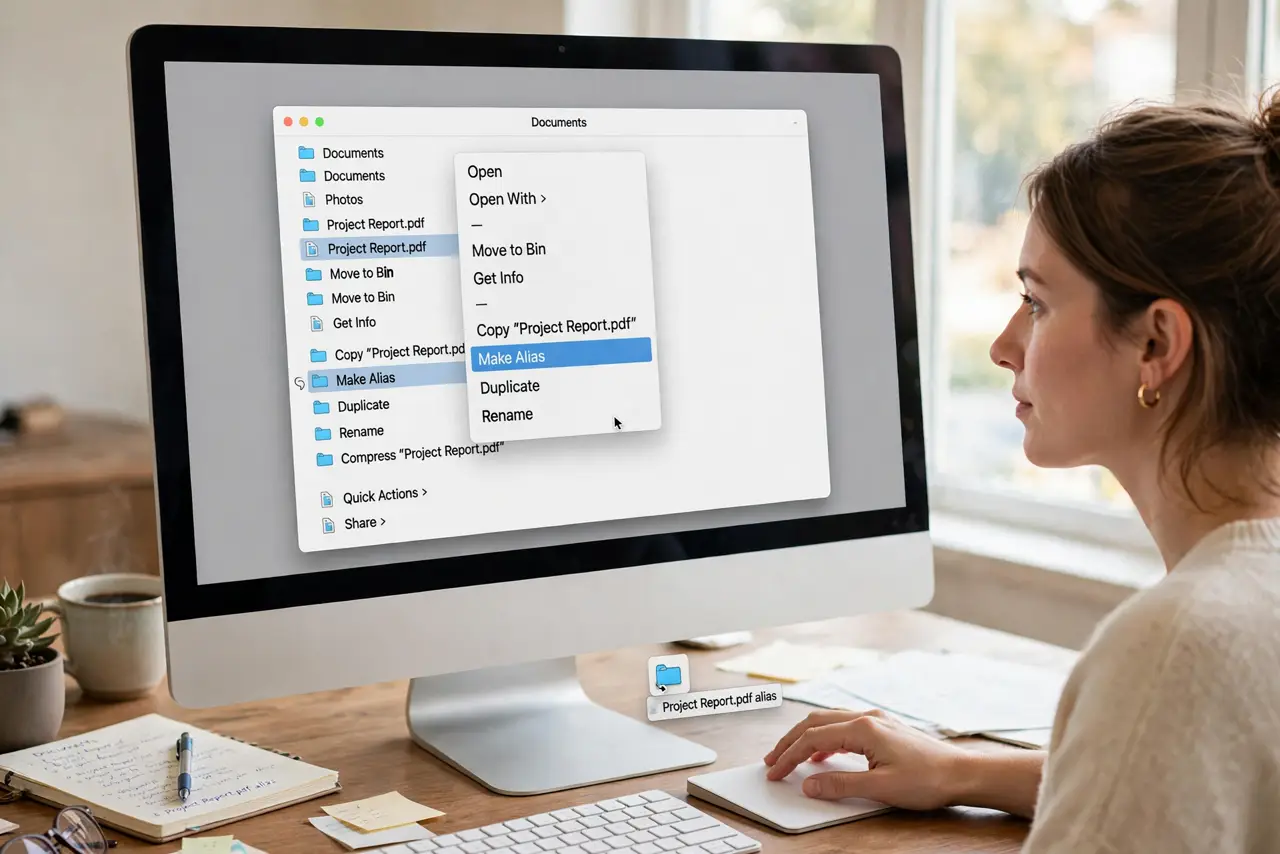
- Make an alias the easy way. Right-click any file or folder in Finder > Make Alias, then drag the alias wherever you want it. The little curved arrow marks it as a pointer, not a copy.
- Understand why aliases survive moves. An alias tracks the original by identity, not by path. Rename or move the target and the alias still finds it — that's its superpower.
- Learn what a symlink is. A symbolic link is a Unix-level pointer stored as a path. The Terminal command ln -s creates one. Software sees through it as if the file were really there.
- Know the symlink's weakness. Move or rename the target and a symlink breaks — it points at a path that no longer exists. Aliases don't have this problem.
- Choose by audience. Aliases for humans clicking in Finder; symlinks for software, scripts, and servers that need a real path. When in doubt, alias.
- Clean up dead links. A broken alias shows a generic icon and asks you to fix or delete it. Delete dead ones — they're clutter, and recreating them takes seconds.
What NOT to do
- Do not duplicate the folder instead of aliasing it. Two copies drift apart, and you'll edit the wrong one eventually.
- Do not use symlinks for files you rearrange often. Every move breaks them — aliases were invented for exactly this.
- Do not alias system folders casually. Pointing aliases at Library or System internals creates confusion with zero benefit.
- Do not confuse an alias with a tag. Tags organize by label across locations; aliases put a doorway in a specific spot.
Frequently asked questions
What's the actual difference between alias and symlink?
An alias tracks the file itself and survives moves; a symlink stores a path and breaks when the target moves. Aliases are a Finder concept, symlinks are a Unix concept.
Can I make an alias with the keyboard?
Yes — select the item and press Cmd+L. The alias appears beside the original, ready to drag elsewhere.
Do aliases work on external drives?
Yes, as long as the drive is connected. An alias to a file on an unplugged drive just waits patiently until the drive returns.