Merge Folders Instead of Replacing
You drag a folder onto another folder with the same name, and Finder asks to Replace — which would wipe the destination's unique files. What you wanted was Merge: combine both folders' contents. The difference is one held key, and knowing it saves real data loss.
TL;DR / Quick Fix
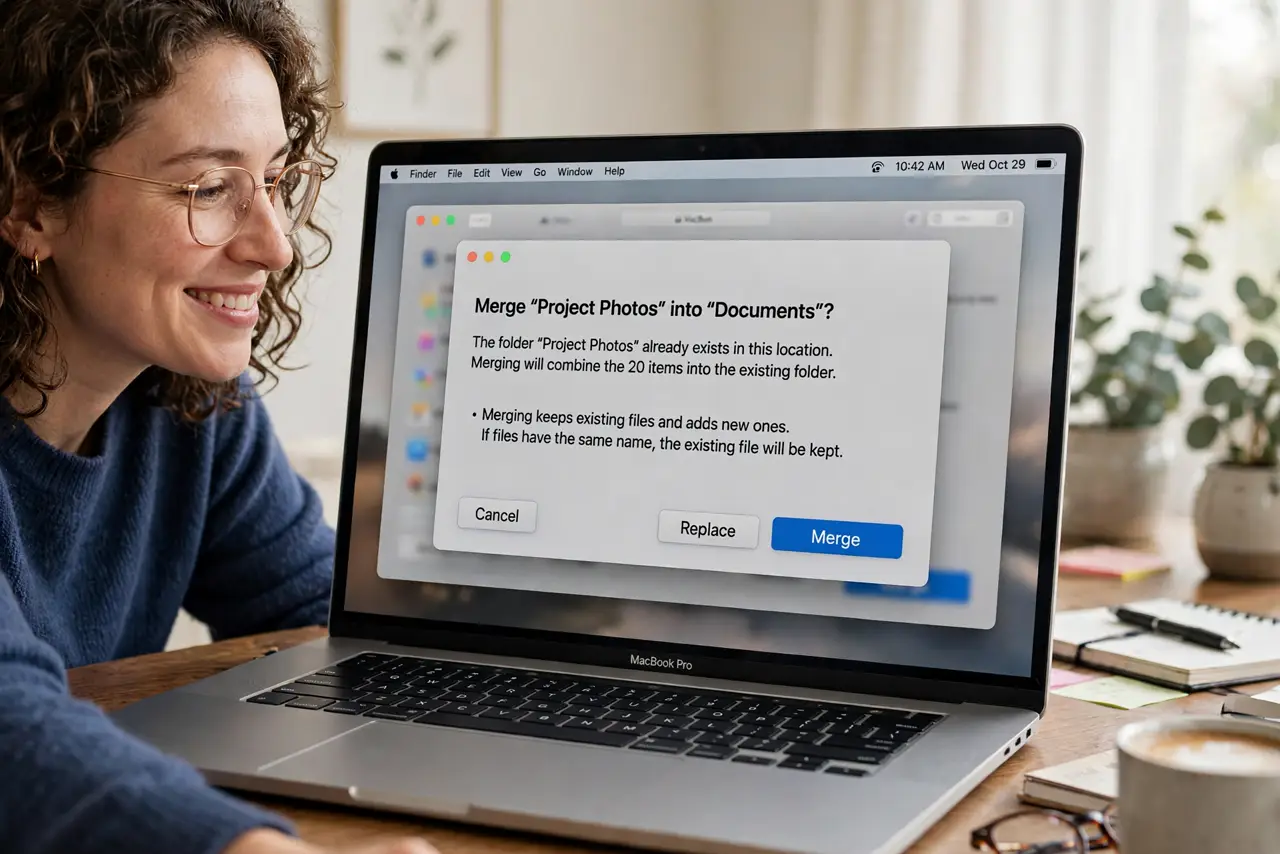
Quick fix: drag the folder onto the destination with the same name while holding Option — Finder offers Merge instead of Replace. Merging combines contents; files with identical names get a Keep Both choice. Without Option, Finder replaces the whole folder. Check the result before deleting the source.
Follow these steps
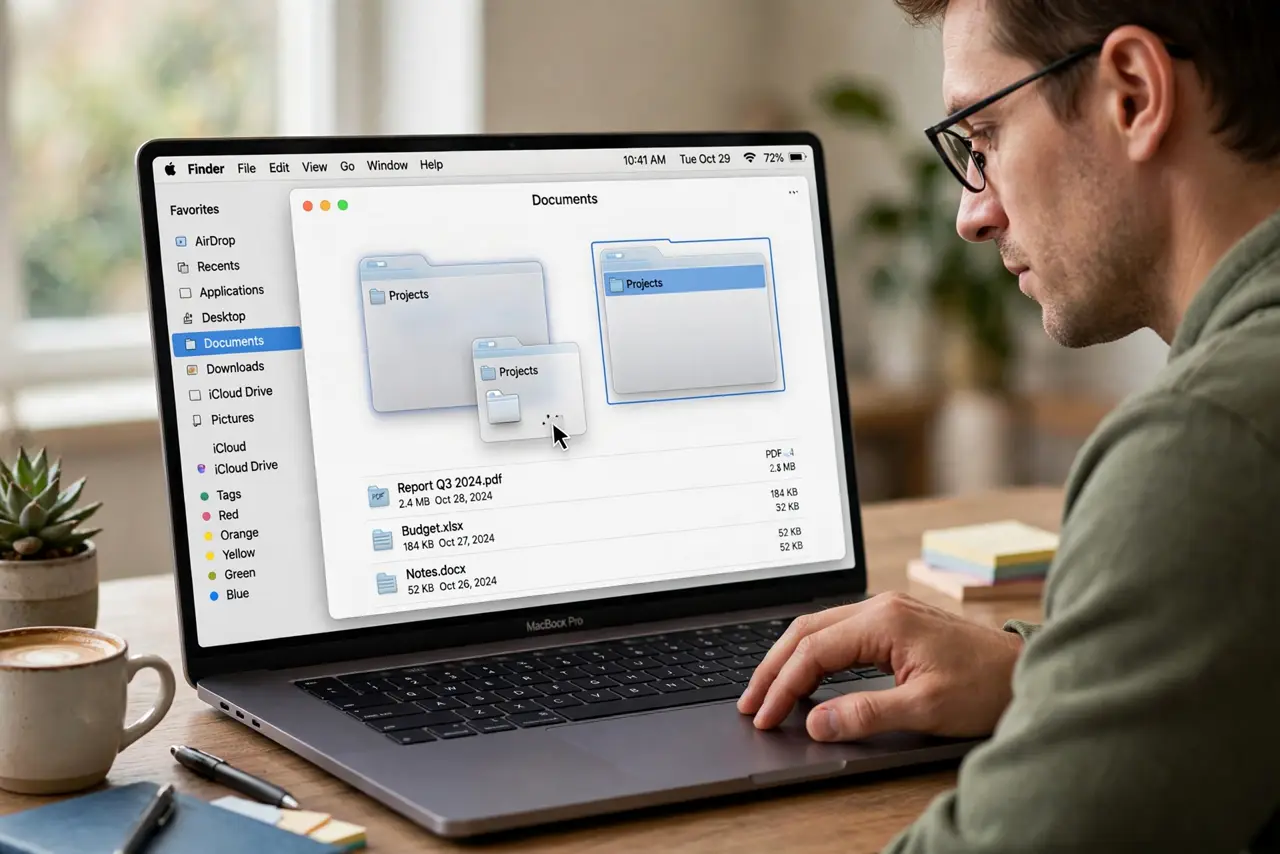
- Drag with the same name. Drag your folder onto the destination folder that shares its name. Finder detects the collision and shows its dialog.
- Hold Option for Merge. With Option held during the drop, the dialog offers Merge instead of only Replace. This is the entire trick — one key.
- Choose Merge. Click Merge. Finder combines both folders' contents into the destination, file by file.
- Resolve identical names. If both folders contain a file with the same name, Finder asks per file: Keep Both, Stop, or Replace. Keep Both renames the newcomer safely.
- Verify the combined folder. Open the destination and confirm both sets of files are present. Count or spot-check before touching the source.
- Delete the source only after. Once verified, delete the original. Merging copies; nothing is removed until you remove it.
What NOT to do
- Do not click Replace thinking it merges. Replace deletes the destination folder's unique files — the exact data loss you are avoiding.
- Do not merge without the Option key and hope. Hope is not a merge strategy; the key is.
- Do not delete the source before verifying. Check the merged result first — merging is safe, but verification is free.
- Do not merge system folders. This technique is for your documents and media, never for Library or system directories.
Frequently asked questions
What is the difference between Merge and Replace?
Merge combines both folders' contents. Replace deletes the destination folder entirely and puts yours in its place.
Why do I not see a Merge button?
You did not hold Option during the drop. Drop again with Option held and the Merge option appears.
What happens to files with the same name?
Finder asks you per file. Keep Both keeps both with one renamed; Replace overwrites with the dragged copy.