Show the Hidden Library Folder
A troubleshooting guide tells you to delete a preference file in ~/Library — and the Library folder is nowhere to be found. Apple hides your user Library to protect you from yourself, but revealing it temporarily is safe and easy. Here is the official way in, plus how to keep it handy.
TL;DR / Quick Fix
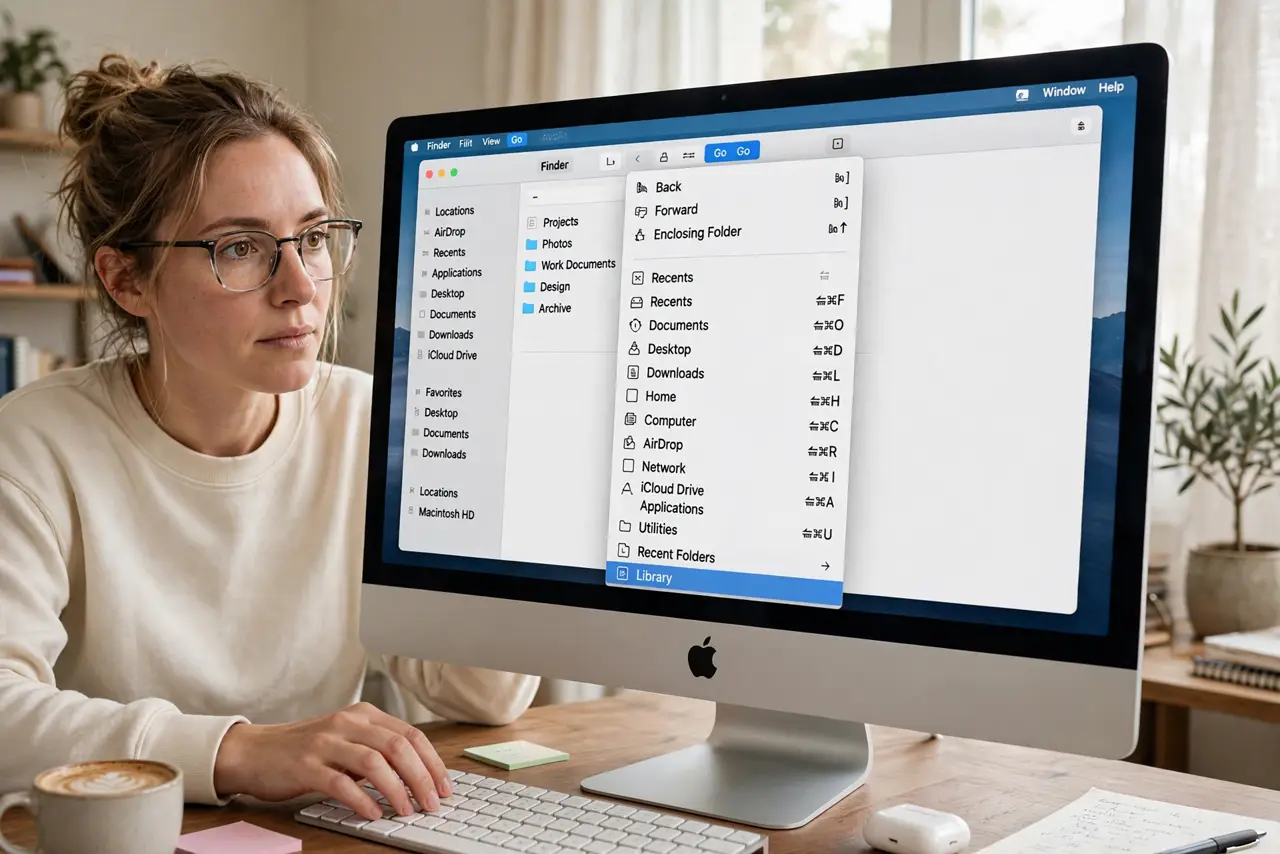
Quick fix: in Finder, open the Go menu while holding Option — Library appears in the list. Click it to open your hidden user Library, where apps store preferences and caches. For permanent access, drag it to the sidebar. Do not delete things inside unless a trusted guide says so.
Follow these steps
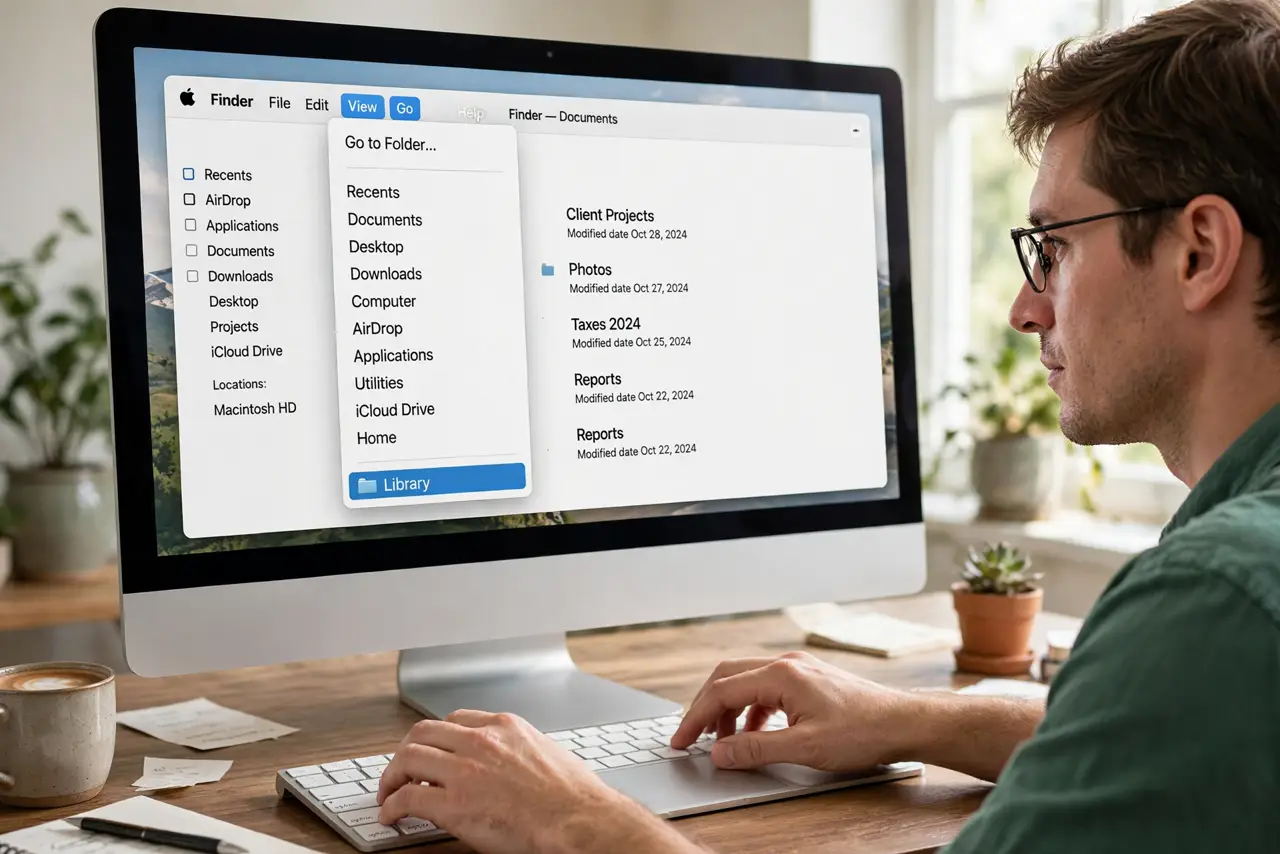
- Open the Go menu with Option held. Click Go in the menu bar while holding the Option key. Library appears between Home and Computer — it is invisible without Option.
- Open your Library. Click it. This is ~/Library: preferences, caches, application support data — the backstage of your user account.
- Pin it to the sidebar. Drag the Library folder into the Finder sidebar's Favorites. One click reaches it forever after, no Option key needed.
- Learn the Terminal alternative. Run chflags nohidden ~/Library in Terminal for the same permanent reveal. The Go-menu method is friendlier; both are official.
- Know what lives there. Preferences, saved app states, mail data, keychains — deleting the wrong thing breaks apps. Look, do not tidy.
- Distinguish the three Libraries. Your Mac has /Library (system-wide), ~/Library (yours), and /System/Library (Apple's). Guides mean ~/Library unless they say otherwise.
What NOT to do
- Do not go on a deleting spree in Library. Unknown files there are load-bearing — delete only what a trusted guide names exactly.
- Do not confuse your Library with the System Library. /System/Library belongs to macOS; touching it breaks the system.
- Do not unhide it with sketchy tools. The Go menu and chflags are the supported ways; third-party unhiders are unnecessary.
- Do not panic at the size. Caches look enormous and are meant to be — the system manages them itself.
Frequently asked questions
Why is the Library folder hidden?
Apple hides it so casual browsing cannot break app data. It is protection, not secrecy — the reveal is officially supported.
Will showing Library slow my Mac?
No. Visibility changes nothing about performance; it only adds a folder to your view.
Can I hide it again?
Yes — remove it from the sidebar, or run chflags hidden ~/Library. Nothing inside changes either way.