Restore Missing Folders in the Finder Sidebar
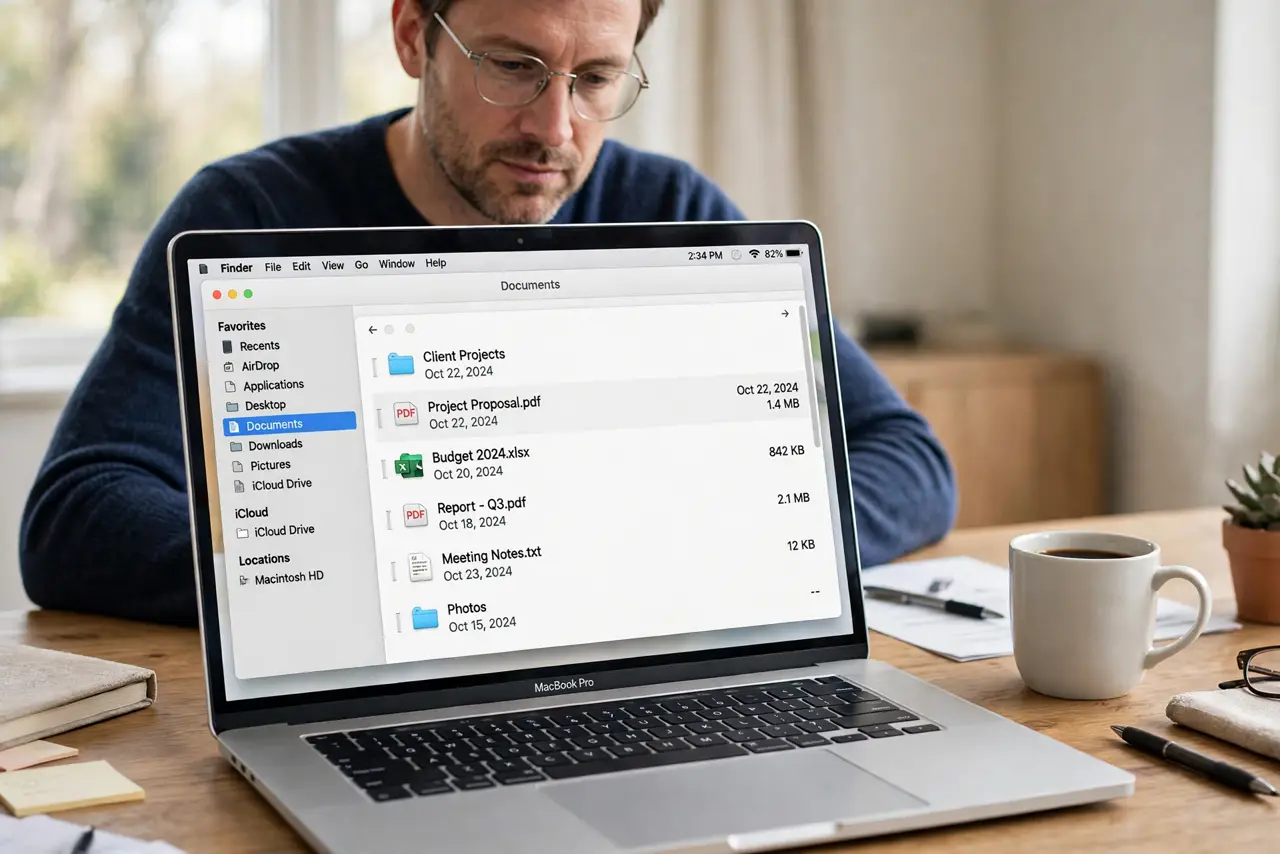
Finder sidebar folders that disappear, like Documents, Downloads, or a favorite folder, are usually just hidden by a setting or a collapsed section. Your folders and files are normally untouched. Re-add them from Finder settings rather than moving anything.
TL;DR / Quick Fix
Quick fix: open Finder, then Settings, then Sidebar, and tick the folders you want back. Then open a new Finder window and check the sidebar. If a section looks collapsed, click its disclosure arrow, and drag the sidebar wider if icons are cut off.
Follow these steps
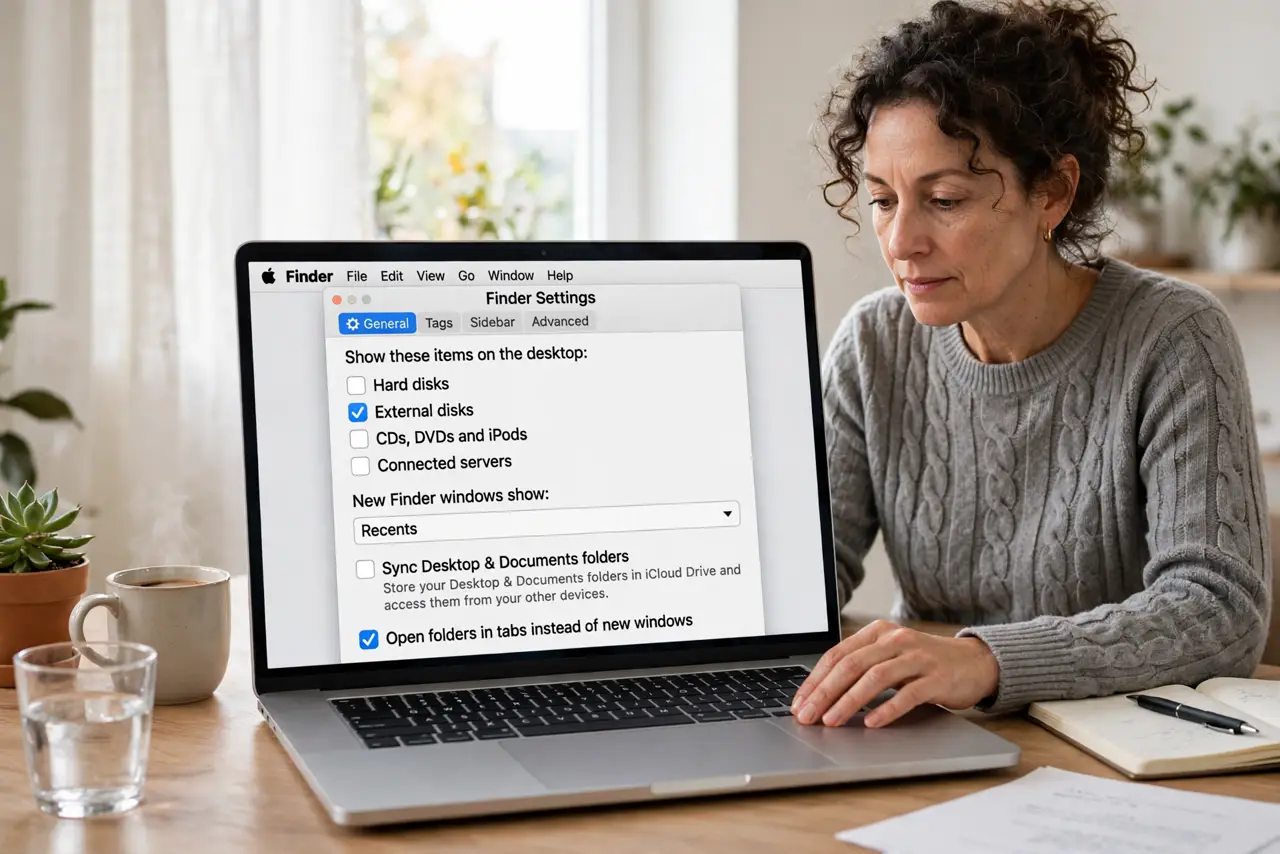
- Open Finder Settings. With Finder active, open Finder Settings from the menu bar, then click Sidebar. This page lists every item that can appear in the sidebar.
- Tick the missing folders. Tick Documents, Downloads, or any other folder you miss. Ticked items appear in the sidebar at once in open Finder windows.
- Expand collapsed sections. In the sidebar, click the small arrow beside Favorites, Locations, or Tags if a section looks collapsed. A collapsed section hides its folders without deleting them.
- Open a new Finder window. Close the current Finder window and open a new one. A new window picks up sidebar changes cleanly if an old window looks stuck.
- Drag the sidebar wider. Drag the divider between the sidebar and the main pane to the right. A very narrow sidebar can cut off folder names and make folders look missing.
- Re-add a custom folder by dragging. If a custom folder is still missing, find it in Finder and drag it into the Favorites section of the sidebar. It will stay there as a shortcut, not a copy.
What NOT to do
- Do not move folders to restore them. The sidebar holds shortcuts, so moving the real folder to fix a sidebar problem can break other apps that expect it in place.
- Do not reset Finder with a terminal command as a first step. Sidebar settings restore missing folders safely without deeper changes.
- Do not assume missing sidebar folders mean lost files. Check the folder in Finder directly, since sidebar shortcuts can vanish while files stay put.
- Do not tick every sidebar item at once. Add back only what you use, so the sidebar stays short and easy to scan.
Frequently asked questions
Why did my sidebar folders disappear?
A settings change, a collapsed section, or a macOS update can untick or hide sidebar items while the folders themselves stay untouched.
Does removing a sidebar item delete the folder?
No. The sidebar holds shortcuts. Removing one only hides the shortcut, and the folder and its files remain in place.
Can I add my own folders to the sidebar?
Yes. Drag any folder into the Favorites section and it stays there as a shortcut you can click any time.