Sort Finder Like a Pro
Every Finder window seems to sort differently — one by name, one by date, one in chaos. Ten seconds in View Options fixes any window, and one more click makes it the default everywhere. Sorted consistently, even huge folders become scannable in seconds.
TL;DR / Quick Fix
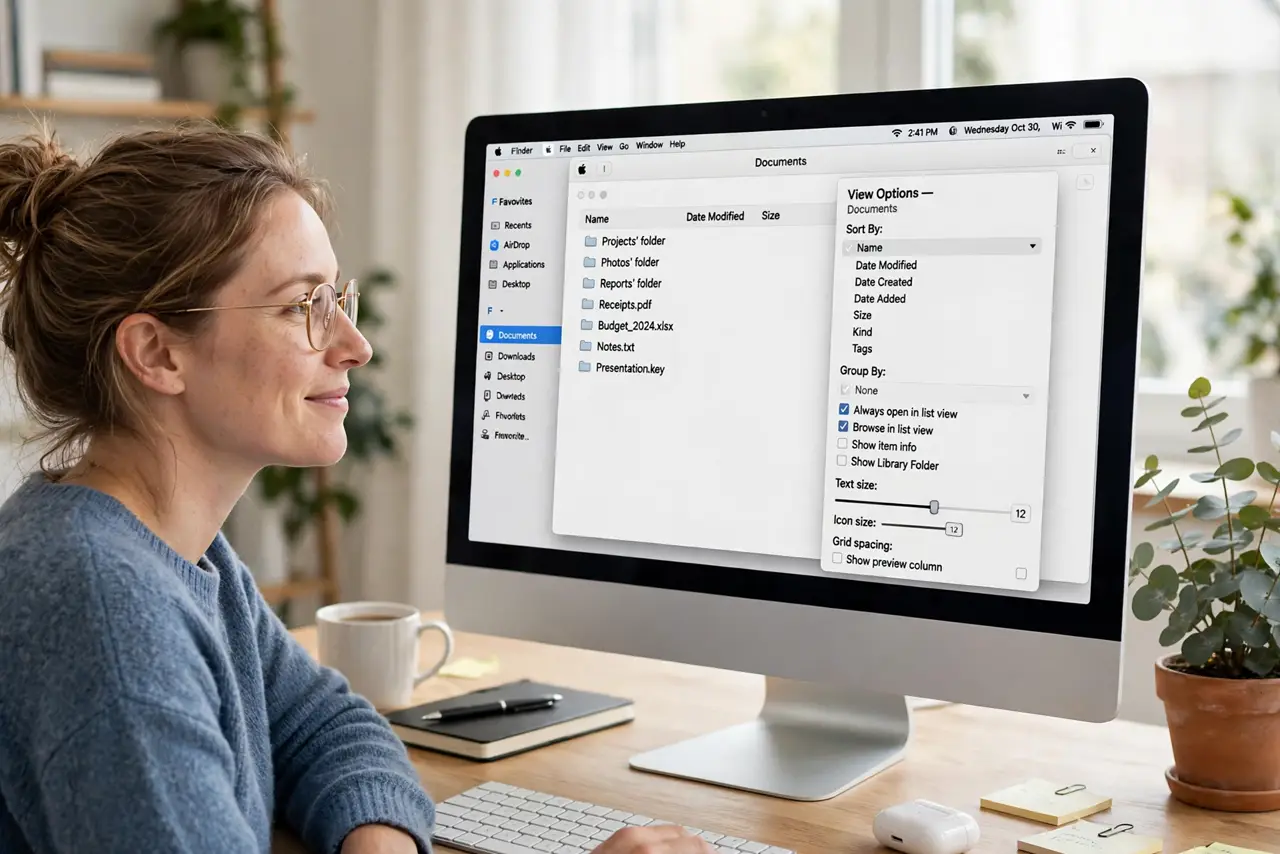
Quick fix: in Finder press Command+J to open View Options and pick your sort — by name, date, size, or kind — then click Use as Defaults to apply it everywhere. Sort the same way in every folder and finding files gets dramatically faster. Snap-to-grid keeps icon view tidy automatically.
Follow these steps
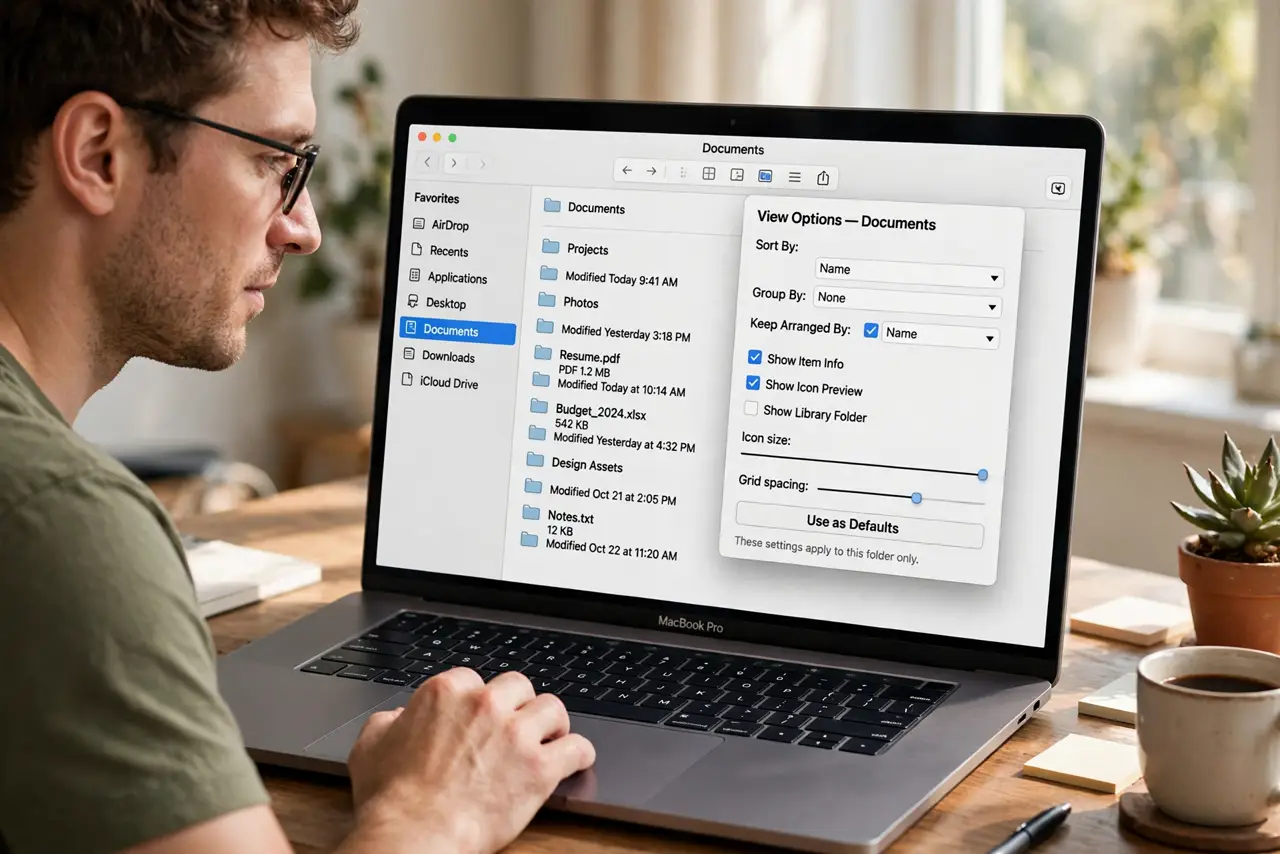
- Open View Options. In any Finder window press Command+J. The panel shows sort and arrangement controls for the current view — this is mission control for how the window organizes.
- Pick a sort order. Choose Sort By: Name for most folders, Date Modified for active projects, Size for cleanup hunts, Kind for mixed media. The right sort depends on the question you are asking the folder.
- Set it as the default. Click Use as Defaults at the bottom of View Options. Every new window inherits it — set once, benefit forever. Individual folders can still override it when needed.
- Keep it consistent. The real pro move is sameness: name-sort everywhere except active work folders. Consistency means your eyes always know where to look — pair with Column View for navigation speed.
- Use Arrange for groups. In icon view, Arrange By groups files under headings — by kind, date, or app. Grouped icons stay readable where a flat pile becomes soup.
- Tidy messy folders fast. Sort by Date Added to find recent downloads, or by Size to find disk hogs. Sorting is the fastest cleanup tool you own — and batch rename fixes the names once you find the mess.
What NOT to do
- Do not sort every folder differently. Inconsistency is the enemy — pick standards and keep them, with rare exceptions.
- Do not confuse Sort By with Arrange By. Sort orders within groups; Arrange creates the groups — they stack, and mixing them up causes ‘why is it like this’ moments.
- Do not forget Use as Defaults. Fixing one window without the defaults click means fixing every window forever — the click is the whole point.
- Do not sort the Applications folder by date. Name order keeps apps findable; date order turns it into archaeology. Some folders deserve their own rule — this is one.
Frequently asked questions
Name vs Date — which default?
Name for archives and reference; Date Modified for active projects. Two defaults cover 95% of folders.
Why did my sort change by itself?
Opening a folder on an external drive or a fresh macOS install can reset views. Reapply Use as Defaults and it sticks.
Can I sort the sidebar?
Favorites in the sidebar can be dragged into your preferred order — it is manual, not automatic, but it stays put.