See Folder Stats in Finder
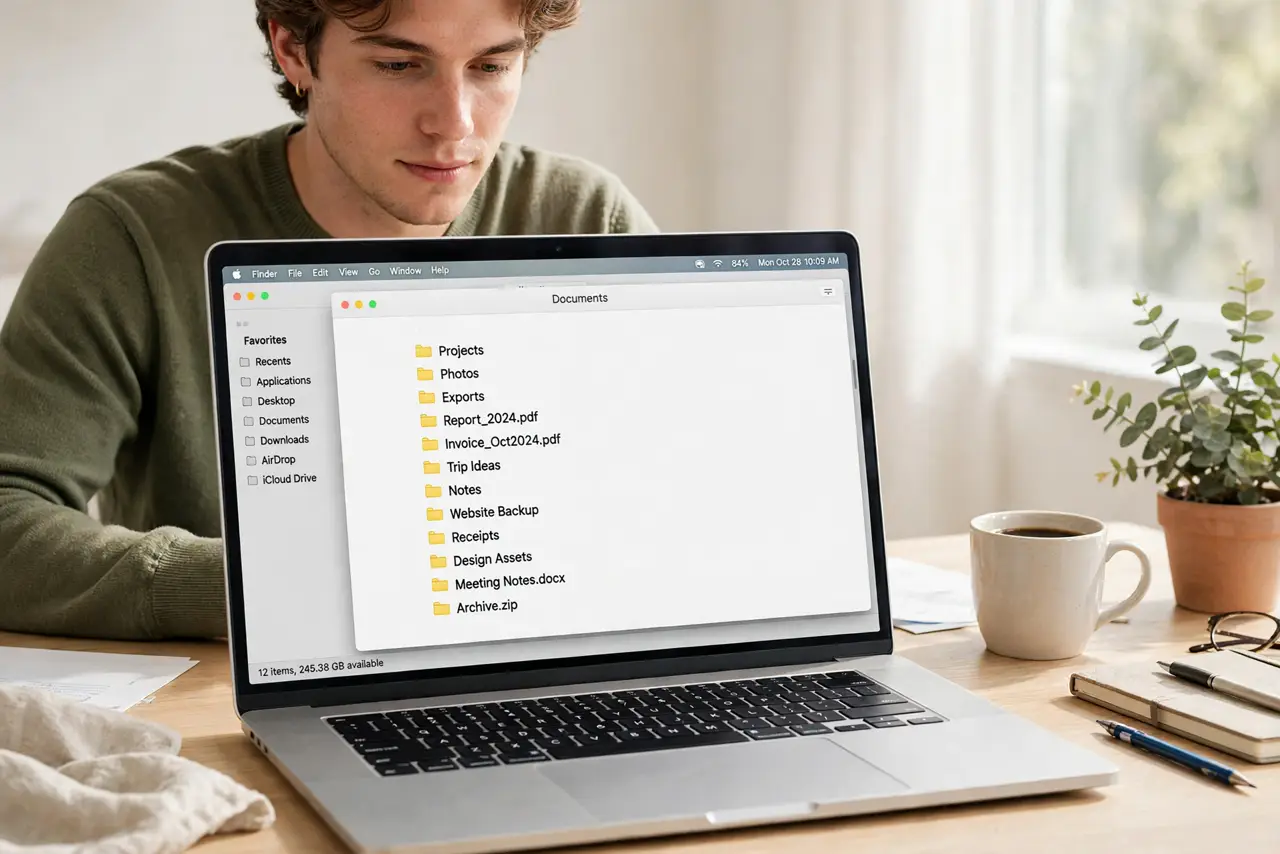
You are hunting for what is eating your disk, and Finder shows you nothing — no item counts, no folder sizes, no free space. The status bar is the thin strip at the bottom of every Finder window that answers all three at a glance. It is off by default on many Macs, which is why most people never know it exists.
TL;DR / Quick Fix
Quick fix: in Finder, choose View, then Show Status Bar. The strip at the bottom now shows how many items are in the folder and how much free space the disk has. For folder sizes, also turn on Calculate All Sizes in View Options. Two toggles, full visibility.
Follow these steps
- Show the status bar. With a Finder window open, choose View in the menu bar, then Show Status Bar. A thin strip appears at the bottom of every Finder window showing the item count and available disk space.
- Read what it tells you. The left side shows how many items are in the current folder; the right side shows free space on the volume. Select a few files and it shows their combined size — instant answers without opening Get Info.
- Turn on Calculate All Sizes. Choose View, then Show View Options, and check Calculate All Sizes. Now list view shows each folder's size in the Size column, which is the real disk-hunting power move.
- Use it to find space hogs. Open a suspect folder, sort by Size, and drill down into the biggest folders. The status bar keeps the running totals visible as you navigate — no guessing, no third-party tools needed.
- Keep it on everywhere. The status bar setting applies to all Finder windows once enabled. If a window ever looks bare at the bottom, check View again — some view modes hide it until re-enabled.
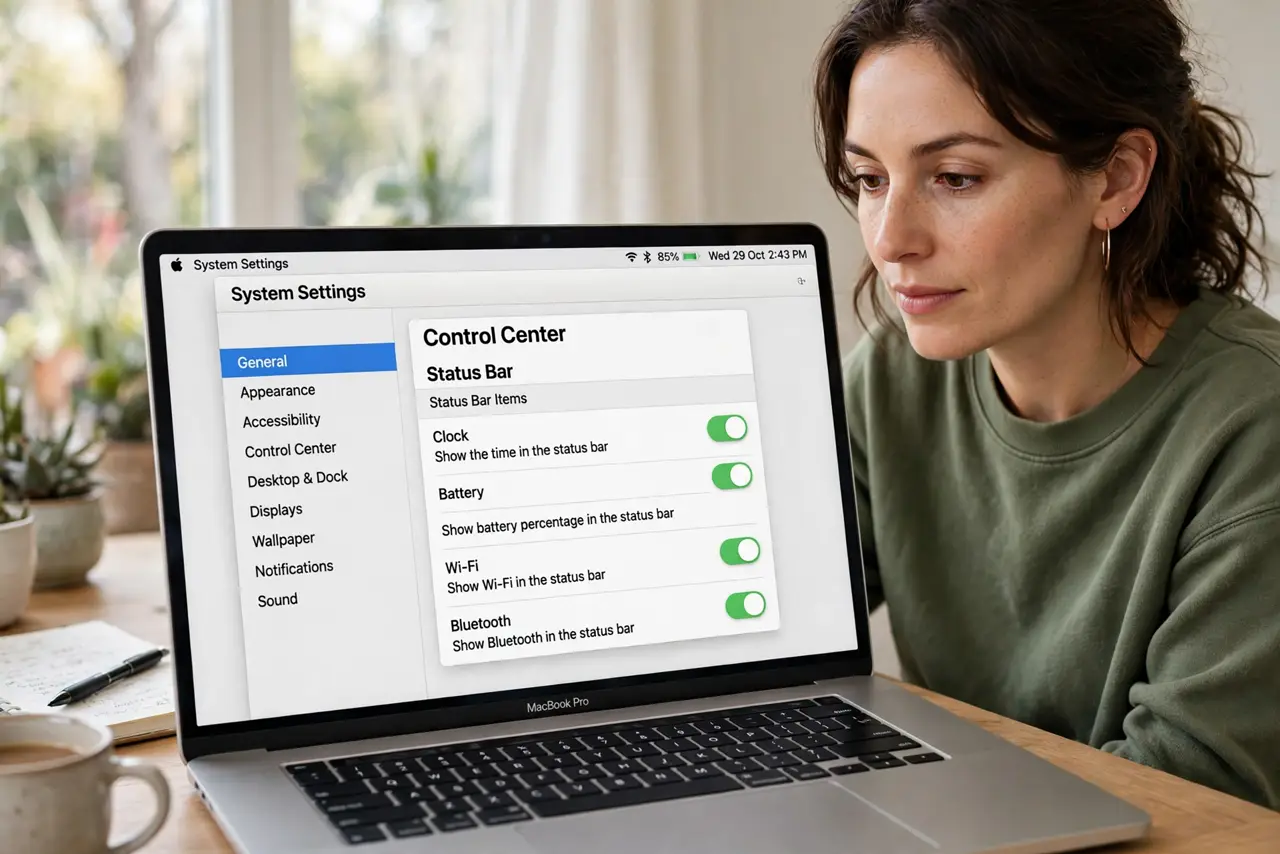
- Pair it with storage settings. For the full picture, also check System Settings, then General, then Storage. Finder shows the where; Storage settings show the what — together they answer any disk mystery.
What NOT to do
- Do not install a disk analyzer for this. Finder already shows counts, sizes, and free space once these two toggles are on.
- Do not confuse the status bar with the path bar. The path bar shows where you are; the status bar shows what is there — turn on both.
- Do not panic at a big 'System Data' number. That category is normal; the status bar helps you verify your own folders first.
- Do not delete files just because a folder looks big. Check what is inside first — installers and caches are the usual harmless culprits.
Frequently asked questions
Does the status bar slow down Finder?
Barely. Calculate All Sizes can take a moment in huge folders on first view, then it caches. The status bar itself costs nothing.
Why do folder sizes show as dashes?
Calculate All Sizes is off. Turn it on in View Options for the current view style — note it is per view mode, so enable it in list, icon, and column views separately if you use them all.
Can I see the status bar in column view?
Yes — it works in every view mode, including column view. The item count and free space always show at the bottom.