Finder Tags Disappear After iCloud Sync? Fix It
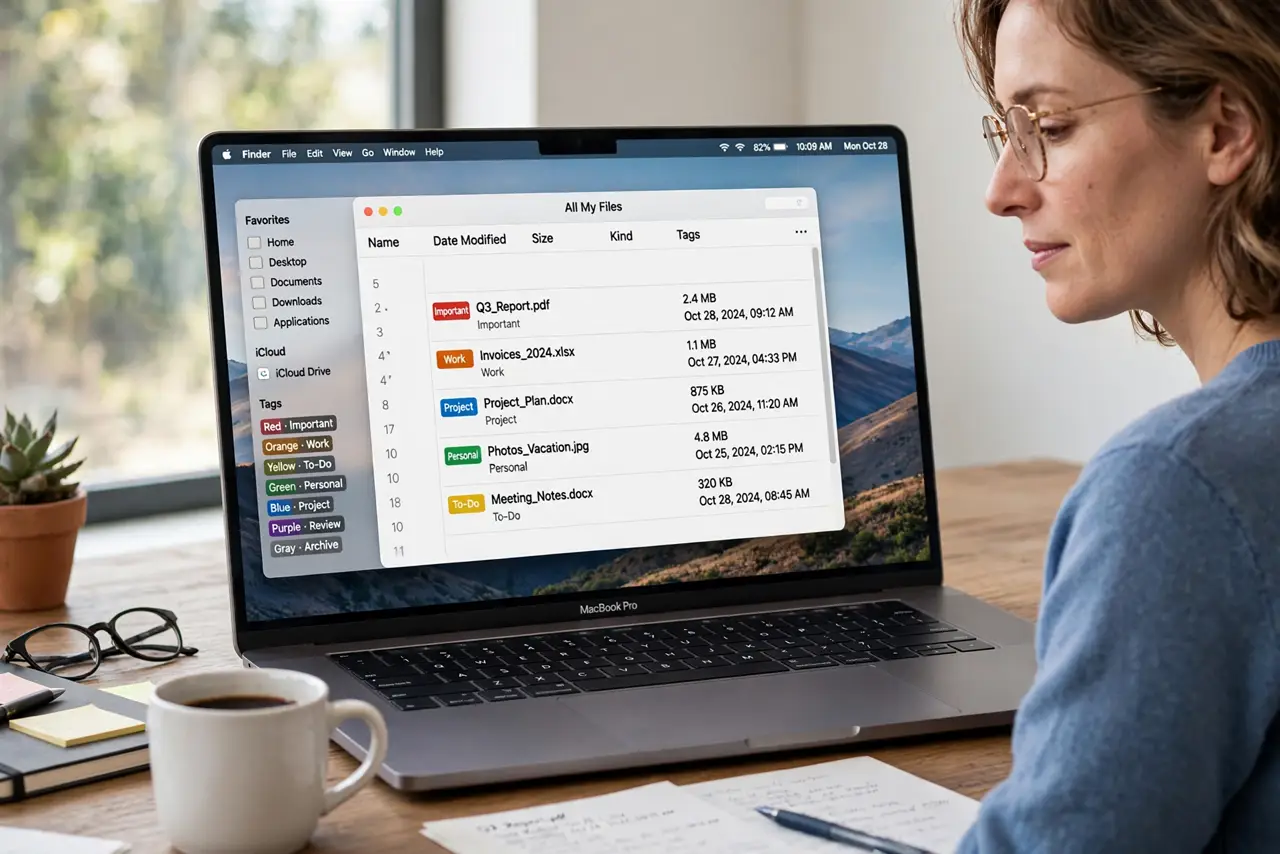
When Finder tags disappear after iCloud sync, files you organized by color or label suddenly look untagged, and your system feels broken. Tags usually survive sync, so disappearing tags often mean a settings mismatch, a file that moved, or a sync that has not finished. Checking those in order usually brings tags back without re-tagging everything.
TL;DR / Quick Fix
Quick fix: open Finder Settings, then Tags, and confirm your tags are still listed. Then open System Settings, then Apple Account, then iCloud, and confirm iCloud Drive is on. Wait for sync to finish, then check the same file again before you re-tag anything.
Follow these steps
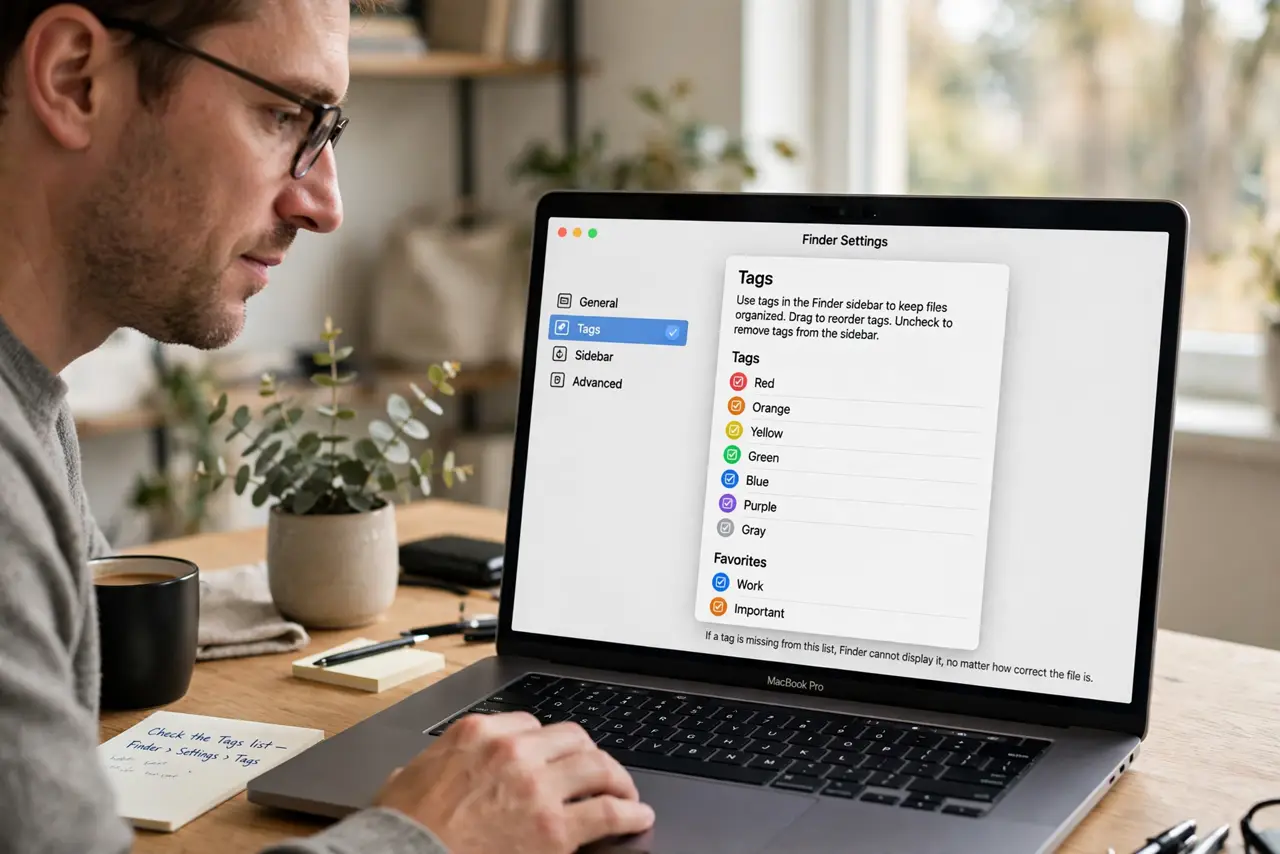
- Check the Tags list in Finder Settings. Open Finder, then Settings, then Tags, and confirm your tags are still listed. If a tag is missing from this list, Finder cannot display it, no matter how correct the file is.
- Confirm iCloud Drive is on. Open System Settings, then Apple Account, then iCloud, and confirm iCloud Drive is turned on. If it is off, files and their tags will not sync at all.
- Wait for sync to finish. Look for the sync indicator in Finder, and give iCloud time to finish, especially after a large change. Tags can appear missing while sync is still catching up.
- Check the same file on another device. Open the same file on another device signed in to the same account. If tags appear there, the file is fine, and the first Mac simply has not finished syncing.
- Reapply a tag to one file as a test. Tag a single file that lost its tag, wait a few minutes, and check whether the tag holds and syncs. If it holds, the sync is working again, and you can re-tag the rest.
- Check whether the file moved out of iCloud. If a file moved to a local folder outside iCloud Drive, its tags may not sync. Move the file back into iCloud Drive if you want its tags to travel with it.
What NOT to do
- Do not re-tag every file the moment tags disappear. If sync is still running, your re-tagging can conflict with the incoming sync and create duplicates.
- Do not turn iCloud Drive off and on repeatedly to force tags back. Toggling sync interrupts the very process that restores tags, and it can make the delay longer.
- Do not delete and re-upload files to restore tags. Deleting files risks losing the only copy, while a settings check usually restores the tags safely.
- Do not assume tags are gone forever because one device hides them. Check another device first, because a local settings or sync delay often explains the disappearance.
Frequently asked questions
Do Finder tags sync across devices?
Yes, for files in iCloud Drive, tags normally travel with the file. A tag missing on one device usually means sync or settings, not a lost tag.
Why do tags disappear after a big sync?
A large sync can take time, and tags may lag behind file contents. Waiting for sync to finish often restores them without any re-tagging.
What if a tag is missing from Finder Settings?
Recreate that tag with the same name and color in Finder Settings. Files tagged with it may reappear once the tag exists again.