Brainstorm in Freeform
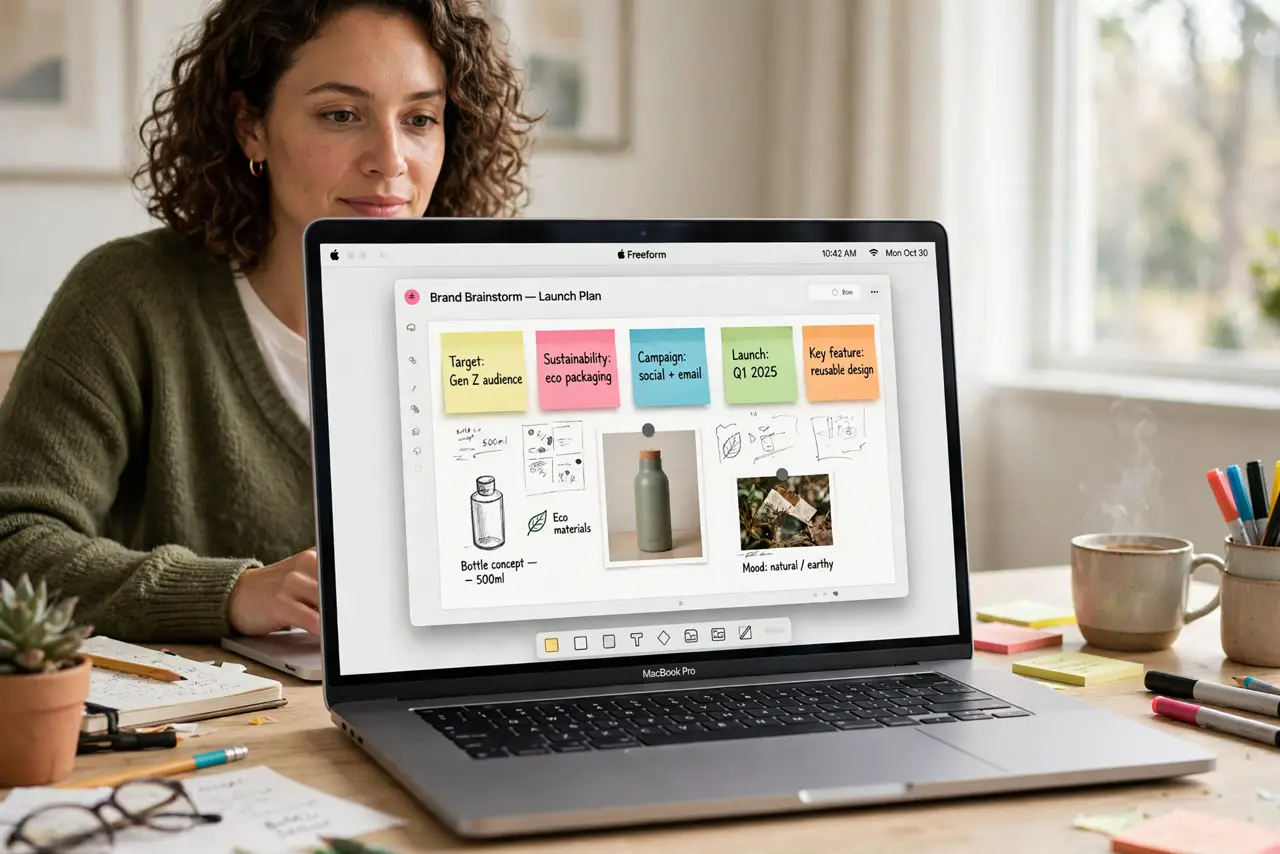
Ideas do not arrive as tidy documents — they arrive as scattered fragments: a sketch, a link, a photo, three words that will make sense later. Freeform is Apple's infinite whiteboard for exactly this: one canvas where text, drawings, images, and links coexist and can be rearranged freely. This guide starts your first board, organizes the chaos, and shares it with collaborators. For quick text capture instead, use Stickies right.
TL;DR / Quick Fix
Quick fix: open Freeform and start a board — drag in images, type anywhere, sketch with the pen tools, and arrange freely on the infinite canvas. Group related items and use sections for big boards. Share the board for live collaboration; changes sync to everyone instantly.
Follow these steps
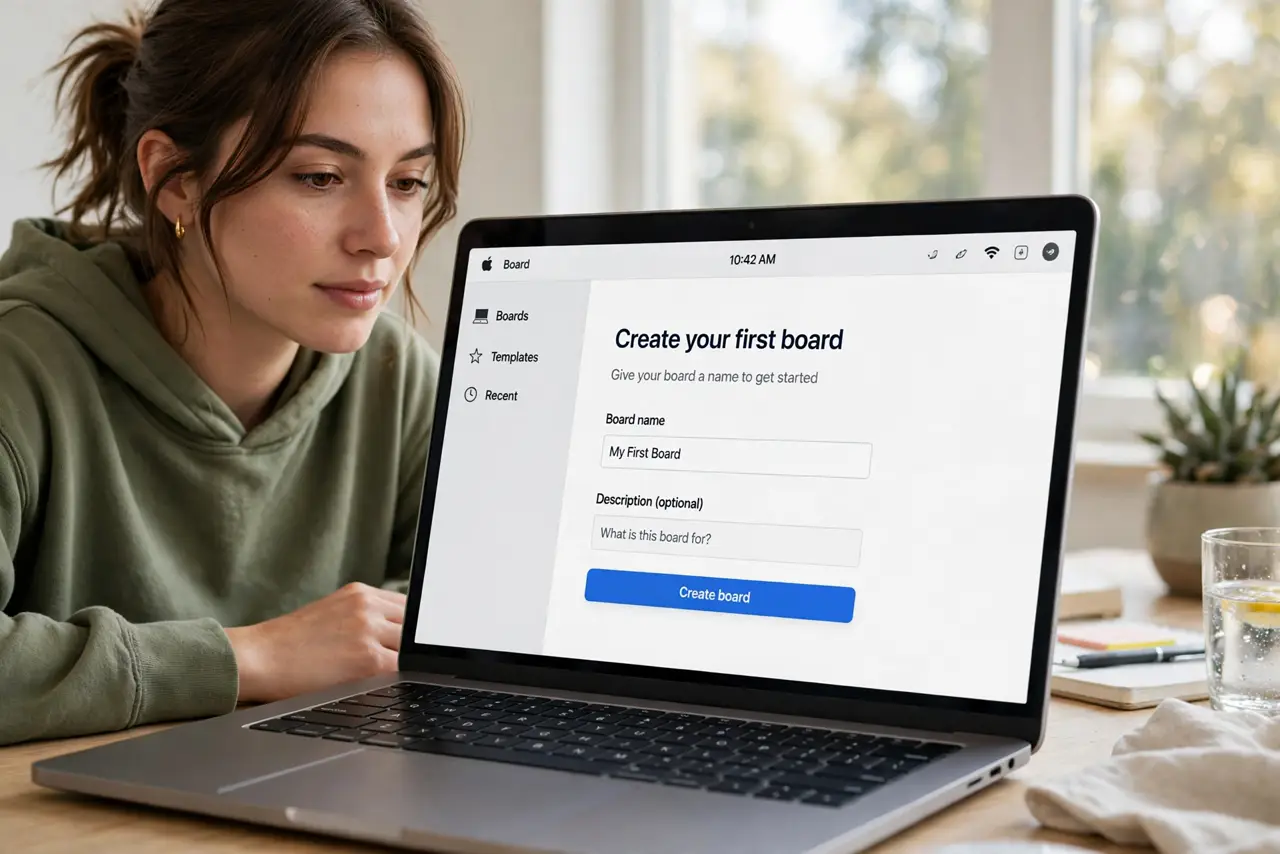
- Create your first board. Open Freeform and start a new board. You get an infinite canvas — no pages, no margins. Drop the central idea in the middle and build outward.
- Add anything, anywhere. Click anywhere to type, drag in photos and files, paste links, sketch with the drawing tools. Freeform accepts nearly everything — the mess is the method.
- Organize with grouping. Select related items and group them so they move as one. For big boards, use the section dividers Freeform offers to create zones: research, ideas, decisions.
- Use sticky notes for status. The sticky note shapes are perfect for moving ideas through stages — color them by status and drag notes between zones as thinking progresses.
- Zoom and navigate. Pinch or use the zoom controls to move between the big picture and details. An infinite canvas only works if you travel it comfortably.
- Share for collaboration. Share the board like any iCloud document. Collaborators edit live with visible cursors — brainstorming sessions work shockingly well this way.
What NOT to do
- Do not try to make it pretty first. Freeform rewards messy capture; organization comes after the ideas exist, not before.
- Do not use one giant board for everything. Separate boards per project stay navigable; a single everything-board becomes a swamp.
- Do not forget it needs iCloud. Boards sync through your Apple ID — collaborators need Apple devices to join.
- Do not screenshot the board as your 'backup.' The board itself syncs; screenshots lose the editability that makes it useful.
Frequently asked questions
Is Freeform free?
Yes — it is built into macOS, iOS, and iPadOS at no cost, syncing through iCloud.
Can Windows users collaborate?
No. Freeform is Apple-only, which is its biggest limitation for mixed-device teams.
How is this different from Notes?
Notes is linear documents; Freeform is spatial. For visual thinking — mood boards, flows, maps of ideas — the canvas wins.