What Does Game Mode Do?
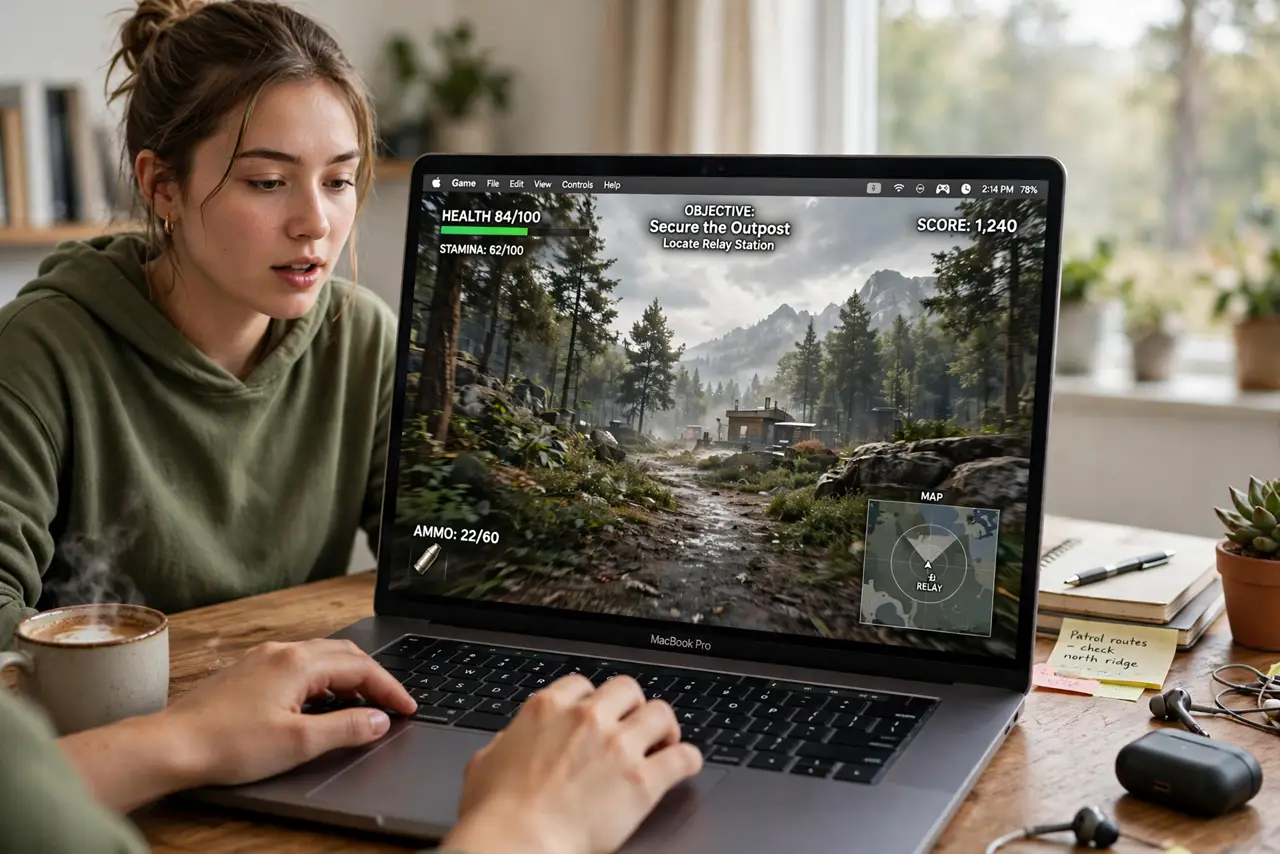
You launched a game on your Mac and a little game-controller icon appeared in the menu bar — macOS turned on Game Mode by itself. It is Apple's way of giving games priority: fewer background interruptions, lower wireless latency, smoother frame rates. Here is what it actually changes and when it matters.
TL;DR / Quick Fix
Quick fix: Game Mode automatically prioritizes your game when it runs fullscreen — cutting background task interference and reducing Bluetooth audio and controller lag. You do not need to turn it on; it engages itself. It helps most on demanding games, least on casual ones.
Follow these steps
- Let it engage automatically. Game Mode turns on by itself when a game goes fullscreen — look for the controller icon in the menu bar. There is no switch to flip.
- Know what it prioritizes. It gives the game first claim on CPU and GPU and quiets background tasks. The result: steadier frame rates in demanding titles.
- Expect lower wireless latency. Game Mode doubles the Bluetooth polling rate for controllers and cuts audio latency with AirPods. Wireless gear feels noticeably snappier.
- Close heavy apps anyway. Game Mode helps, but it is not magic. A browser with forty tabs still steals resources — close the heavy stuff before serious play.
- Check it is actually on. If a game stutters, glance at the menu bar for the controller icon. Some games do not trigger it; running them truly fullscreen usually does.
- Do not expect miracles on old hardware. Game Mode optimizes what you have — it cannot add GPU power. On older Macs, lowering the game's resolution helps more.
What NOT to do
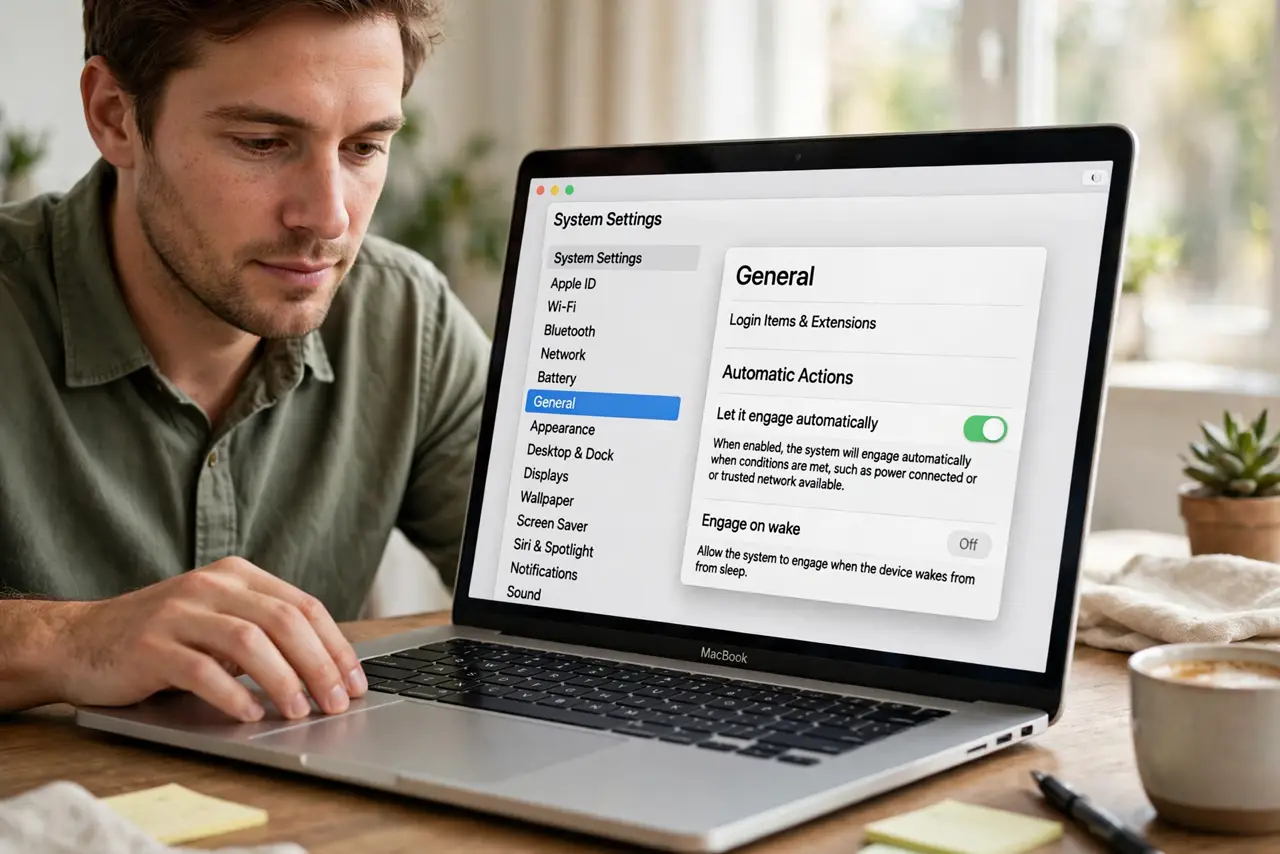
- Do not hunt for a Game Mode toggle. There is not one — it is automatic, and looking for a switch wastes your evening.
- Do not leave forty browser tabs open. Game Mode deprioritizes background tasks; it does not make them free.
- Do not blame Game Mode for a game's bugs. Stutter in one title is usually the game's port quality, not the mode.
- Do not game on battery and expect full speed. macOS throttles on battery — plug in for the performance Game Mode is optimizing.
Frequently asked questions
Does Game Mode work with every game?
It engages for fullscreen games on recent macOS versions. Windowed games may not trigger it.
Can I turn Game Mode off?
Click the controller icon in the menu bar while it is active — you can disable it per game there.
Does it help non-game apps?
No — it only engages for games. Creative apps do not get the same prioritization.