Record Audio with GarageBand
You need to record a voiceover, a podcast episode, or a song idea, and the options range from intimidating pro software to phone apps that sound like a tin can. GarageBand sits in the sweet spot: free on your Mac, genuinely capable, and learnable in an afternoon. Here is the complete beginner recording workflow.
TL;DR / Quick Fix
Quick fix: GarageBand turns your Mac into a recording studio — plug in a mic, create an audio track, hit record, and trim the result. It handles voiceovers, podcasts, and music with built-in loops. Start with one recording; the basics transfer anywhere. A USB mic matters more than any setting.
Follow these steps
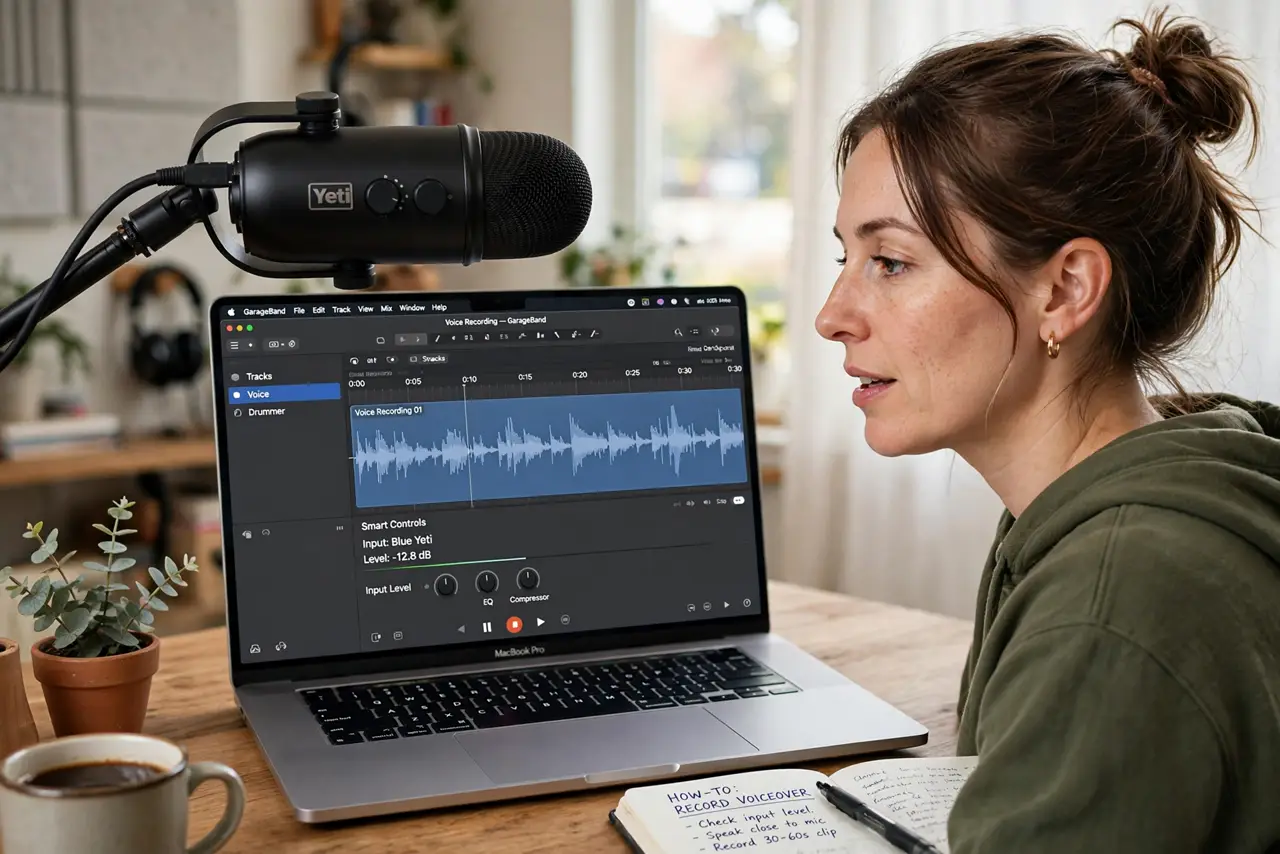
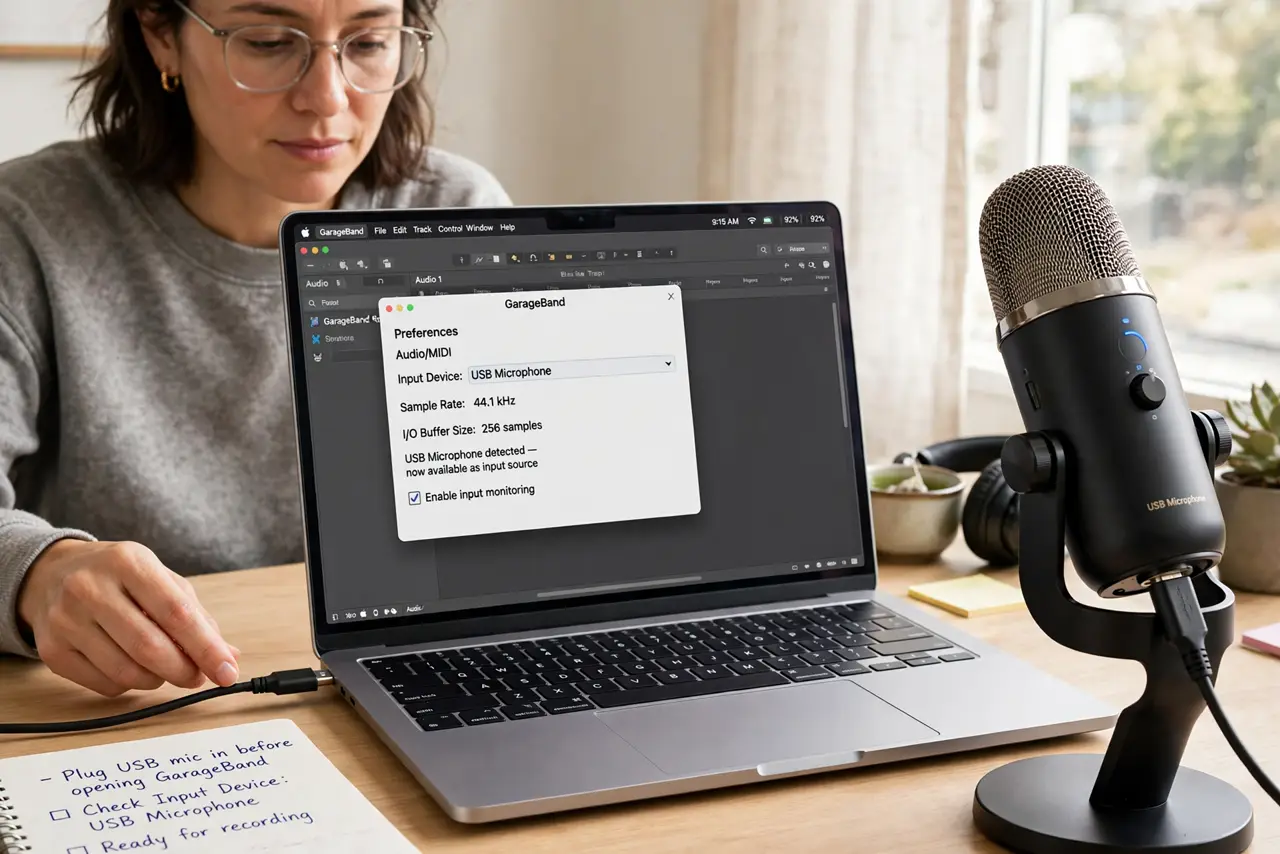
- Plug in a real microphone. The built-in mic works in a pinch, but a basic USB mic is the single biggest quality jump. Plug it in before opening GarageBand so it appears in the input list.
- Create an audio track. New project > Microphone/Voice, or Track > New Track > Audio. Choose the input (your USB mic) and enable monitoring only with headphones on — speakers cause feedback.
- Set your levels. Talk at normal volume and watch the meter — aim for peaks in the yellow, never red. Red means distortion, and distorted audio cannot be fixed later.
- Record in a quiet room. Turn off fans, close windows, record under a blanket fort if you must. Room noise is the difference between amateur and professional — treatment beats software.
- Trim and arrange. Split regions (Command-T) to cut mistakes, drag to rearrange, fade the edges. Editing is where recordings become productions — take your time here.
- Share it out. Share > Export Song to Disk gives you a finished audio file. MP3 for podcasts and sharing, uncompressed for anything you will edit further.
What NOT to do
- Do not record with speakers as monitors. The mic hears the speakers, the speakers play the mic — feedback loop, ruined take, ringing ears.
- Do not fix bad audio with effects. EQ and noise reduction polish decent recordings; they cannot rescue distortion or room echo — record it right.
- Do not skip the level check. Recording too quiet then amplifying adds hiss; recording too hot clips permanently — levels first, always.
- Do not edit while tired. Fresh ears catch mistakes and pacing problems that exhausted ears approve — sleep on important edits.
Frequently asked questions
Is GarageBand really free?
Yes — free on every Mac, no subscription, no export limits. It is absurdly capable for the price.
Can I make a podcast with GarageBand?
Absolutely — it is one of the most popular podcast tools. Record, trim, add intro music from the loops, export MP3.
When should I upgrade to Logic Pro?
When you need advanced mixing, more tracks, or professional plugins. GarageBand projects even open directly in Logic — the upgrade path is seamless.