A Guest User Appeared on Your Login Screen
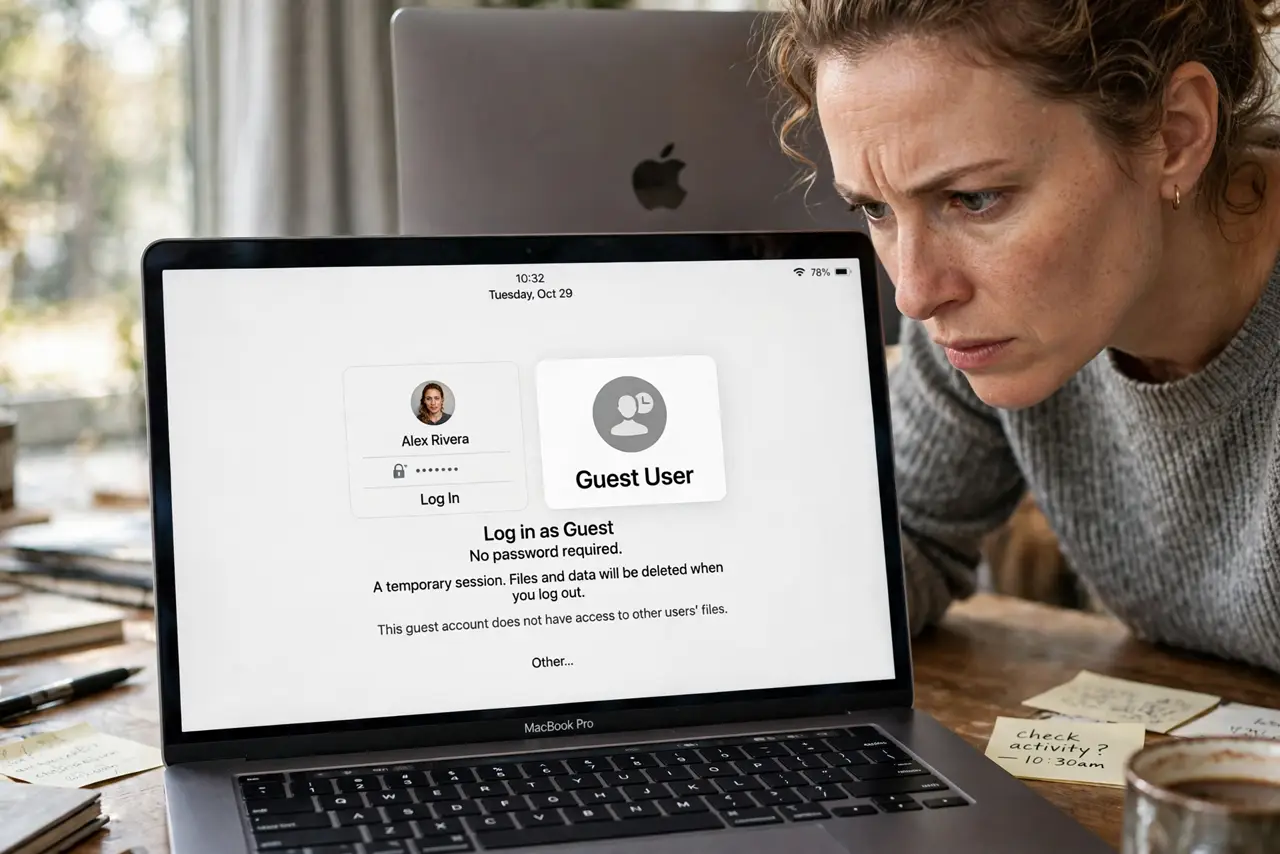
A Guest User option showed up on your login screen and you never created it. It feels like someone accessed your Mac, but it is almost always a setting: Find My or a managed profile enables it quietly. This guide finds the switch and turns it off.
TL;DR / Quick Fix
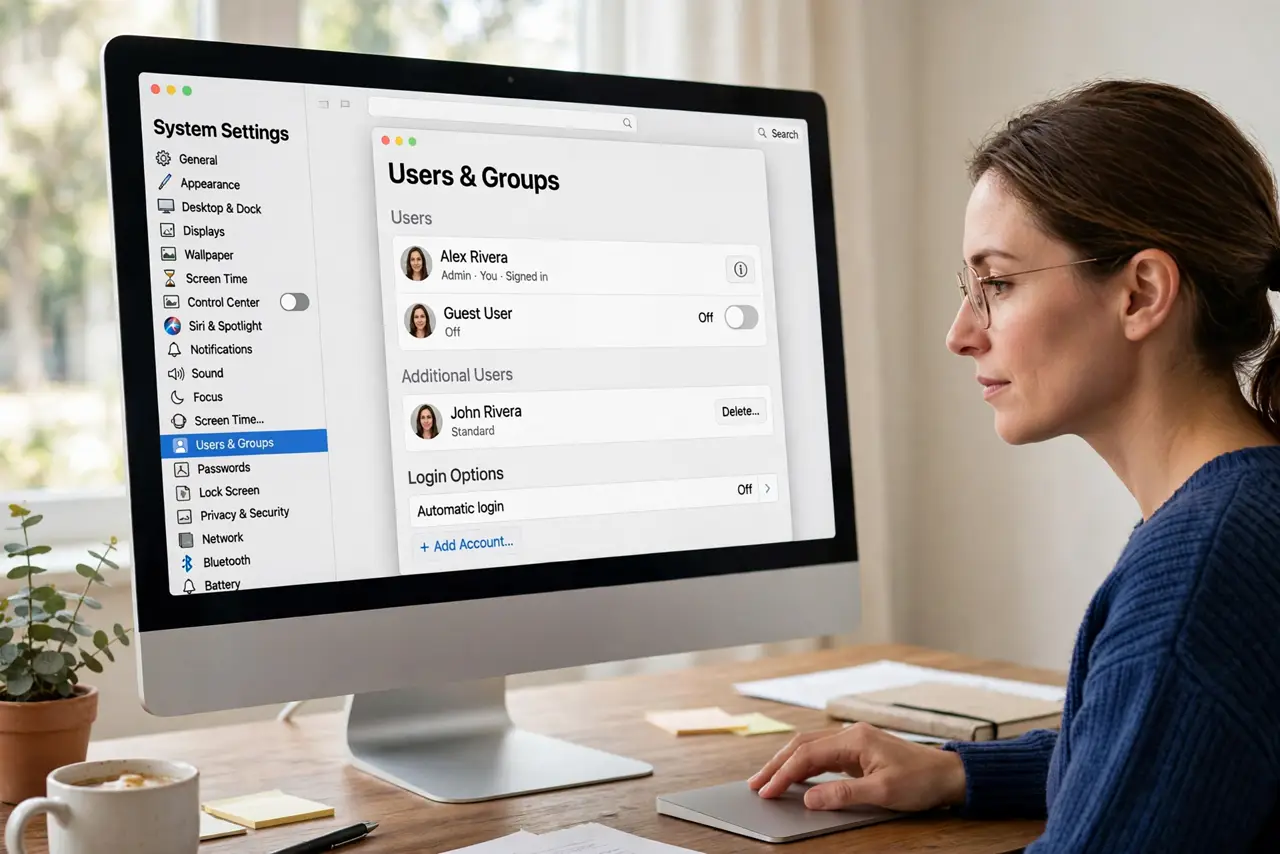
Quick fix: open System Settings, go to Users and Groups, and turn off the Guest User. If the toggle is locked or missing, check Find My settings and any installed configuration profiles, since those can enable the guest account silently.
Follow these steps
- Check Users and Groups first. Open System Settings, then Users and Groups. If Guest User is listed as on, switch it off. This is different from a wrong-language login screen, which is a display setting.
- Unlock the settings if needed. Click the lock or authenticate when prompted. Guest settings require an administrator, so a standard user cannot change them.
- Check Find My settings. Find My can enable a guest-capable login for locating a lost Mac. Review its settings if the guest option returns after you disable it.
- Look for configuration profiles. In System Settings, check for a Profiles section. School or work profiles can force the guest account on, and only removing the profile clears it.
- Restart and verify. Restart the Mac and check the login screen. The guest icon should be gone; if it persists, a profile is still enforcing it.
- Do not use the guest account meanwhile. Avoid logging into the guest account out of curiosity. Its files wipe on logout, and anything you do there vanishes.
What NOT to do
- Do not assume you were hacked. A surprise guest account is a setting in nearly every case, not an intruder.
- Do not delete user accounts to fix this. The guest account is separate from real users, so deleting accounts changes nothing.
- Do not ignore a returning guest icon. If it comes back after disabling, a profile is enforcing it, and that deserves a look.
- Do not enter personal data in the guest session. Guest sessions wipe on logout, so anything typed there is both temporary and less private.
Frequently asked questions
Is the guest account dangerous?
No. It is sandboxed and wipes on logout. The surprise is just unsettling, not a security breach by itself.
Why can't I turn the guest user off?
A configuration profile from school or work is likely enforcing it. Check the Profiles pane in System Settings.
Does Find My really enable this?
It can enable the guest login path used for locating a lost Mac. Review Find My if the toggle keeps returning.