Handoff? The Plain Basics
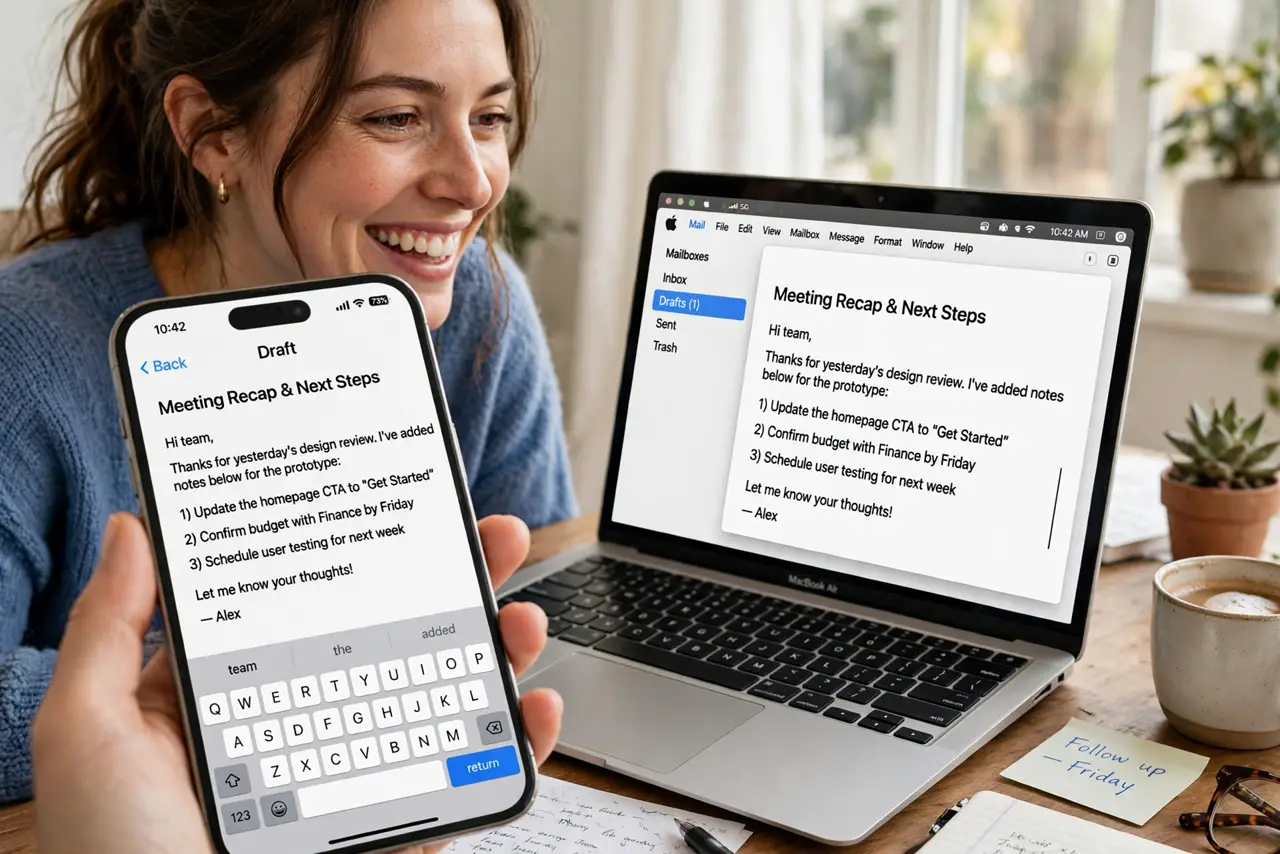
You start an email on your iPhone and want to finish it on your Mac — or you're reading a page on the Mac and want it on your iPad. Handoff beams your current activity between Apple devices signed into the same Apple ID, with an icon appearing in the Dock to pick it up. When it works it's magic; when it doesn't it's usually one toggle. Here is the setup.
TL;DR / Quick Fix
Quick fix: Handoff passes your current activity — web pages, emails, documents — between Apple devices on the same Apple ID. Requirements: same Apple ID, Wi-Fi and Bluetooth on, Handoff enabled per device. Then tap the app icon at the Dock's edge to pick up where you left off.
Follow these steps
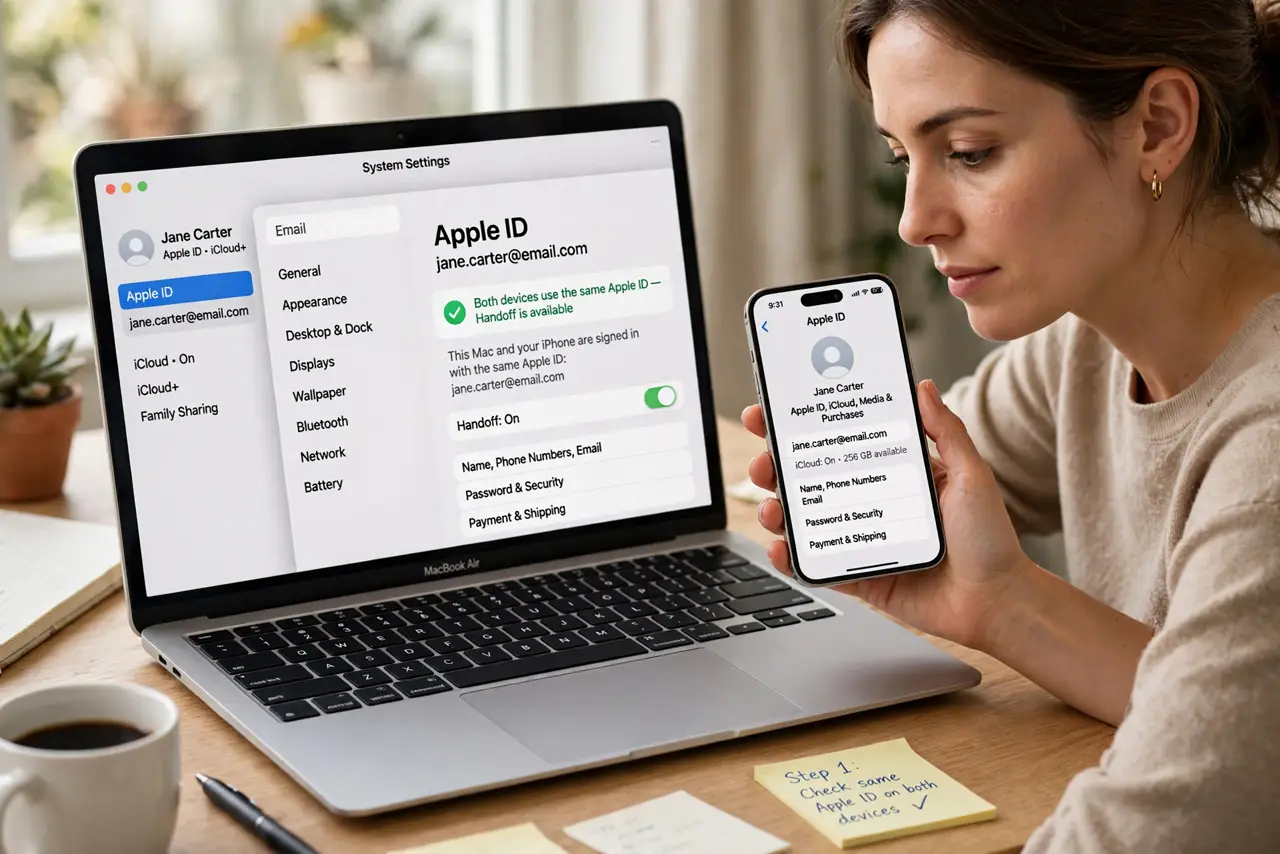
- Meet the requirements. Same Apple ID on all devices, Wi-Fi on, Bluetooth on, and devices within a few meters. Handoff also needs relatively recent hardware — very old devices predate it. Miss one requirement and nothing appears.
- Enable Handoff everywhere. Mac: System Settings → General → AirDrop & Handoff → Allow Handoff. iPhone/iPad: Settings → General → AirPlay & Handoff → Handoff. It's per-device — enabling on the Mac alone isn't enough.
- Hand off from iPhone to Mac. Start something Handoff-aware (Safari, Mail, Notes, Pages) on iPhone. On the Mac, the app's icon appears at the left edge of the Dock (or in the app switcher) — click it and the exact page or draft opens.
- Hand off from Mac to iPhone. Reverse direction: the app icon appears on the iPhone's app switcher or lock screen. Swipe up on it to continue. If Safari pages don't transfer, the Safari handoff fix covers the usual causes.
- Use Universal Clipboard too. Copy on one device, paste on another — same requirements, no setup beyond Handoff being on. It shares the plumbing. When the clipboard won't paste, the fix is usually Bluetooth or same-network issues.
- Know what doesn't hand off. Only Apple apps and apps that explicitly support Handoff participate — Chrome and third-party apps mostly don't. Handoff moves the activity, not unsaved app state in unsupported apps.
What NOT to do
- Do not expect Handoff over different Apple IDs. Family members' devices won't hand off to each other — same ID is mandatory.
- Do not troubleshoot with Bluetooth off. Handoff needs Bluetooth for discovery even though Wi-Fi carries the data — both must be on.
- Do not assume every app supports it. If your favorite third-party app never shows the icon, it simply doesn't implement Handoff.
- Do not confuse Handoff with AirDrop. Handoff continues activities; AirDrop sends files — related, different jobs.
Frequently asked questions
Why isn't the Handoff icon appearing?
The big four: different Apple IDs, Bluetooth off, Handoff disabled on one device, or devices too far apart. Check in that order — it fixes nearly every case.
Does Handoff use mobile data?
No — it works over local Wi-Fi and Bluetooth between nearby devices. No internet needed, no data consumed.
Can I hand off a phone call?
Calls hand off between iPhone and Mac via a separate feature (Calls on Other Devices in FaceTime settings) — related but configured independently.