Turn On HDR on Mac
You enabled HDR expecting dazzling highlights, and instead the whole screen looks washed out — gray blacks, flat colors, like someone turned the contrast down. On a Mac this usually means HDR is on but the content, the cable, or the display preset is not actually delivering it. The fix is a short checklist, not a new monitor.
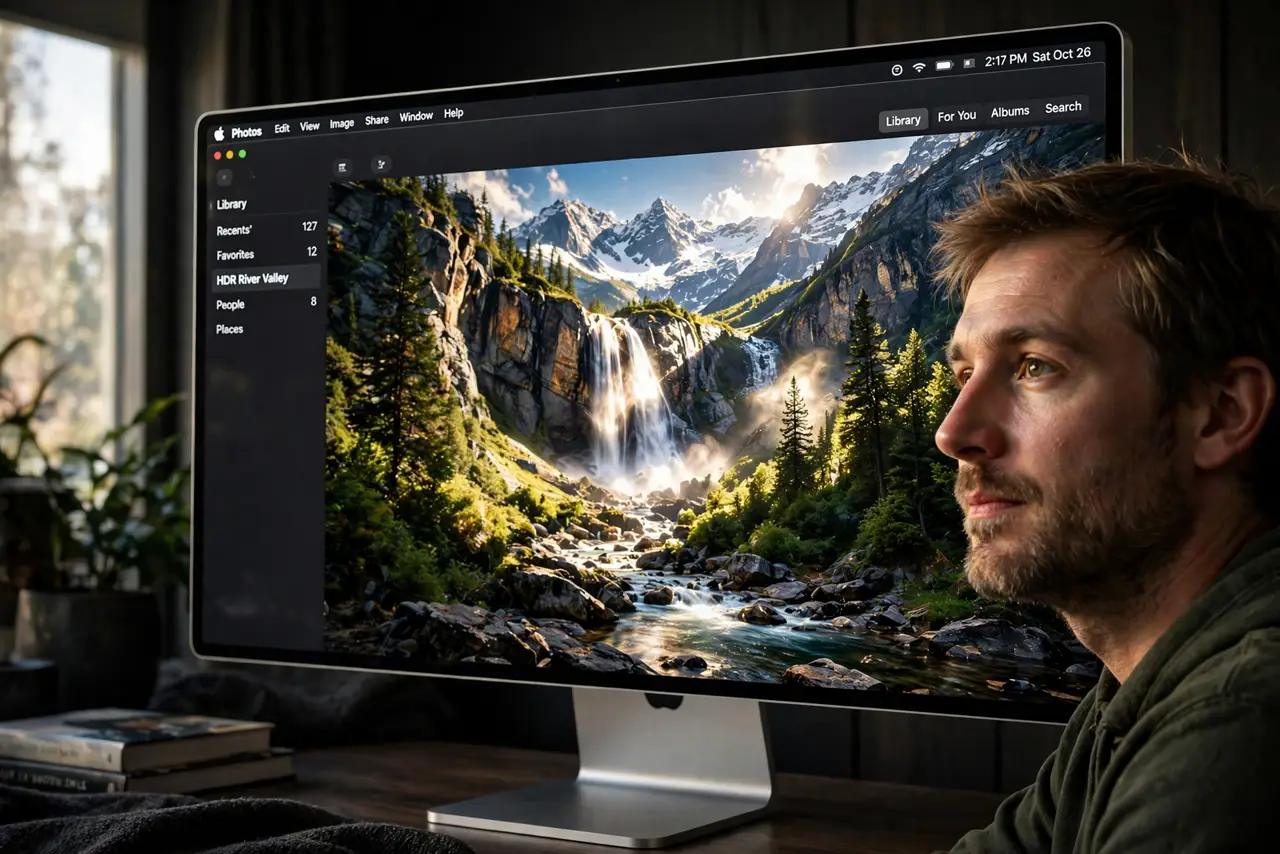
TL;DR / Quick Fix
Quick fix: HDR that looks washed out usually means the display is getting an HDR signal it cannot show properly — wrong preset, weak cable, or SDR content stretched into HDR. On Mac, open Displays settings, enable HDR only on a capable display, and test with real HDR video.
Follow these steps
- Confirm the display actually supports HDR. Check the monitor's specs for real HDR — many 'HDR-ready' screens accept the signal but cannot show it, which is exactly what washed-out HDR looks like. No setting fixes a panel without the brightness.
- Enable HDR in Display settings. Open System Settings, then Displays, and look for the High Dynamic Range toggle on the external display. If it is grayed out, the Mac does not see an HDR-capable display — suspect the cable.
- Use a cable with enough bandwidth. HDR at full resolution needs a proper USB-C/DisplayPort or HDMI 2.0+ cable. A weak cable silently drops you to SDR while the toggle claims HDR — the classic washed-out trap.
- Pick the right display preset. After enabling HDR, choose an HDR-appropriate preset. An SDR preset with HDR forced on stretches standard content and washes everything out.
- Test with genuine HDR content. Play a known HDR video — not a random YouTube clip. If highlights pop and blacks stay deep only there, your setup is fine and the earlier content was just SDR.
- Leave SDR content in SDR. Forcing HDR on for everything makes the desktop and web look flat. Enable HDR for HDR media; let the desktop stay SDR.
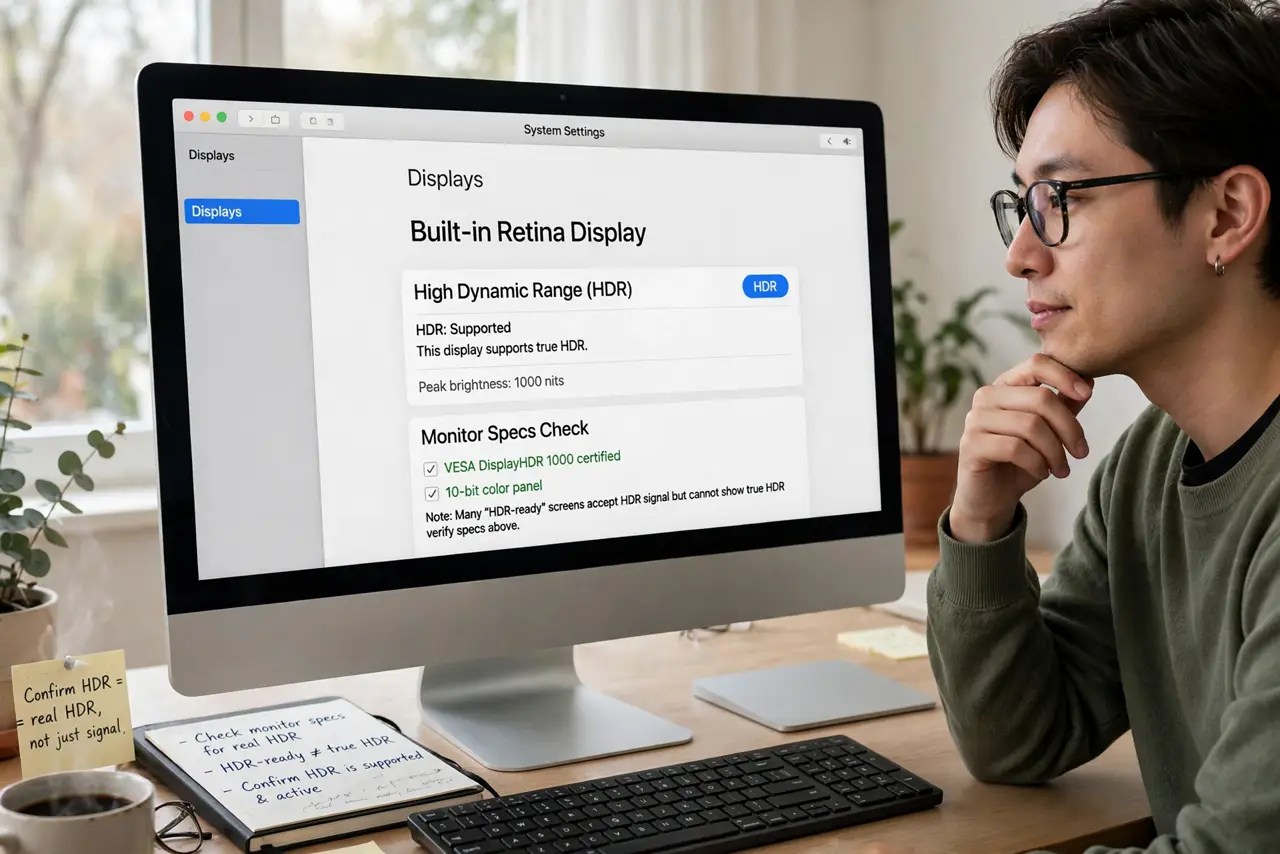
What NOT to do
- Do not enable HDR on a display that only accepts the signal. 'HDR-compatible' without real brightness just washes out SDR content.
- Do not judge HDR from a screenshot. Screenshots are SDR — they cannot show what HDR looks like, by definition.
- Do not use a cheap adapter and blame the Mac. Bandwidth-starved cables are the top cause of gray, flat 'HDR.'
- Do not crank brightness to fix washed-out HDR. The problem is tone mapping, not brightness — more nits will not un-gray it.
Frequently asked questions
Why does everything look gray with HDR on?
The display is likely showing SDR content through an HDR pipeline without proper tone mapping. Match the preset to the content or turn HDR off for desktop use.
Does HDR work over any HDMI cable?
No — older cables lack the bandwidth and silently fall back. Use a certified high-speed cable and check the monitor reports an HDR signal.
Should I leave HDR on all the time?
Only if most of what you watch is HDR. For mixed desktop use, SDR with HDR auto-switching for video looks better.