Hot Corners Trigger by Accident? Fix Them
When hot corners trigger every time you move the mouse, the screen locks, Mission Control opens, or the screensaver starts, just because your cursor brushed a corner. Hot corners are powerful, but a corner you hit by accident is a corner that should require a key, or do nothing at all.
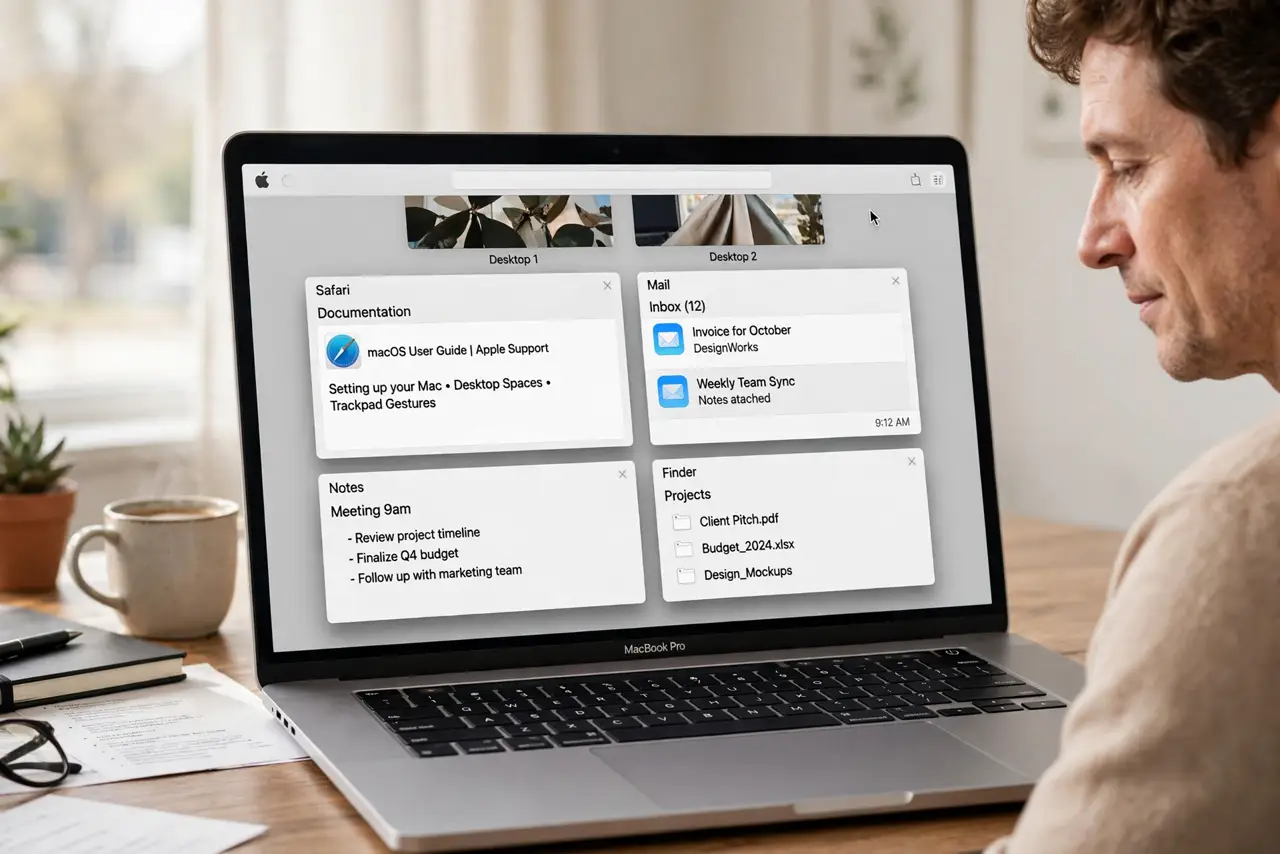
TL;DR / Quick Fix
Quick fix: open System Settings, then Desktop and Dock, then Hot Corners, and add a modifier key, such as Command, to the corner you keep hitting. From now on, that corner only triggers when you hold the key while moving into it.
Follow these steps
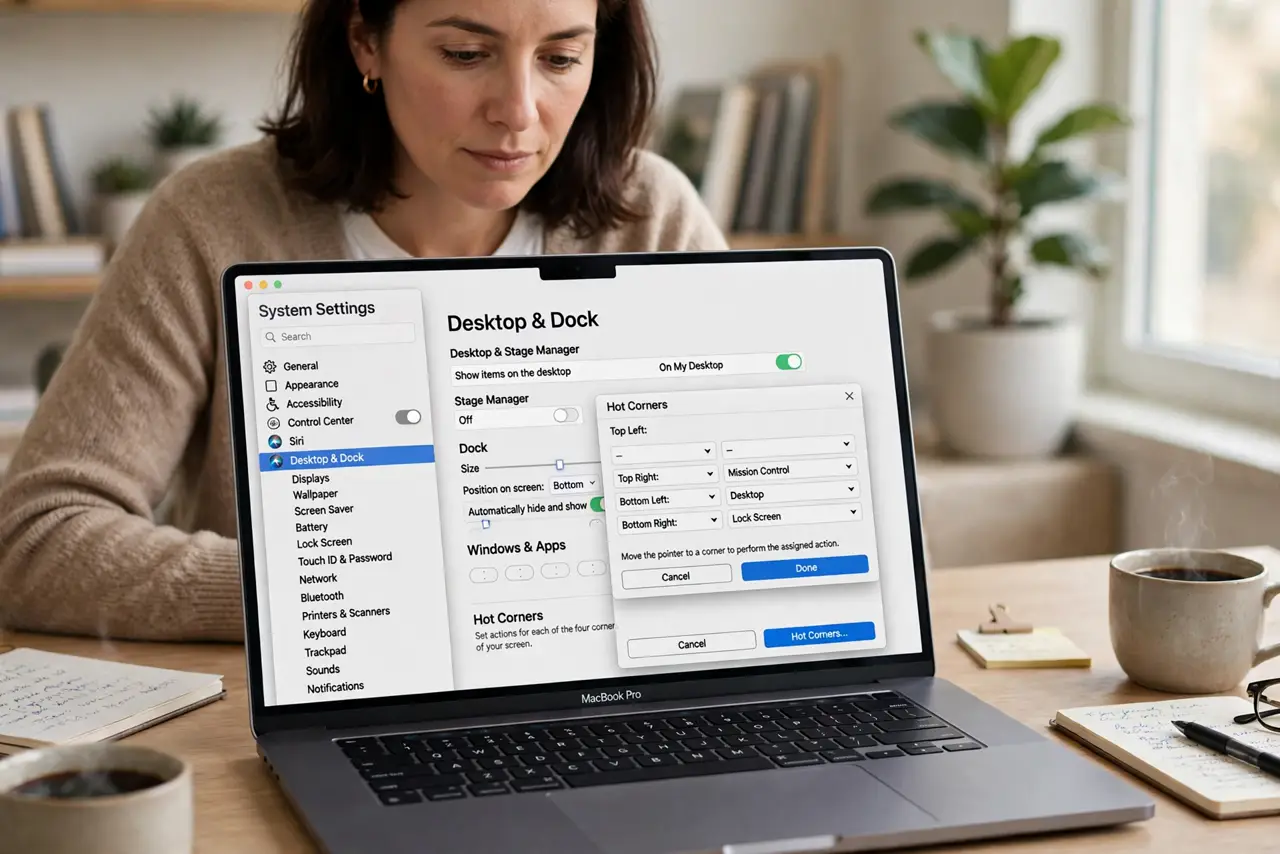
- Open Hot Corners settings. Open System Settings, then Desktop and Dock, scroll down, and click Hot Corners. This panel lists what each of the four corners does.
- Find the corner you keep hitting. Think about which corner triggers by accident. The bottom corners are common culprits for right-handed mouse users, while top corners catch trackpad swipes.
- Add a modifier key to that corner. Hold Command, or another modifier, while you choose the action for that corner. The corner will now require that key, so an accidental brush will not trigger it.
- Change the action if the key is not enough. If you still trigger the corner, change its action to a harmless one, such as Mission Control, instead of Lock Screen or Start Screen Saver.
- Turn off corners you never use. Set any corner you do not deliberately use to a dash, meaning no action. An unused corner with an action is just an accident waiting to happen.
- Test normal mouse movement. Move the mouse normally around the screen for a few minutes, including near the corners. If nothing triggers by accident, the fix held, and your deliberate corner actions still work with the key.
What NOT to do
- Do not turn off all hot corners because one misfires. Fix the one corner you hit, and keep the corners you actually use, with a modifier key if needed.
- Do not set a corner to Put Display to Sleep if you hit it often. A sleep trigger on an accidental corner will interrupt your work far more than a harmless preview action.
- Do not ignore a corner that locks the screen repeatedly. Repeated locks break your flow, and a modifier key or a disabled corner fixes them in under a minute.
- Do not change trackpad gestures to dodge a hot corner. Gestures and corners are separate, and changing gestures will not stop a corner from triggering.
Frequently asked questions
What are hot corners?
They are actions assigned to the four screen corners, triggered when the mouse moves into a corner. They can open Mission Control, lock the screen, and more.
Why do hot corners trigger so easily?
Because they need only a mouse movement into the corner, with no click. A modifier key adds the deliberate step that stops accidents.
Can I keep hot corners and still avoid accidents?
Yes. Keep the corners you use, add a modifier key to them, and set unused corners to no action. That keeps the power without the accidents.