Generate Images on Your Mac
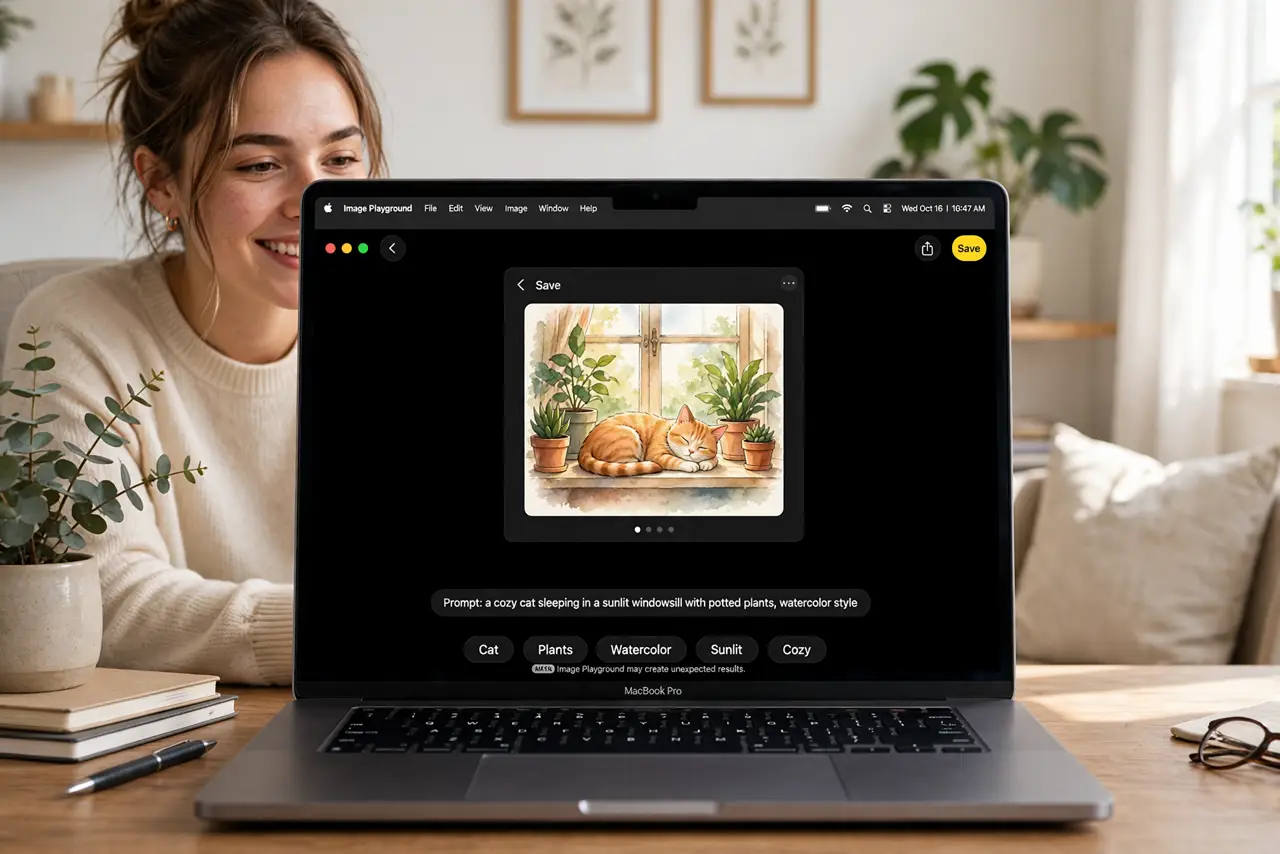
You need a quick custom image — a birthday card graphic, a fun slide illustration, a placeholder for a mockup — and stock photos all look wrong. Your Mac has Image Playground, Apple's built-in image generator, which creates playful custom images from a text description in seconds. It will not replace a designer, but for quick personal graphics it is genuinely useful. Here is how to use it well.
TL;DR / Quick Fix
Quick fix: Image Playground on the Mac generates custom images from a text description — find it in Applications or Launchpad, describe what you want, and pick a style. Results suit fun graphics and placeholders. For anything professional or public-facing, use real photos or proper design tools instead.
Follow these steps
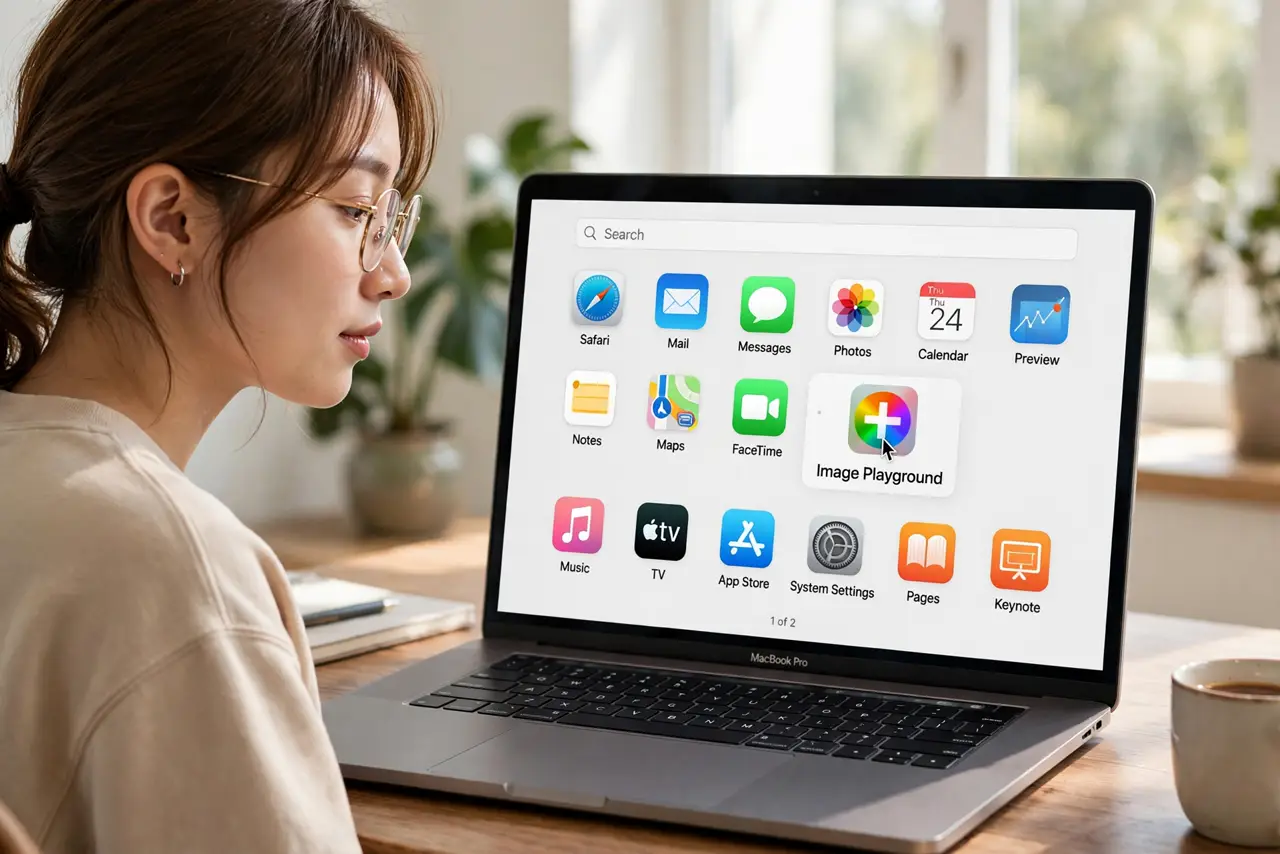
- Find and open Image Playground. Look in the Applications folder or Launchpad — it is a standalone app on Macs with Apple Intelligence. It also appears inside Messages and some other apps when you want an image inline.
- Describe what you want in plain words. Type a simple description: the subject, the setting, the mood. 'A cheerful robot watering a garden at sunset' works better than a paragraph of art-direction jargon — the tool is built for casual prompts.
- Pick a style. Image Playground offers styles like Animation and Illustration. Try the same prompt in each — the difference is dramatic, and one will usually suit your purpose far better than the other.
- Add a person for personal images. You can base images on people from your photo library for birthday cards and fun personal graphics. Keep these private and consensual — generated images of real people should never be shared without their knowledge.
- Iterate, do not settle. Swipe through variations and tweak the description. Small prompt changes — adding a color, changing the setting — produce very different results, and the third or fourth try is often the keeper.
- Know its limits. It makes stylized, playful images — not photorealistic ones, and not text-heavy graphics (rendered words often come out garbled). For words and precision, pair it with Writing Tools for the text and a real design app for layout.
What NOT to do
- Do not use generated images to mislead. A fake photo presented as real — especially of a real person or event — destroys trust and can violate platform rules.
- Do not expect readable text in images. Image Playground mangles words and letters; any graphic that needs accurate text needs a proper design tool.
- Do not use it for professional client work without disclosure. AI-generated placeholders are fine for drafts; final deliverables deserve real assets or explicit client agreement.
- Do not generate images of real people to share publicly. Private fun with friends' consent is one thing; posting generated images of someone is another.
Frequently asked questions
Is Image Playground free?
Yes — it is built into macOS on supported Macs with no subscription or per-image cost. You need a Mac with Apple Silicon and Apple Intelligence enabled.
Can I use the images commercially?
Apple's terms allow personal use; commercial use of AI-generated images sits in murky legal territory everywhere. For business use, prefer licensed stock or original work.
Why do my images look cartoony?
That is the tool's design — Image Playground deliberately produces stylized illustration, not photorealism. For realistic images you need a different class of AI image tool.