Mac Keyboard or Trackpad Not Responding? Fix It
When keys or clicks stop working, it feels like the Mac itself has died, but the computer is usually fine. Work through connection and power first, then settings, and you will know quickly whether it is a simple fix or a repair.
TL;DR / Quick Fix
Quick fix: Check whether it is the built-in input or an external one. Charge or replace the batteries. Turn Bluetooth off and on again. Forget and re-pair the device. Restart the Mac and test in a clean state. Check accessibility and input settings.
Follow these steps
- Check whether it is the built-in input or an external one. On a laptop, test the built-in keyboard and trackpad. If they work but an external keyboard or trackpad does not, the problem is with that device or its connection, not the Mac.
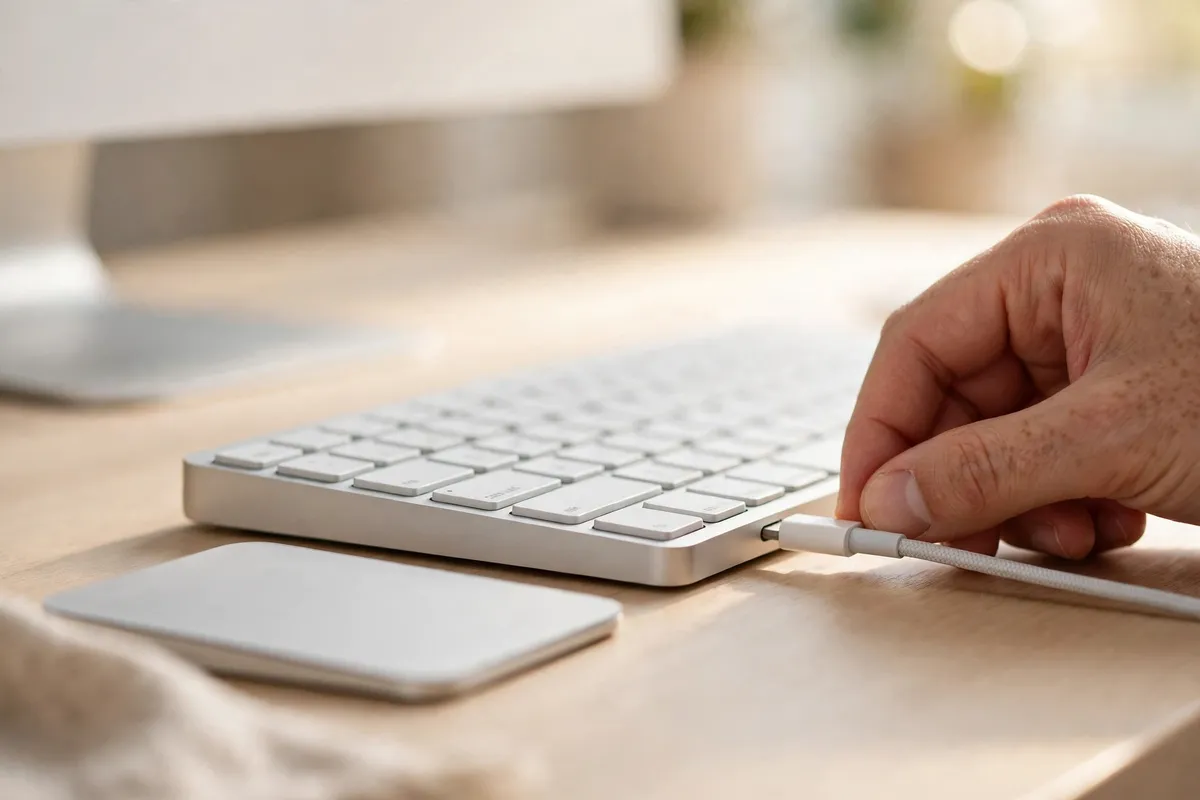
- Charge or replace the batteries. For wireless keyboards and trackpads, plug them in to charge or swap the batteries, then wait a minute and try again. Low power is the most common reason a wireless device stops responding or behaves erratically.
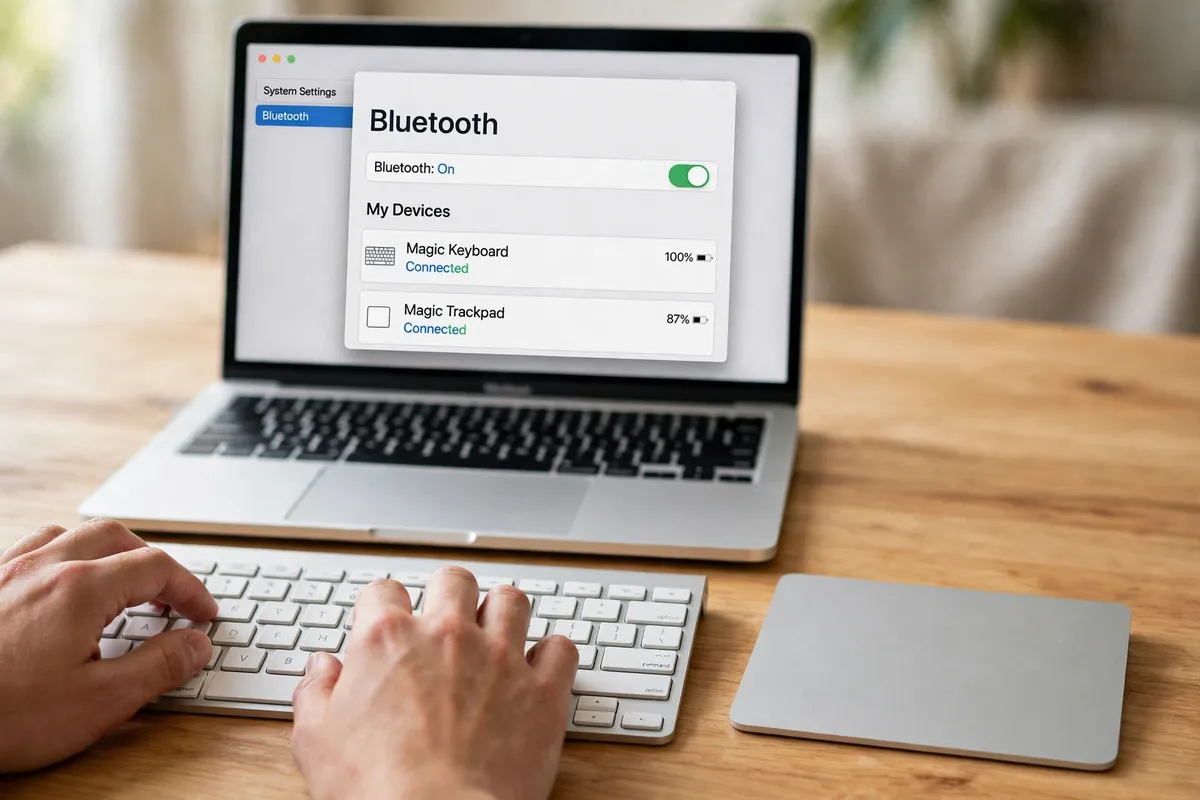
- Turn Bluetooth off and on again. Open System Settings, then Bluetooth, turn it off, wait a few seconds, and turn it back on. Then check that your device shows as Connected; if not, click Connect beside it.
- Forget and re-pair the device. If it shows as connected but still does nothing, click the info button beside it, choose Forget This Device, then pair it again from scratch. Re-pairing clears a corrupted connection.
- Restart the Mac and test in a clean state. Restart, and if the problem began after a recent change, test before opening extra apps. If input works after a restart but fails later, a specific app or login item may be interfering.
- Check accessibility and input settings. Open System Settings, then Accessibility, and review Keyboard and Pointer Control settings, such as Slow Keys, Mouse Keys, and trackpad speed. A setting changed by accident can make input feel dead or extremely slow.
- Try a wired connection to isolate the fault. Plug in a wired keyboard or mouse if you have one. If the wired device works perfectly, the wireless device or its Bluetooth connection is the problem; if nothing works, the Mac needs a closer look.
What NOT to do
- Do not force keys or press the trackpad harder when it stops responding. Pressure will not fix a connection problem and can damage the device.
- Do not reset all Bluetooth devices at once unless you have no other choice. You will have to re-pair headphones and everything else too.
- Do not spill liquid on the device to clean it, and do not open a wireless keyboard or trackpad to fix a connection issue.
If input returns after charging, re-pairing, or a restart, you have found the cause. If a built-in keyboard or trackpad stays dead after all these checks, book a repair rather than forcing it.
Frequently asked questions
What is the quickest fix in this guide?
Check whether it is the built-in input or an external one.
What should I avoid doing?
Do not force keys or press the trackpad harder when it stops responding.
What do I check after I finish?
Try a wired connection to isolate the fault.