App Can't Find Devices?
Your printer app cannot see the printer, the TV app cannot find the TV, the smart-home app sees nothing — everything is on the same Wi-Fi, yet the Mac acts alone. Recent macOS versions block apps from scanning your local network until you explicitly allow it. The fix is one toggle per app.
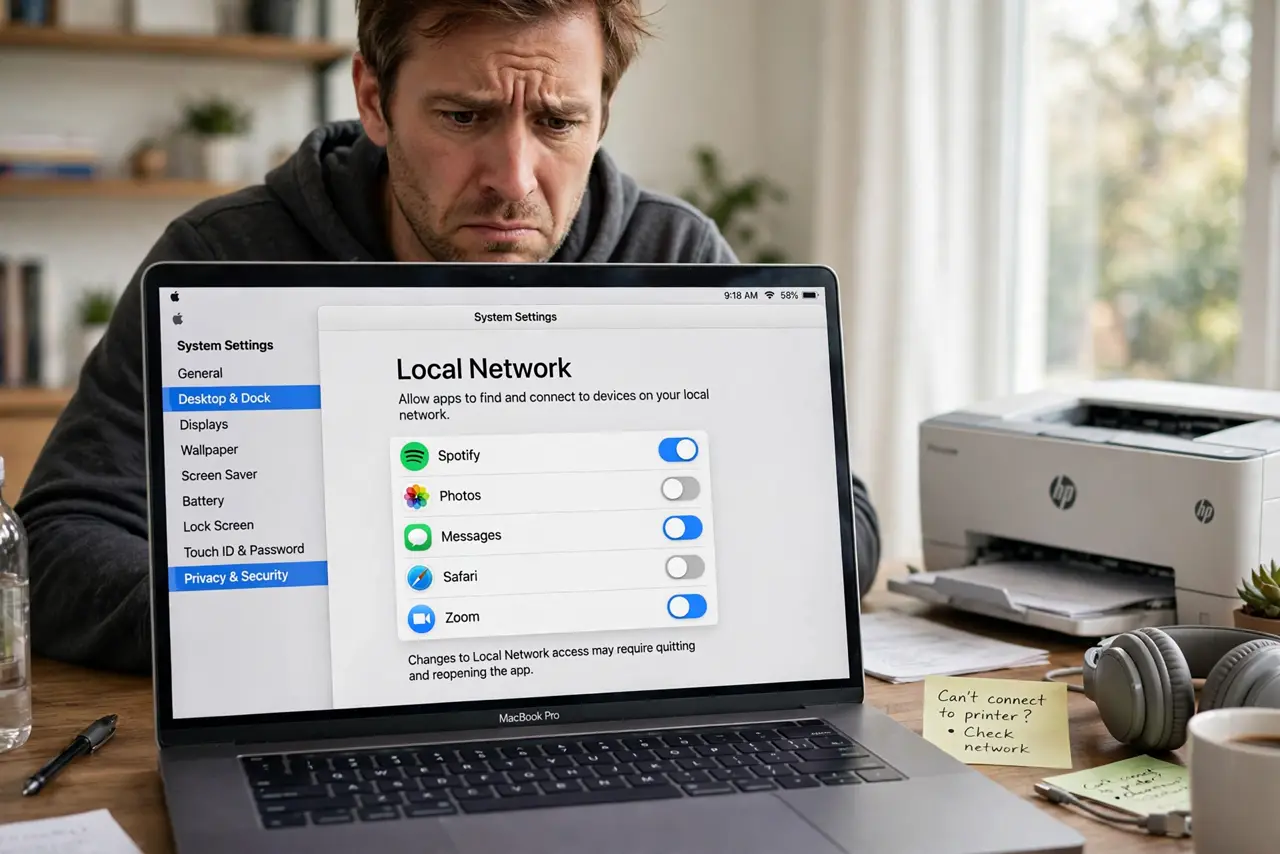
TL;DR / Quick Fix
Quick fix: open System Settings, Privacy and Security, Local Network, and toggle on the app that cannot find your devices — then restart the app. macOS blocks local network discovery by default. If the app is missing from the list, open it and trigger a device search first.
Follow these steps
- Open the Local Network pane. Go to System Settings, then Privacy and Security, then Local Network. Every app that has requested local access is listed.
- Toggle on your app. Find the app — printer utility, media caster, smart-home app — and switch it on. Discovery protocols need this to see anything on your network.
- Restart the app fully. Quit the app completely and reopen it. Like other macOS permissions, the grant only activates on a fresh launch.
- Trigger discovery if the app is missing. An app appears here only after it asks. Open the app, start a device search or scan, then check Settings again — the entry should appear.
- Check the firewall too. If discovery still fails, the Mac firewall may be blocking the app's incoming connections — see firewall blocked a local app for that sibling issue.
- Keep the list tidy. Revoke apps you no longer use. Local network access lets an app map every device in your home — grant it deliberately.
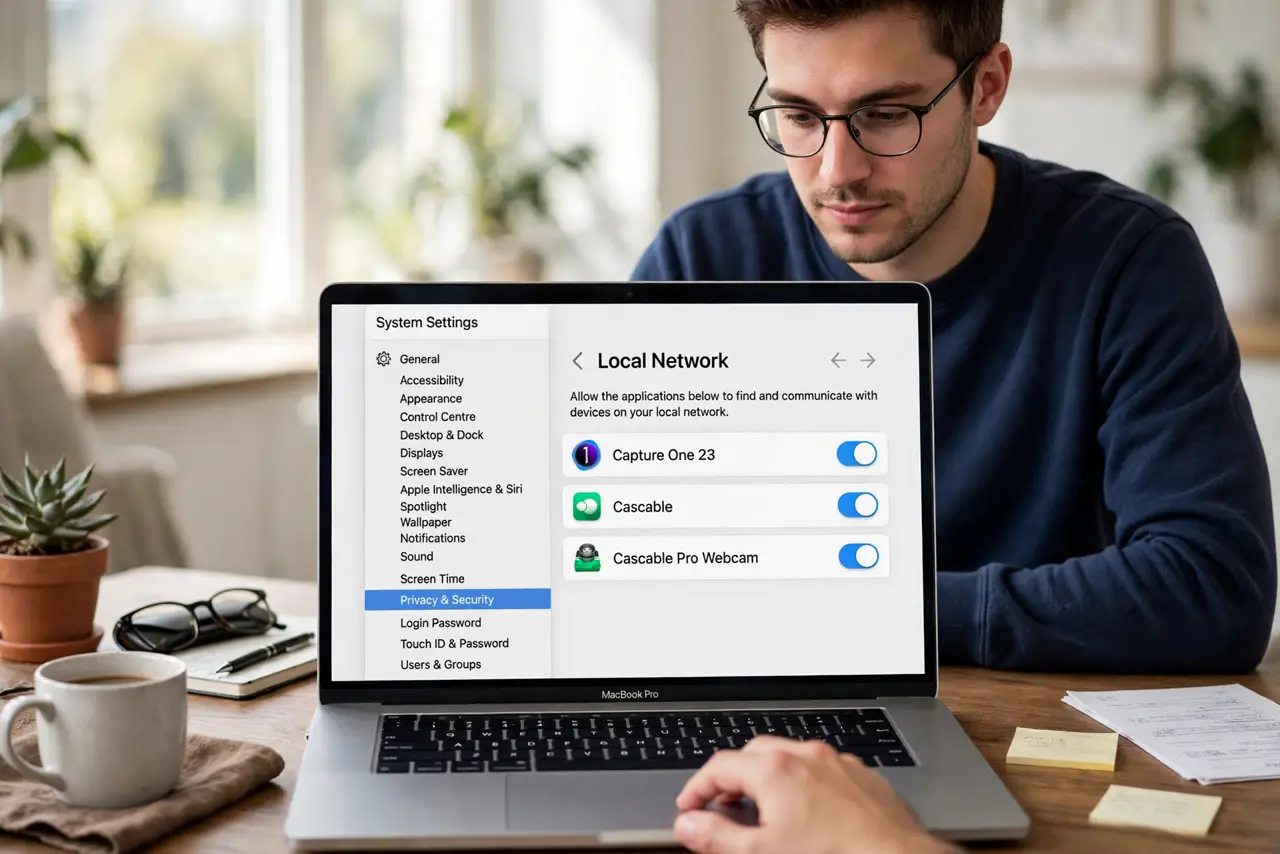
What NOT to do
- Do not grant local network access to random utilities. A flashlight app has no business mapping your home network.
- Do not forget the app restart. The toggle alone changes nothing until the app relaunches — the classic 'still broken' cause.
- Do not disable Wi-Fi and use Ethernet expecting a bypass. The permission covers the local network regardless of connection type.
- Do not confuse this with internet access. The app may work online while being blind locally — the symptoms look contradictory until you know.
Frequently asked questions
Why did this suddenly break after an update?
Newer macOS versions introduced the permission and defaulted existing apps to denied. Re-approve each affected app once.
Does this affect AirDrop?
AirDrop uses its own system permissions and keeps working. This toggle is for third-party apps specifically.
My printer still won't appear. Now what?
Verify the printer is on the same network band (2.4 vs 5 GHz matters for some printers), then check the printer's own network settings.