Login Items Reappear After You Remove Them
Login items that come back after you delete them are usually not a bug in the list itself. The app that owns the item is re-adding itself each time it launches, or a second setting is restoring it behind your back.
TL;DR / Quick Fix
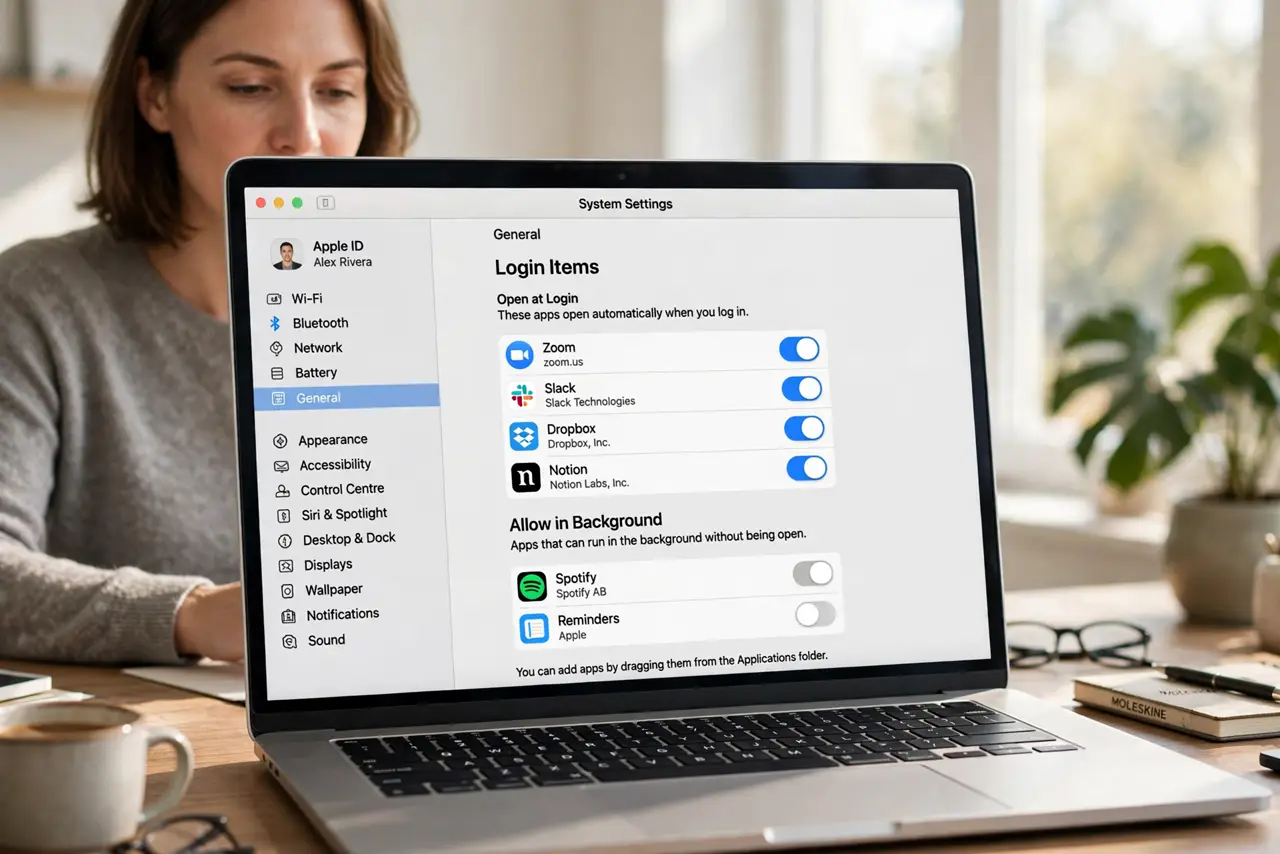
Quick fix: remove the item from Login Items, then open that app's own settings and turn off its open-at-login or launch-at-startup option. The list entry only stays gone when the app stops re-adding it. Test the fix, then keep the setting that works.
Follow these steps
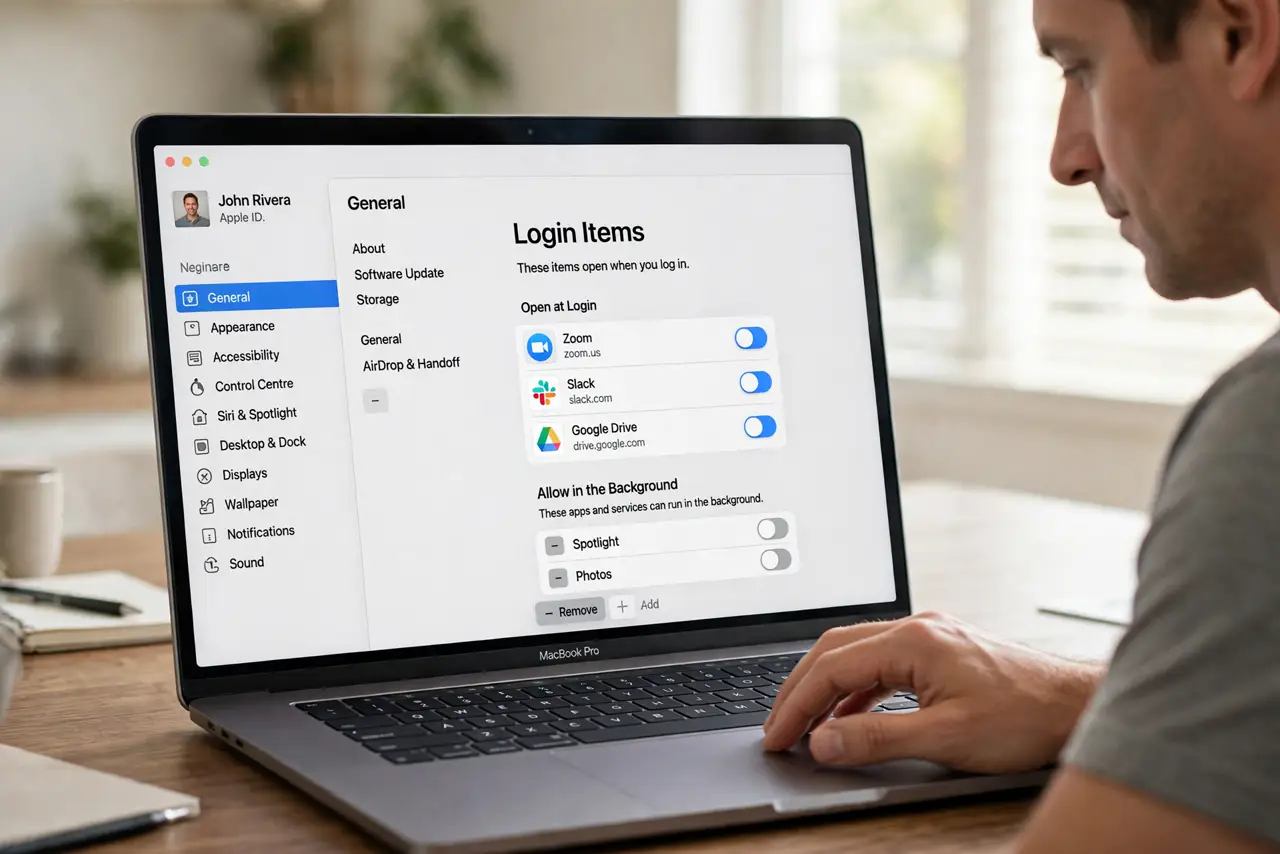
- Remove it from Login Items. Open System Settings, then General, then Login Items, and remove the item. This is the first step, but on its own it often is not enough.
- Check the app's own settings. Open the app and look for an open at login, launch at startup, or start automatically option. Turn it off, since this is the setting that re-adds the item.
- Quit the app fully. Quit the app completely after changing its setting, then check Login Items again. An app left running can restore its entry before you even restart.
- Check for a helper app. Look for a helper or background item from the same developer in Login Items. Helpers can relaunch the main app, which then re-adds its own entry.
- Restart and verify. Restart the Mac and check Login Items before opening the app again. If the item is gone at startup, the source setting is fixed.
- Reopen the app and recheck. Now open the app once and check Login Items again. If the item returns only after opening the app, the app's own setting is still on.
What NOT to do
- Do not keep deleting the entry while leaving the app setting on. The cycle will repeat forever, and each deletion teaches you nothing new.
- Do not delete helper apps you do not recognize without checking what they do. Some helpers belong to apps you rely on, and removing them breaks features.
- Do not turn off all login items to solve one returner. Fix the one app's setting, and leave the login items you actually want alone.
- Do not assume malware every time an item returns. A normal app setting explains most reappearances, so check that first.
Frequently asked questions
Why does a login item keep coming back?
Because the app re-adds itself when it launches, usually through its own open-at-login setting that you have not turned off yet.
Is removing it from Login Items enough?
Only if the app has no setting of its own. If it does, you must turn that setting off too, or the entry returns.
What is a helper app?
It is a small background piece of a larger app. Helpers can relaunch the main app, which can then restore its login item.