Removed Login Items Keep Reopening
You removed an app from Login Items, but it still launches at every startup like nothing happened. The app is reopening itself through a background helper or a launch agent you never saw. This guide finds the hidden reopeners and stops them.
TL;DR / Quick Fix
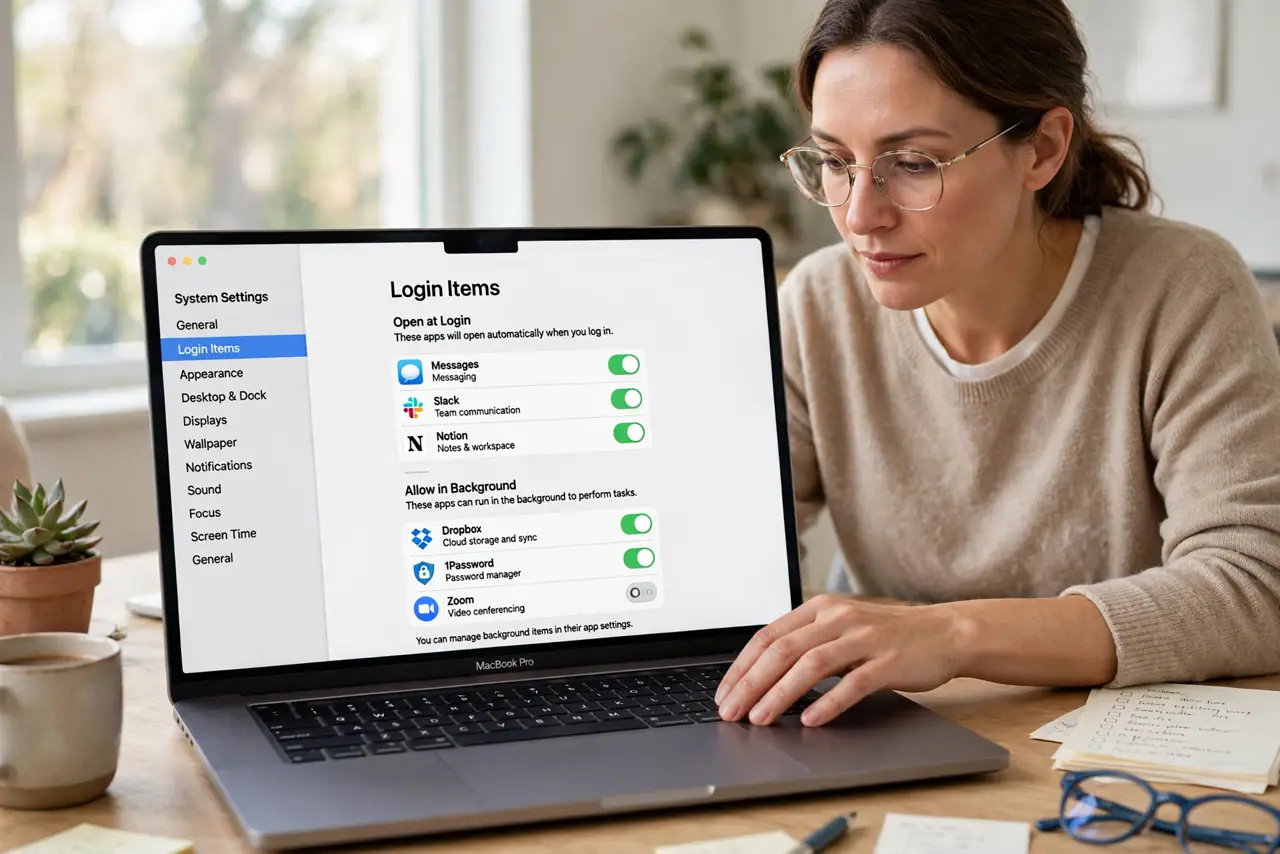
Quick fix: check System Settings, General, Login Items for both the app list and the Allow in Background list, and disable the app's helper there. Also look in the app's own preferences for a launch-at-login checkbox, since many apps re-add themselves.
Follow these steps
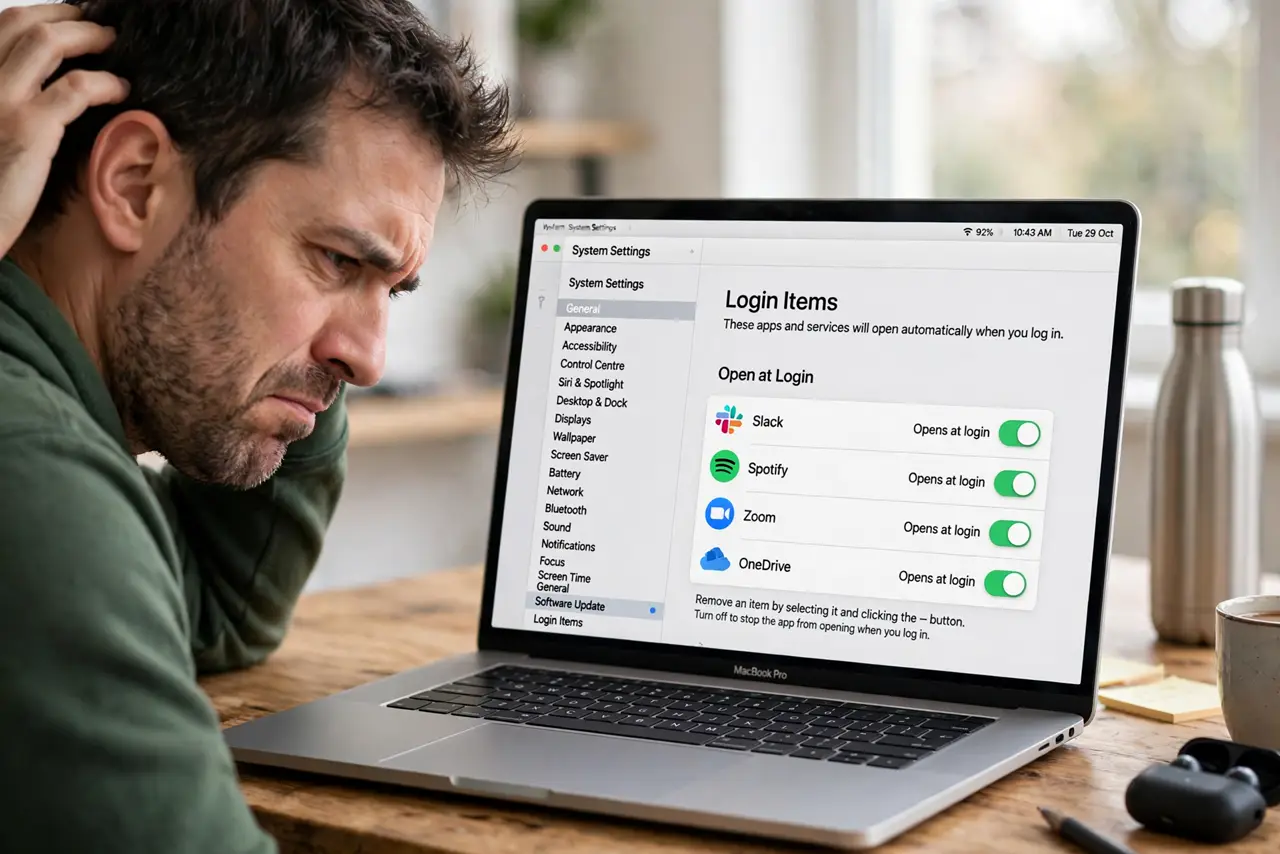
- Check both Login Items lists. Open System Settings, then General, then Login Items. There are two sections: Open at Login and Allow in Background. The app's helper often hides in the second one.
- Look inside the app's own settings. Many apps have their own launch-at-login checkbox in preferences. If the app re-adds itself, its own switch is overriding your removal.
- Inspect launch agents. Open ~/Library/LaunchAgents in Finder and look for the app's plist file. Some apps install a background agent that relaunches them; move the file out to disable it.
- Check with Activity Monitor. After a restart, open Activity Monitor and note the app's parent process. A helper process name points to the exact component doing the reopening.
- Test in Safe Mode. Boot into Safe Mode and restart normally. If the app stays closed after that cycle, a third-party launcher was responsible.
- Uninstall cleanly if you are done. If you no longer want the app at all, delete the app plus its helpers and launch agents. A half-removed app is the most stubborn reopener.
What NOT to do
- Do not delete random files in /Library/LaunchDaemons. System daemons live there, and removing the wrong one breaks macOS services.
- Do not trust the app's word alone. Some apps claim the login switch is off while their helper stays enabled in the background list.
- Do not edit plist files by hand unless sure. A malformed plist can cause errors at every login, so move files out rather than editing.
- Do not ignore the Allow in Background list. That second list is where most reopeners hide, and most people never scroll to it.
Frequently asked questions
Why does the app come back after I remove it?
Its background helper or its own preference switch re-adds it. Both lists plus the app's settings must agree.
What is Allow in Background?
A list of helper processes permitted to run behind the scenes. Helpers there can relaunch their main app.
Is it safe to remove launch agents?
For third-party apps, yes. Never touch Apple's own agents in the system Library folders.