Look Around in Maps?
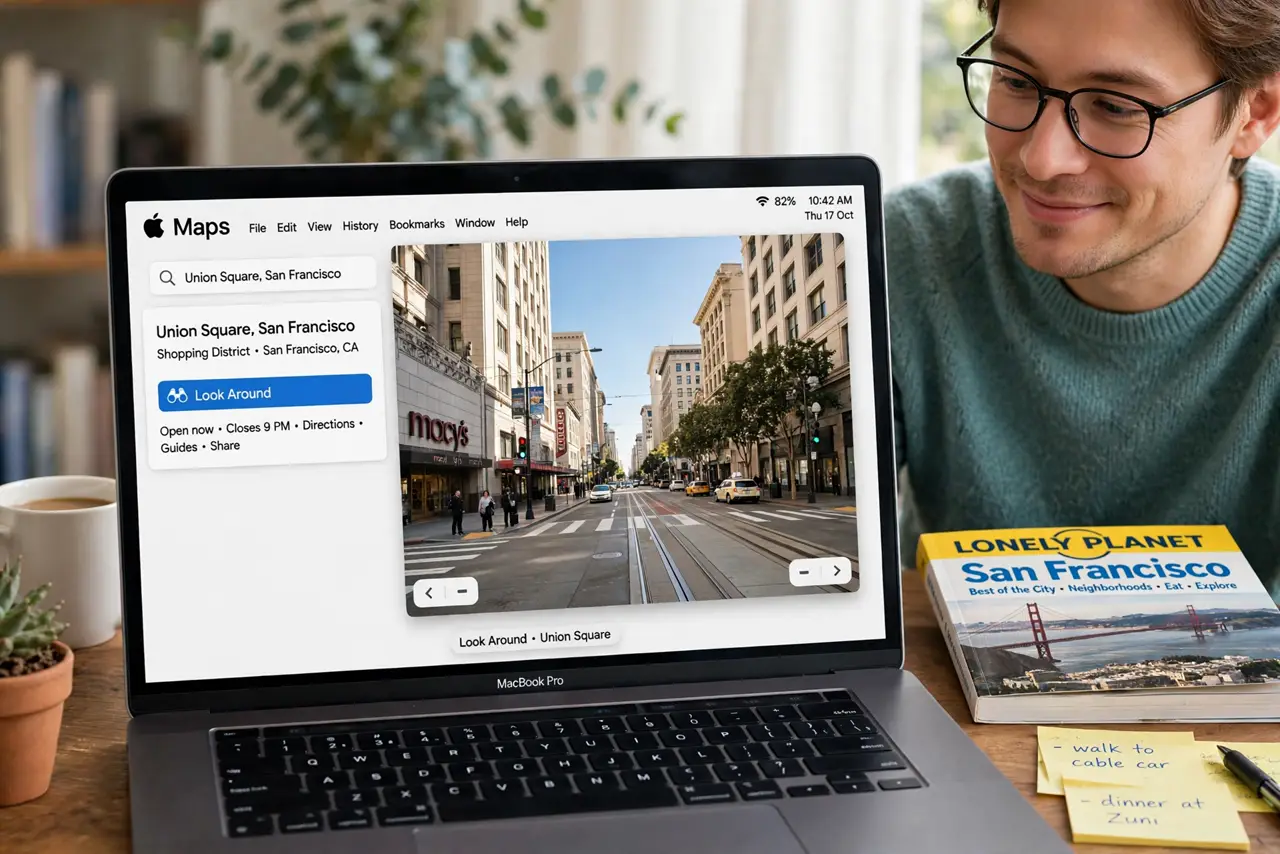
You are planning a trip on your Mac and you want to see what a street actually looks like before you go. Look Around is Apple's answer to Street View, built right into the Maps app — drag a pair of binoculars onto the map and you are standing on the sidewalk. It covers most cities and looks great on a big screen. Here is how to use it.
TL;DR / Quick Fix
Quick fix: open Maps on your Mac, zoom into a city, and click the binoculars icon — drag it onto a highlighted street to enter Look Around. Drag to look around, click arrows to move along the street. Coverage is best in cities; rural areas may not have it yet.
Follow these steps
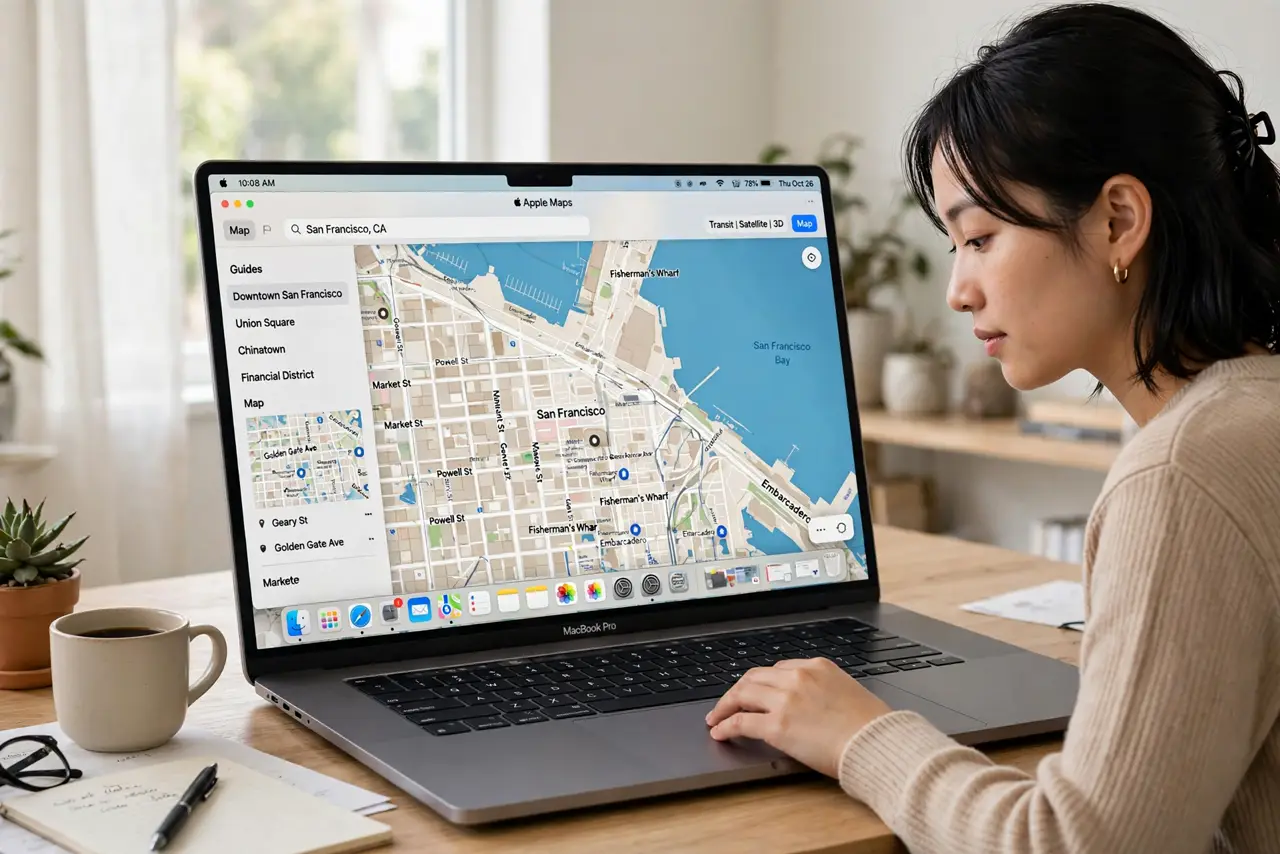
- Open Maps and zoom into a city. Launch Maps from the Dock or Applications. Search for a city or zoom in manually — Look Around needs a fairly close zoom before the binoculars icon activates.
- Click the binoculars icon. In the Maps toolbar, click the binoculars icon (it appears near the top when coverage is available). The map overlays blue-highlighted streets showing where Look Around imagery exists.
- Drag the binoculars onto a street. Click and drag the binoculars onto one of the highlighted streets, then release. The view swoops down to street level with a smooth 360-degree panorama.
- Navigate the street view. Drag to look in any direction, and click the arrows on the road to glide forward. Scroll to zoom in on details like shop signs and house numbers.
- Drop a pin from Look Around. See a restaurant or landmark you like? Right-click (or Control-click) and choose to mark the location — it drops a pin you can save, share, or get directions to.
- Exit back to the map. Click the X or press Escape to return to the overhead map. Your dropped pins and search stay put, so you can keep planning.
What NOT to do
- Do not expect Look Around everywhere. Coverage is excellent in cities but thin in rural areas — if the binoculars icon never appears, there is simply no imagery there.
- Do not confuse Look Around with the 3D city view. The 3D view is an overhead flyover; Look Around puts you on the street itself.
- Do not try it without an internet connection. Street imagery streams live — offline maps will not include Look Around panoramas.
- Do not forget you can share what you see. A screenshot or a shared pin beats trying to describe an intersection over the phone.
Frequently asked questions
Why is there no binoculars icon on my Mac?
Either you are zoomed out too far, or Apple has no Look Around coverage for that area. Zoom into a major city to test — if the icon appears there, coverage is the issue, not your Mac.
Can I use Look Around on iPhone too?
Yes — it works the same way in the iPhone Maps app. Start planning on the Mac's big screen, then take the saved places with you on your phone.
Is Look Around imagery current?
Apple refreshes it periodically, but it can lag a year or more behind reality. Treat it as a preview, not a guarantee that the shop is still there.