Fix a Too-Quiet Mac Microphone on Calls
If people on calls keep asking you to speak up, your Mac microphone may be set too low, or the wrong microphone may be selected. The built-in microphone is usually fine once its level is right. Check the input settings before buying anything.
TL;DR / Quick Fix
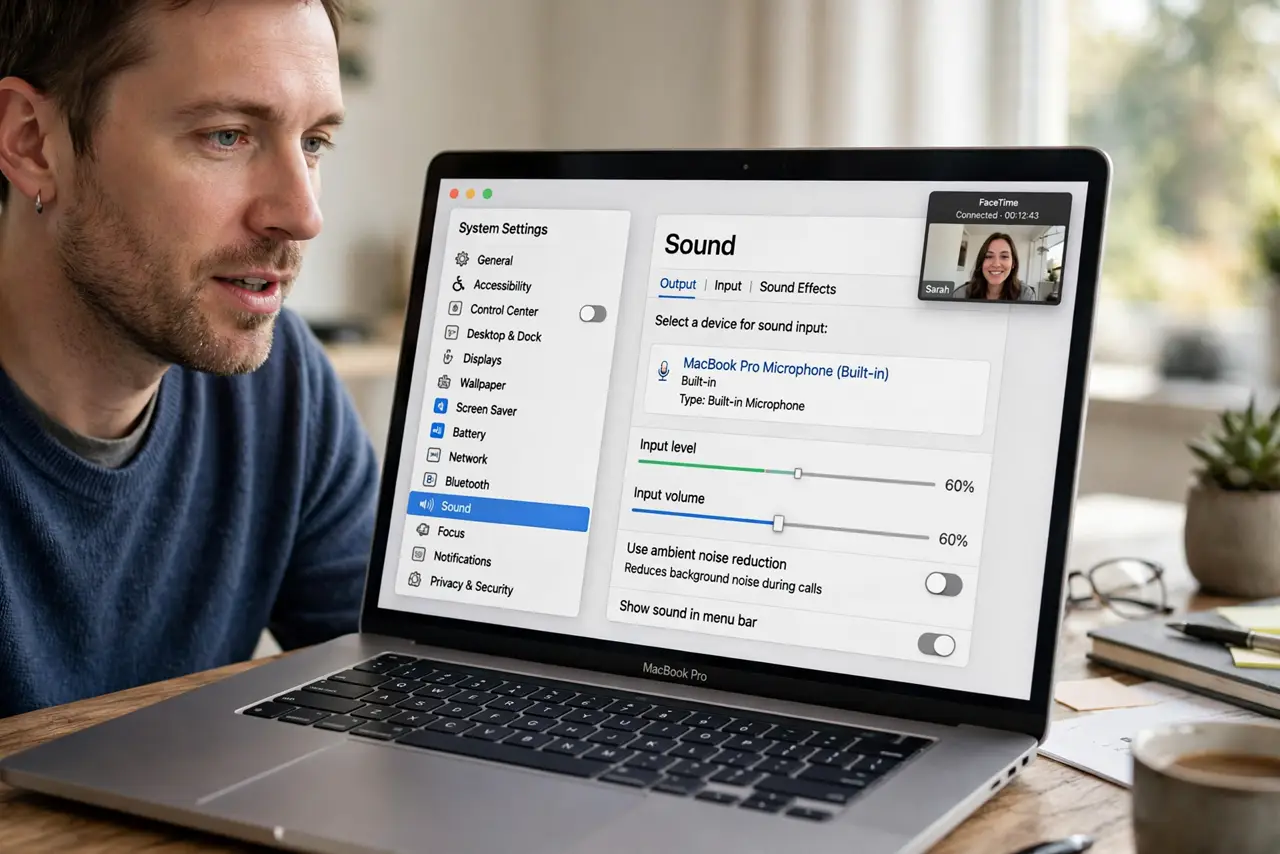
Quick fix: open System Settings, then Sound, then Input, and select the correct microphone. Then raise the input volume while speaking normally and watch the level meter. Also check the calling app's own microphone setting and permission before you buy any new microphone.
Follow these steps
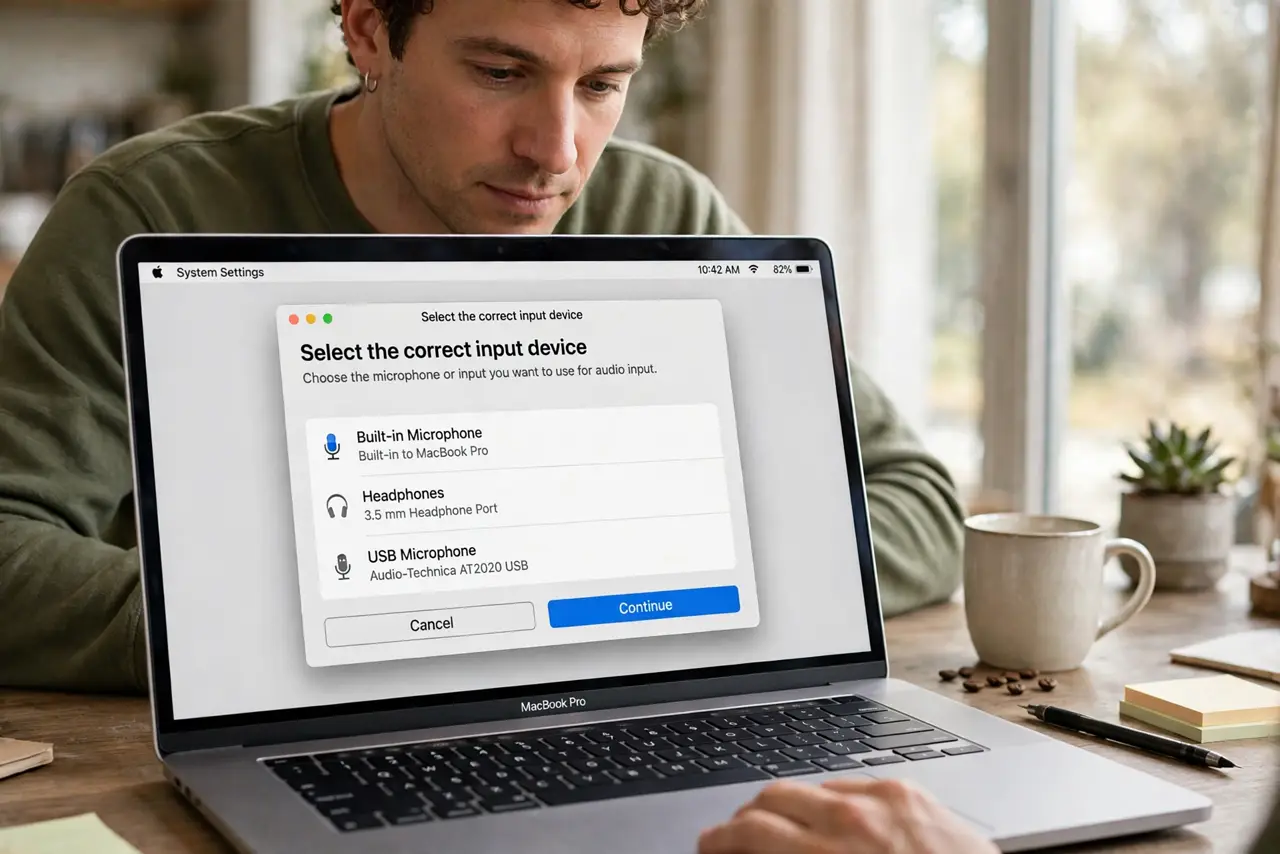
- Select the correct input device. Open System Settings, then Sound, then Input, and click the microphone you actually use, built-in or external. The wrong selection is a common cause of a quiet voice.
- Raise the input volume. On the same Input page, raise Input volume while speaking at normal volume. Aim for the level meter to reach the middle range when you speak, not the very top.
- Check the app's microphone setting. Open your calling app's audio settings and confirm it uses the same microphone. Some apps keep their own microphone choice separate from the system setting.
- Check microphone permission. Open System Settings, then Privacy and Security, then Microphone, and confirm the calling app is allowed. An app without permission may fall back to a quieter or no input.
- Move closer and speak toward the mic. Sit closer to the Mac and speak toward its microphone edge. A built-in microphone loses volume quickly with distance, especially in a noisy room.
- Test with a voice recording. Record a short clip in a voice recording app and play it back. If you sound clear there, the problem is the calling app's setting, not the microphone.
What NOT to do
- Do not shout to compensate. Shouting distorts your voice and tires you out, while a correct input level fixes the problem properly.
- Do not buy an external microphone first. Input volume, device selection, and permission fix most quiet-microphone complaints without new hardware.
- Do not set input volume to maximum. Maximum volume can distort and pick up room noise, so aim for the middle of the meter instead.
- Do not cover the microphone opening. A case, sticker, or hand over the mic hole will muffle your voice no matter how high the volume is.
Frequently asked questions
Why am I quiet in one app but fine in another?
That app usually has its own microphone selection or volume, or it lacks microphone permission, while the system setting is correct.
Does distance really matter for a built-in mic?
Yes. Built-in microphones are tuned for close speech, so moving even a foot farther away can make you noticeably quieter.
What if the level meter barely moves?
Check the selected input device and permission first. If the meter stays flat for every device, restart the Mac and test again.