Move to a New Mac? Migration
New Mac, same life — every app, file, setting, and password exactly where you left it. Migration Assistant moves your whole world from the old Mac, a Time Machine backup, or even a Windows PC. Done right it feels like the old Mac got a faster body; done rushed it stalls halfway. Here is the careful way.
TL;DR / Quick Fix
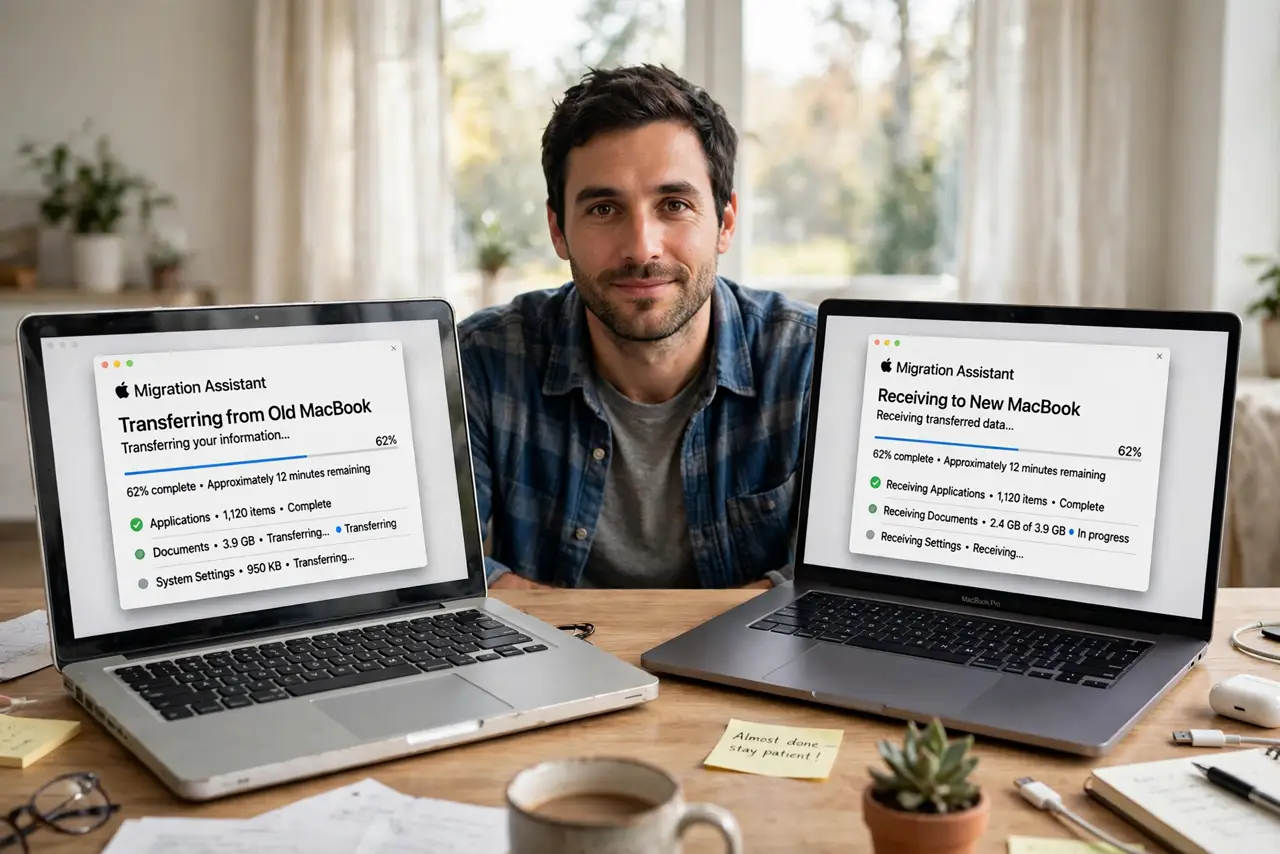
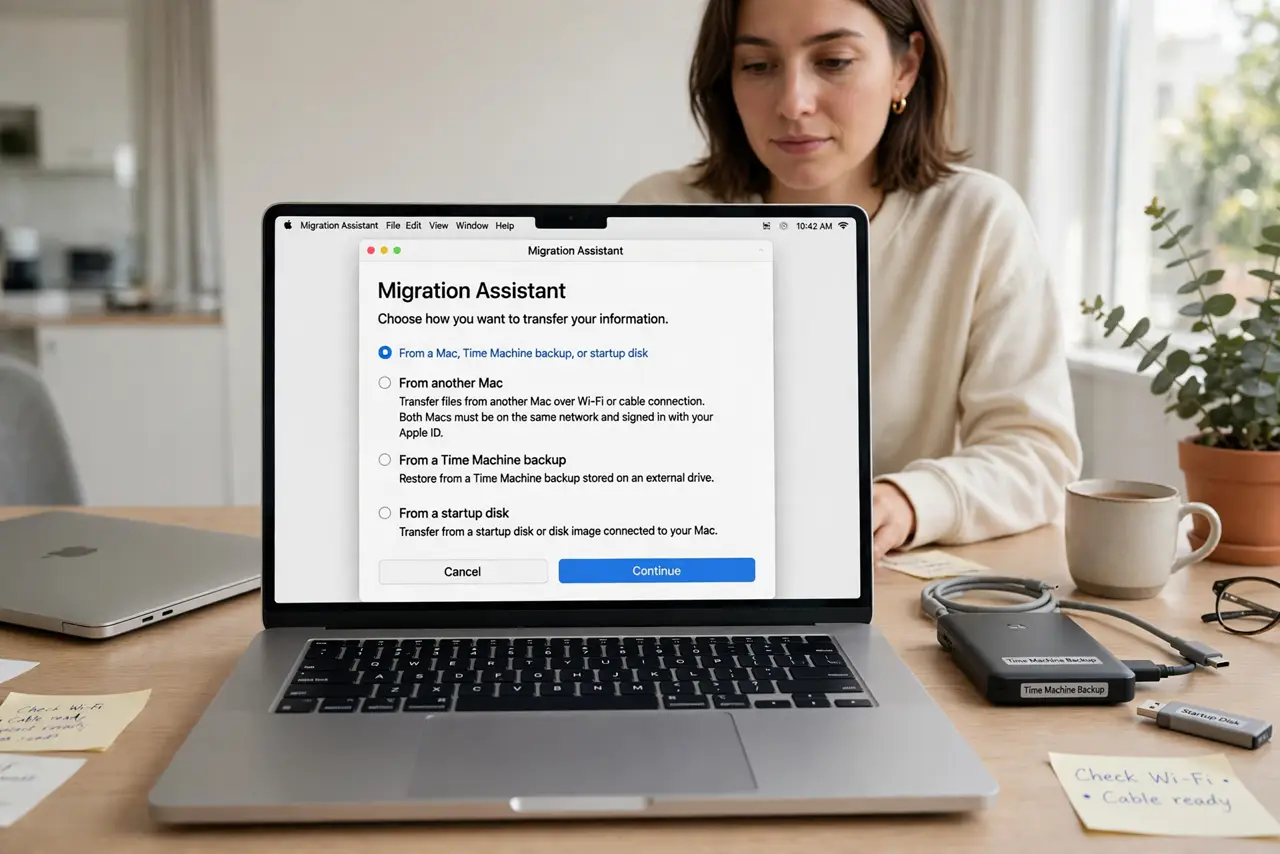
Quick fix: on your new Mac, open Migration Assistant during setup or from Utilities, and choose to transfer from another Mac, a Time Machine backup, or a startup disk. Keep both Macs on power and Wi-Fi, and let the transfer finish uninterrupted. Large libraries can take hours.
Follow these steps
- Choose your source. Another Mac over Wi-Fi or cable, a Time Machine backup drive, or a startup disk. Time Machine is usually the most reliable source.
- Start Migration Assistant on the new Mac. It appears during initial setup, or anytime in Applications, then Utilities. Close other apps first — migration wants the stage.
- Connect both Macs well. Power adapters plugged in, strong Wi-Fi — or better, a direct cable between the two Macs. A dying battery mid-transfer is the classic disaster.
- Select what to transfer. Users, applications, files, settings — checkboxes let you skip what you do not want. When in doubt, transfer everything and clean up later.
- Let it finish uninterrupted. Do not sleep either Mac, do not close the lid, do not start 'just checking' things. Large photo libraries can take several hours.
- Verify before wiping the old Mac. Log in, open your apps, spot-check files. Only erase the old Mac after a week of normal use on the new one — see the erase guide when it is time.
What NOT to do
- Do not wipe the old Mac the day migration finishes. Live on the new Mac for a week first — missing items surface slowly.
- Do not migrate over a weak hotel or cafe Wi-Fi. Slow transfers time out and corrupt; use a cable or a solid home network.
- Do not skip the power adapter. A Mac sleeping mid-migration from low battery can leave both machines in a confusing half-moved state.
- Do not migrate a mess and expect tidiness. Migration copies your digital life faithfully — clutter included. Clean the old Mac first if you want a fresh start.
Frequently asked questions
How long does migration take?
From under an hour for a light Mac to most of a day for terabytes of photos and video. The progress bar's time estimate is rough — plan generously.
Can I migrate from a Windows PC?
Yes — Migration Assistant has a Windows mode for documents, mail, and media. Applications do not transfer; you will reinstall Mac versions.
What if migration stalls?
Check both Macs are awake and connected, then wait — stalls of 30 minutes on large files are normal. Only restart as a last resort.