Control the Pointer With Keys
Mouse Keys turns the number pad — or the regular keyboard — into a mouse: keys move the pointer, others click. When the trackpad dies mid-trip or a mouse is simply not an option, it keeps the Mac fully drivable. Setup is one Accessibility switch plus learning the key map.
TL;DR / Quick Fix
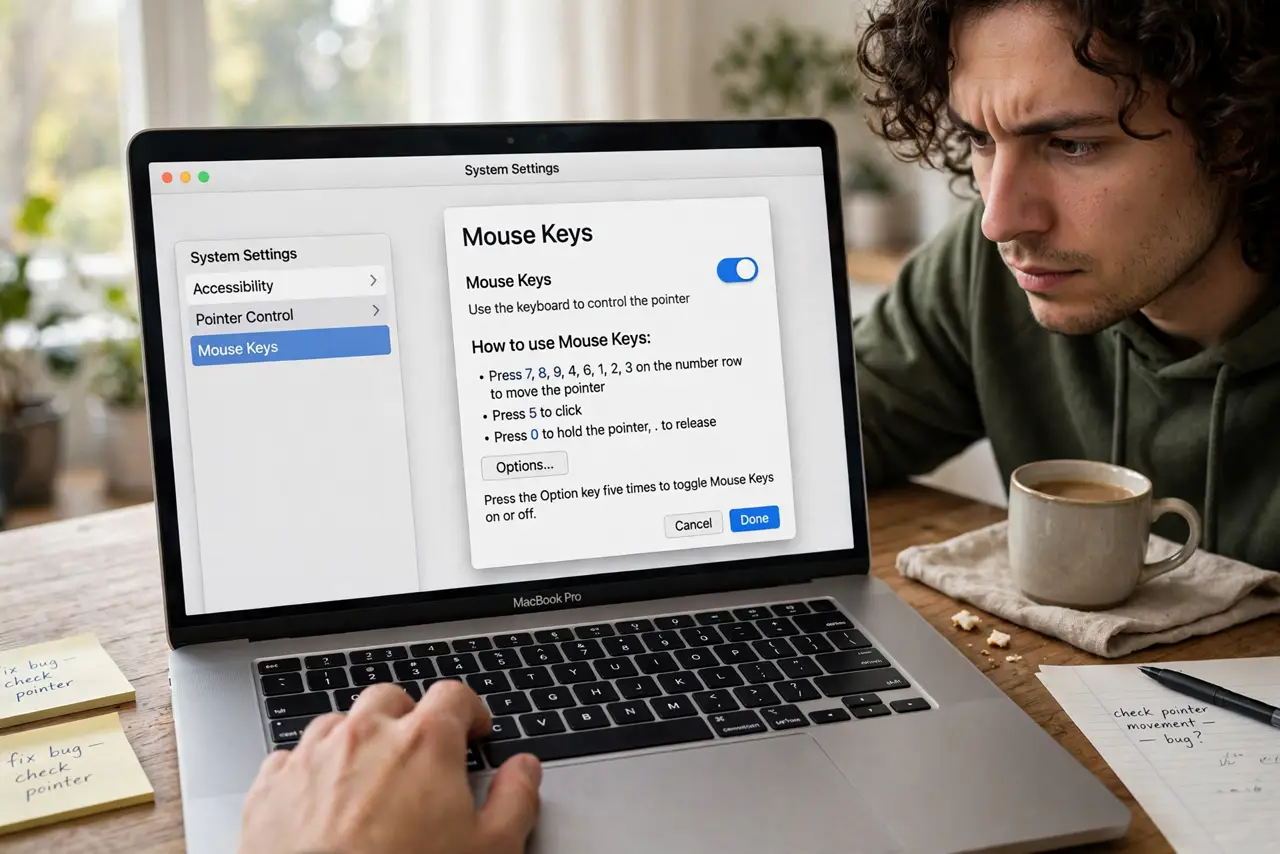
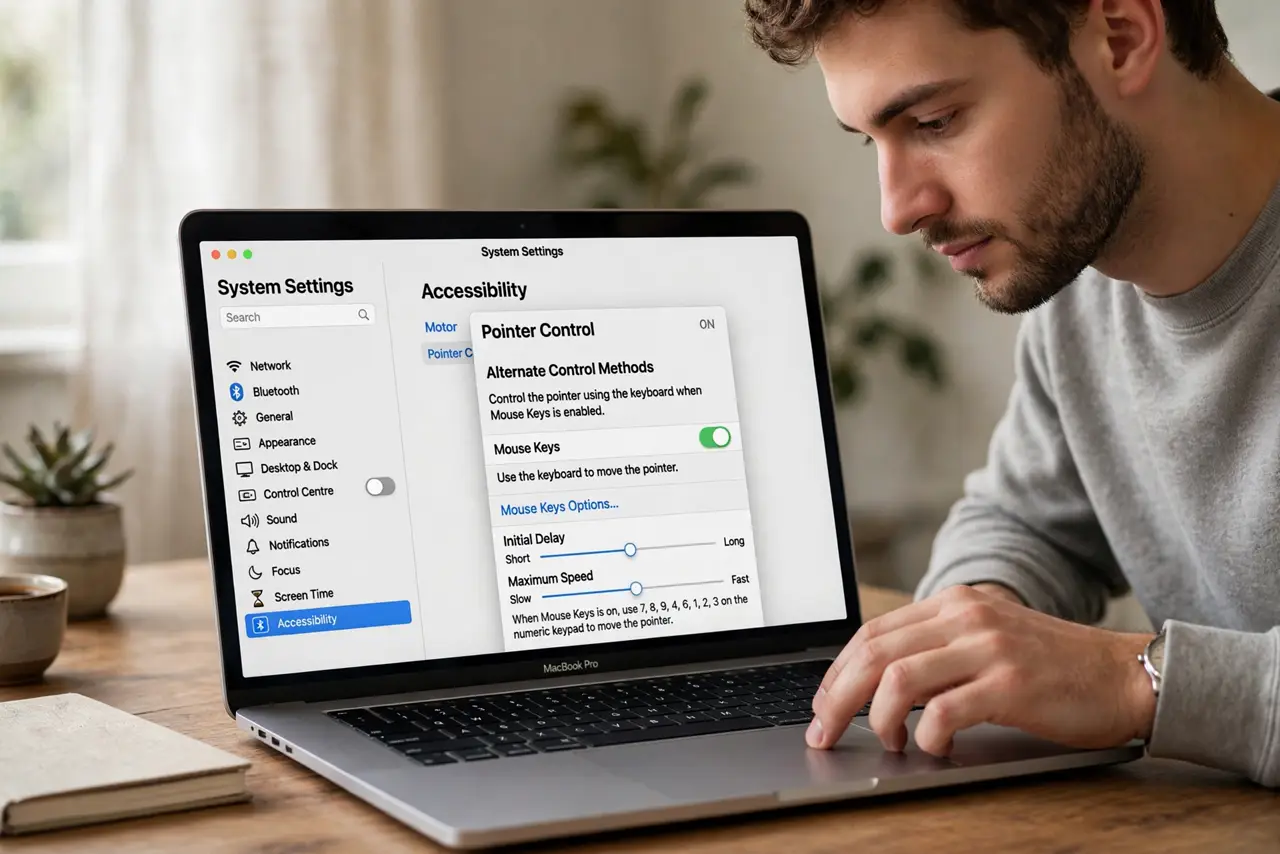
Quick fix: open System Settings > Accessibility > Pointer Control > Alternate Control Methods and turn on Mouse Keys. On a full keyboard the number pad moves the pointer; on a laptop, use the designated letter keys. Press the Option key five times to toggle it quickly.
Follow these steps
- Open the Mouse Keys switch. System Settings > Accessibility > Pointer Control > Alternate Control Methods > Mouse Keys. Turn it on.
- Learn the movement keys. Number pad: 8 up, 2 down, 4 left, 6 right, diagonals on 1, 3, 7, 9. On laptops without a pad, the mapped letter keys do the same job.
- Learn the click keys. Number pad 5 clicks; 0 holds the button down for dragging, and the decimal key releases. Practice click-drag on a window edge.
- Set the five-press shortcut. Enable pressing Option five times to toggle Mouse Keys. It is the fastest way to switch it on when the trackpad dies unexpectedly.
- Adjust the speed and delay. The initial delay and maximum speed sliders tune how the pointer accelerates. Start slow — a twitchy pointer is worse than a slow one.
- Turn it off when the mouse returns. Leaving it on hijacks number-pad typing. Toggle it off with the same five-press shortcut when the real pointer is back.
What NOT to do
- Do not turn it on out of curiosity and walk away. The next person finds their number pad moving the pointer and assumes the Mac is haunted.
- Do not use it as a permanent mouse replacement. It is a bridge for emergencies and accessibility needs — a real pointer is faster for daily work.
- Do not forget the toggle shortcut. Without the five-press Option shortcut, turning it off requires navigating with the very keys you want to stop.
- Do not enable it on a keyboard without checking the layout. Laptop key maps differ — confirm which keys move the pointer before you need them.
Frequently asked questions
Why is my number pad moving the cursor?
Mouse Keys is on — press Option five times to toggle it off, or switch it off in Accessibility > Pointer Control.
Can I click and drag with Mouse Keys?
Yes — 0 presses and holds the mouse button, move with the direction keys, then press the decimal key to release.
Does it work with an external keyboard?
Yes, and full-size keyboards with a real number pad are the most comfortable way to use it.