Mac Notes Disappear After Sync? Get Them Back
A note you need is gone after a sync, and it feels like it vanished for good. In most cases it moved to another account, another folder, or Recently Deleted. Check those places before assuming it is lost.

TL;DR / Quick Fix
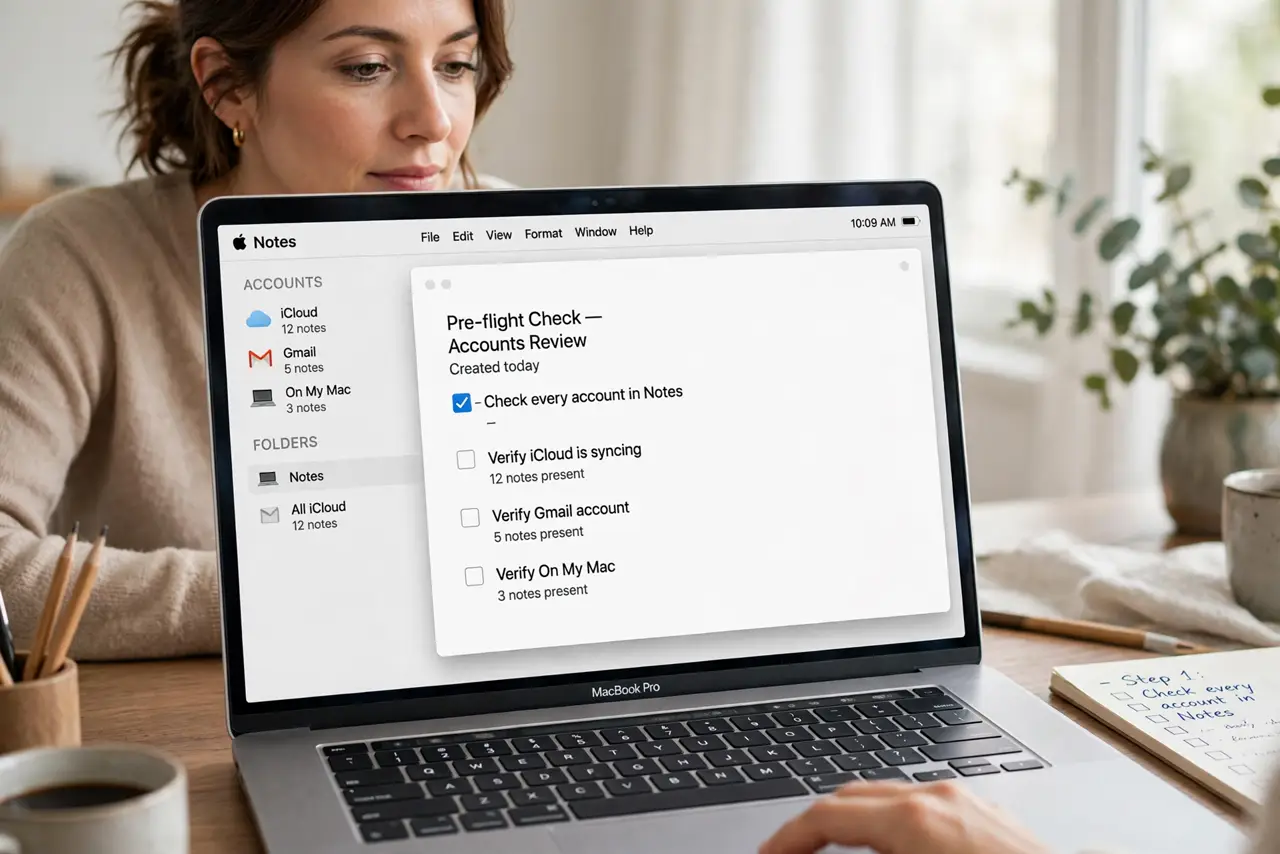
Quick fix: open Notes, check every account in the sidebar, then open Recently Deleted and recover the note if it is there. Confirm the correct iCloud account is signed in and syncing. Then test the fix for a full day before changing anything else.
Follow these steps
- Check every account in Notes. Open Notes and look at the sidebar for iCloud, On My Mac, and any other account. A note may simply live under a different account than you expected.
- Open Recently Deleted. In Notes, open Recently Deleted and look for the missing note. If it is there, select it and move it back to the right folder.
- Confirm the iCloud account. Open System Settings, then your Apple Account, then iCloud, and confirm Notes sync is on for the account that holds your notes.
- Search for a word from the note. Use the Notes search box with a distinctive word from the note. Search covers all accounts, so it can find a note hiding in an unexpected folder.
- Check Notes on another device. Open Notes on your iPhone or in iCloud on the web and search there. If the note exists there, the Mac just needs to sync.
- Wait for sync, then restart Notes. Quit Notes, wait a minute, and reopen it while connected to the internet. Give iCloud time to finish syncing before you judge the result.
What NOT to do
- Do not delete other notes to clean up. Deleting notes in a panic can remove the very note you are trying to find.
- Do not turn off iCloud Notes sync without a backup. Turning it off can hide synced notes from the Mac.
- Do not create a duplicate note with the same title right away. Two similar notes make it harder to tell which one is current.
- Do not empty Recently Deleted before checking it. That folder is often where a missing note is waiting to be recovered.
Frequently asked questions
Are deleted notes gone forever?
Not at once. Notes stay in Recently Deleted for a time, so check there first and recover the note before that window closes.
Why did a note move accounts?
A note saves to the account selected when you created it. If the default account changed, new notes land in a different place.
What if the note is on my iPhone only?
Keep iCloud Notes on for the same account on both devices, then wait for sync to bring the note to the Mac.